Effect page
Learn how to use the Effect page in Vertikal, which lets you configure various effects enhancing the sound of the instrument.
The Effect page lets you configure various effects that enhance the main piano sound.
Click FX at the top right of the instrument to open the Effect page.
The Effect page is split into two sections:
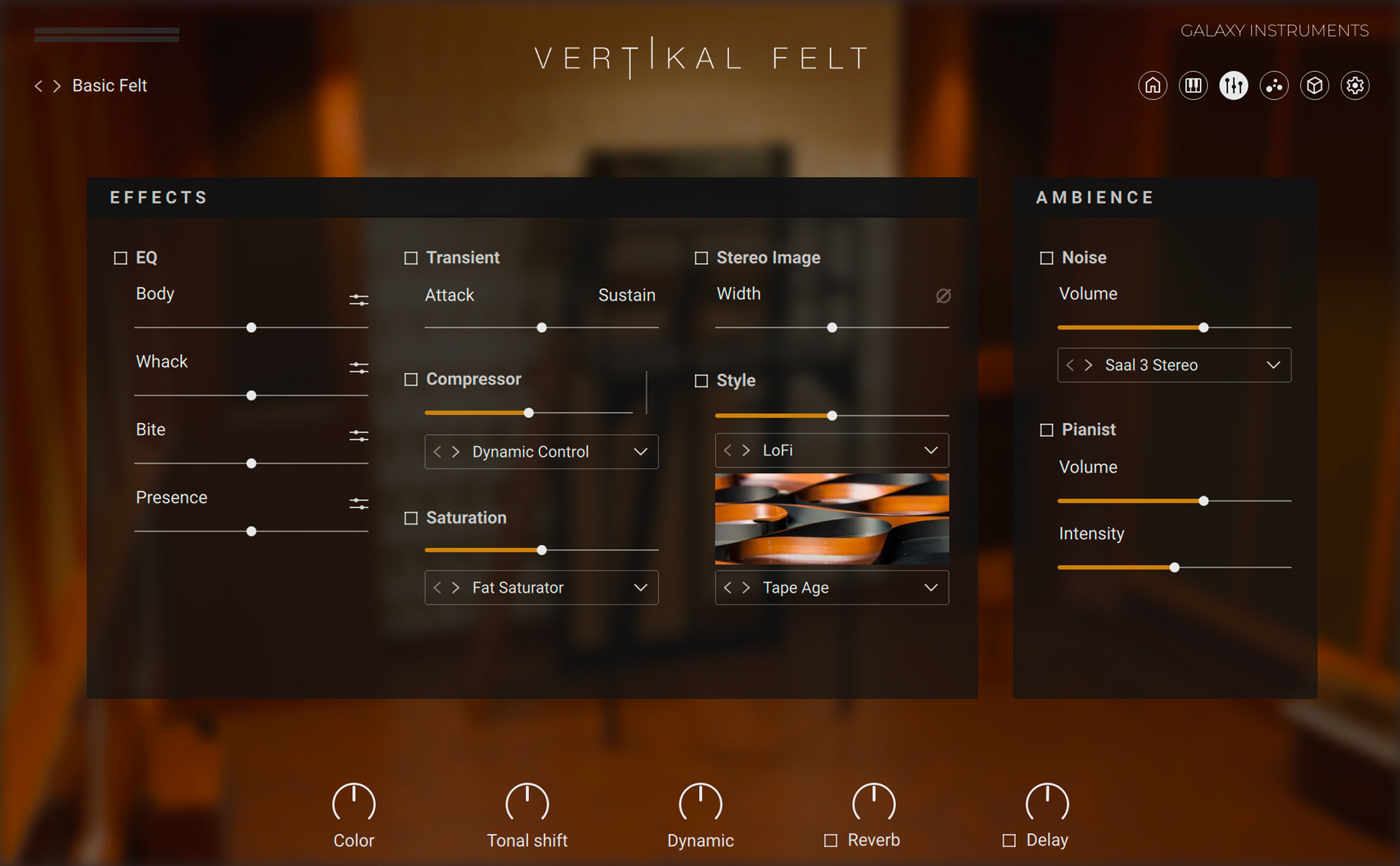
Effects section: Adjust a collection of creative effects applied to the instrument. You can find more information in Effects section.
Ambience section: Adds external sounds from the room and from the player. You can find more information in Ambience section.
Note
The effects in this page affect only the main piano sound. Other effects dedicated to the particles are available in the Effects section of the Particles page. You can find more information in Effects section for more information.
Effects section
The Effects section of the Effect page contains an equalizer, transient shaper, compressor, as well as saturation, stereo imaging and a special Style effect.
EQ
Lets you shape and balance the tone using a four-band equalizer.
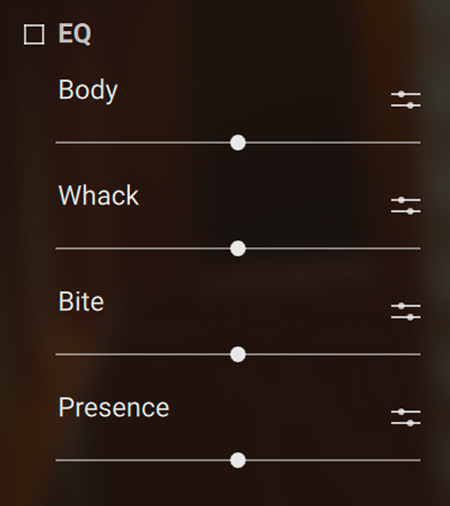 |
EQ On/Off switch: Turns the equalizer on or off.
Gain sliders: Adjust the levels of the four frequency bands. From top to bottom, the sliders control lower to higher frequency bands. The frequency bands are labeled in musical terms. You can customize the frequency band of each gain slider to your needs by clicking the Settings icon next to it.
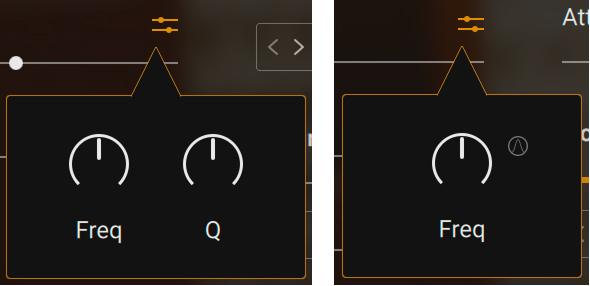
Settings icons: Each icon opens a panel in which two parameters let you adjust the frequency response for that equalization band. For all four sliders, the Freq knob controls the center frequency of the band. As you adjust the frequency, the musical term under the Gain slider changes accordingly. For the middle two Gain sliders, a Q knob controls the sharpness of the bandwidth: The higher Q is, the narrower the band is. For the outer two Gain sliders, a Bell button lets you switch the frequency band’s response between shelf (button off) and bell (button on).
Transient
Lets you shape the transients at the beginning of each note.
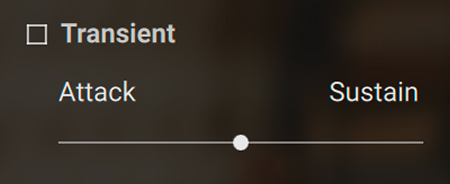 |
Transient On/Off switch: Turns the transient control on or off.
Transient slider: Accentuates the attack when pushed to the left, or lengthens the sustain when pushed to the right.
Compressor
Lets you apply compression to the sound.
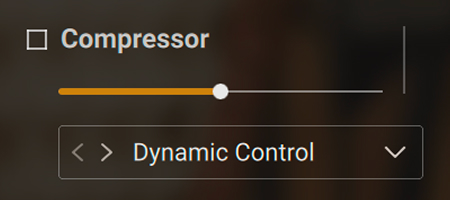 |
Compressor On/Off switch: Turns the compressor on or off.
Compressor slider: Adjusts the amount of compression.
Compressor Type selector: Selects from various compression type with different ratio, attack and release settings. You can also click the little arrows on the left to switch to the next or previous entry from the menu.
Saturation
Lets you apply saturation to the sound.
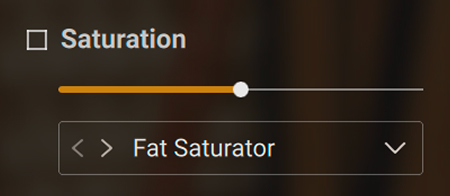 |
Saturation On/Off switch: Turns the saturation on or off.
Saturation slider: Adjusts the amount of saturation.
Saturation Type selector: Selects from various saturation types. You can also click the little arrows on the left to switch to the next or previous entry from the menu.
Stereo Image
Lets you control and enhance the stereo width of the sound.
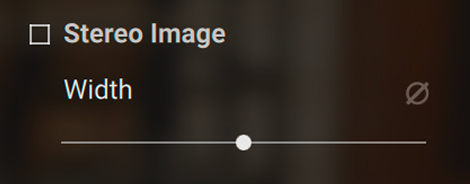 |
Stereo Image On/Off switch: Turns the stereo imager on or off.
Width slider: Widens or narrows the stereo field. The middle position corresponds to the stereo width of the original recording. Moving the slider to the left makes the sound narrower up to mono at full left, while moving it to the right artificially enhances the stereo width.
Width Invert switch: The samples of the grand piano are panned with the low notes on the left and the high notes on the right, which corresponds to the listening position of the player. Using the Width Invert button swaps the left and right channels, changing the listening position to that of the audience.
Style
Lets you select from various preset effects that change the character of the sound, and adjust the intensity of the effect.
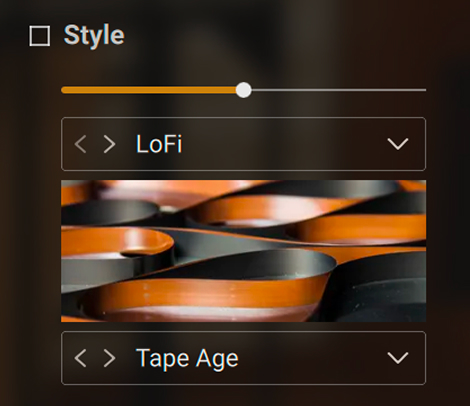 |
Style On/Off switch: Turns the effect chain on or off.
Amount slider: Ajusts the amount of the selected effect chain applied to the sound.
Style Category selector: Selects from various multi-effect categories. You can also click the little arrows on the left to switch to the next or previous entry from the menu.
Style Preset selector: Selects from various multi-effect presets in the chosen category. You can also click the little arrows on the left to switch to the next or previous entry from the menu.
Ambience section
The Ambience section of the Effect page contains the following controls:
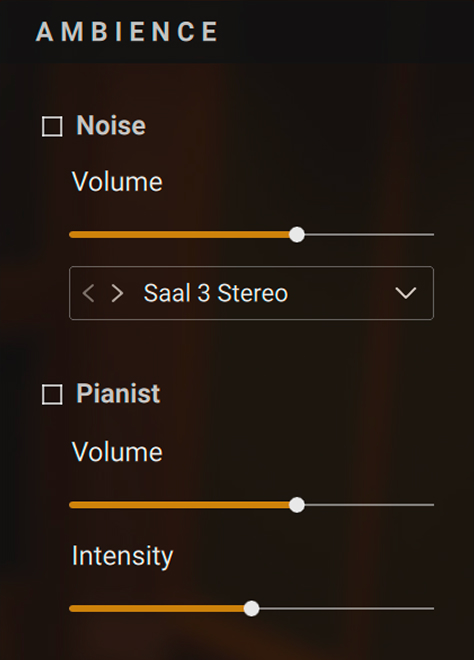 |
Noise controls: Adjust the continuous ambient noise.
Noise On/Off switch: Turns the ambient noise on or off.
Noise Volume slider: Adjusts the volume level of ambient noise.
Noise Source selector: Selects from different ambient noise sources.
Pianist controls: Adjust the noises created by the pianist such as squeaks, breaths, etc. Pianist noises are only triggered if the piano is actually being played.
Pianist On/Off switch: Turns the pianist noises on or off.
Pianist Volume slider: Adjusts the volume level of pianist noises.
Pianist Intensity slider: Adjusts the rate of pianist noises.