Piano page
Learn how to use the Piano page in Vertikal, which lets you shape the instrument’s tonal character and sonic details.
The Piano page lets you shape the instrument’s tonal character and sonic details.
Click Piano at the top right of the instrument to open the Piano page.
The Piano page is split into three sections:
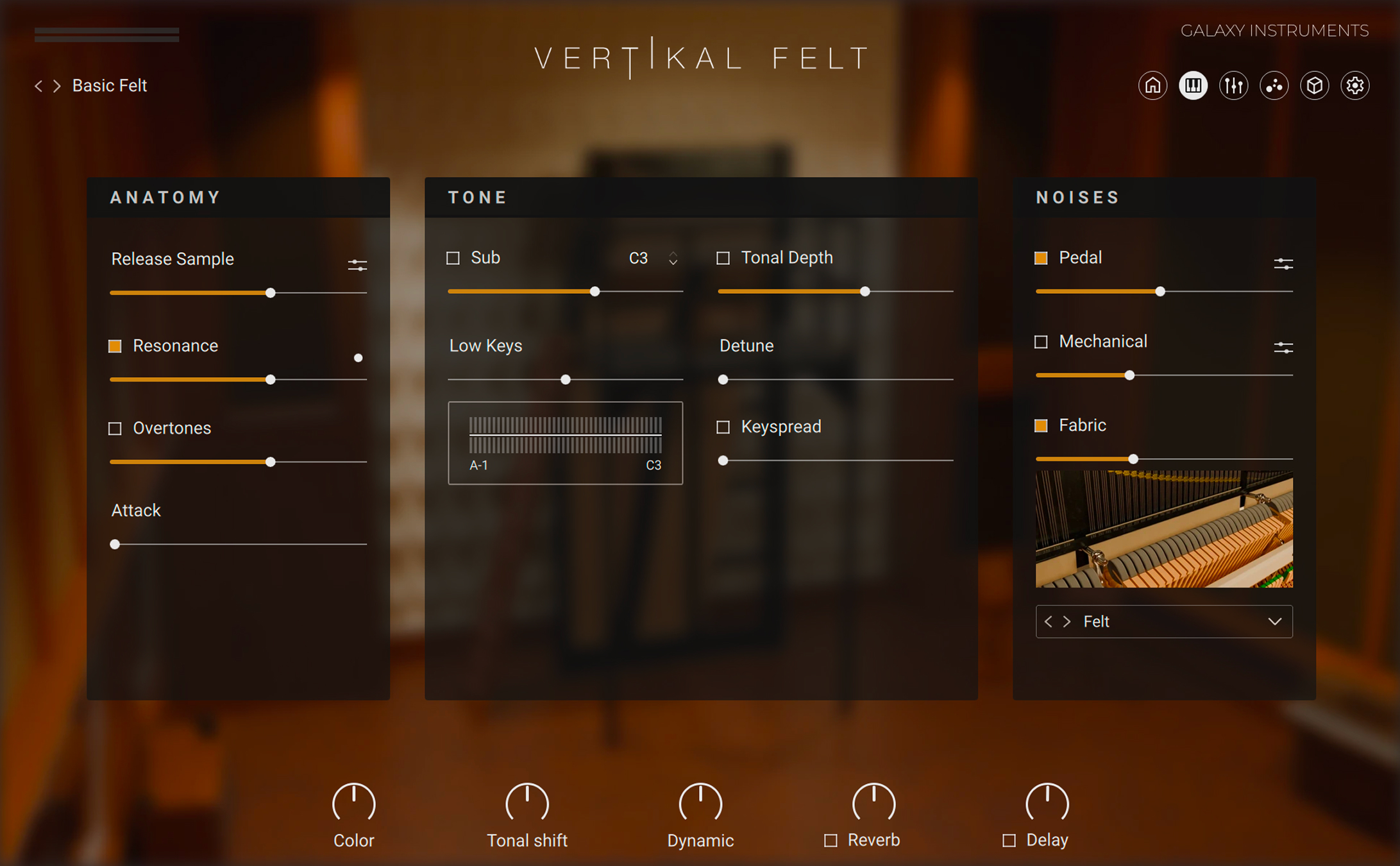
Anatomy section: Adjusts parameters affecting the shape of the sound. You can find more information in Anatomy section.
Tone section: Adjusts different components of the keyboard sound. You can find more information in Tone section.
Noises section: Adds various noises to the sound. You can find more information in Noises section.
Anatomy section
The Anatomy section of the Piano page contains the following controls:
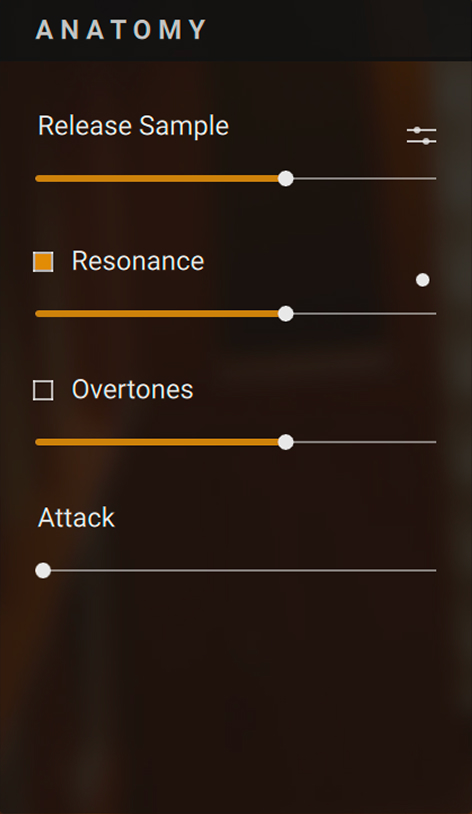 |
Release: Adjusts the release phase of the sound. The settings panel has the following options:
If Samples is on, the Release slider adjusts the level of additional, dedicated release samples.
Short Releases shortens the release samples, compensating for the long decay of the instrument's extended strings.
If Time is on, the Release slider adjusts instead the release time of the sound.
The values for both the release samples’ level and the release time are stored and recalled, so that the Release slider might jump to a different position when switching between Samples and Time.
Resonance controls: Adds resonance samples when pressing the sustain pedal. Pressing the sustain pedal on the piano raises all the dampers at once, enabling all strings to resonate sympathetically. This adds a fuller and deeper sound to the note.
Resonance On/Off switch: Activates or deactivates the resonance samples.
Resonance slider: Adjusts the volume of the resonance samples.
Pedal indicator: The resonance samples are triggered only when using the sustain pedal, which is indicated by this LED.
Overtones controls: Adds overtone samples, creating liveliness in the sound. Overtones are the sympathetic string resonances, which can only be heard when playing more than one key at the same time.
Overtones On/Off switch: Activates or deactivates the overtone samples.
Overtones slider: Adjusts the volume of the overtone samples.
Attack: Adjusts the attack time of the sound.
Tone section
The Tone section of the Piano page contains the following controls:
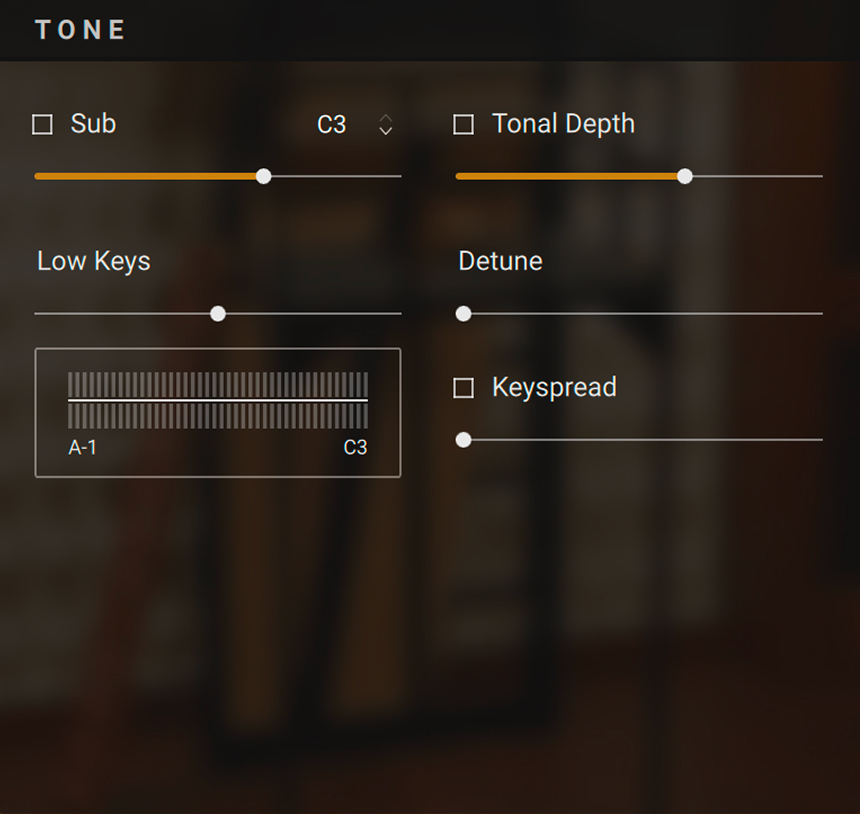 |
Sub controls: The so-called “sub” samples are additional samples that have been recorded in order to enhance the lower frequencies of the grand piano.
Sub On/Off switch: Activates or deactivates the sub samples.
Sub slider: Adjusts the volume of the sub samples.
Sub Key selector: Sets the split key below which the sub samples are being triggered.
Tonal Depth controls: Adjust an additional resonance for achieving a deeper sound character.
Tonal Depth On/Off switch: Turns the additional resonance on or off.
Tonal Depth slider: Adjusts the volume of the additional resonance.
Low Keys: Adjusts the volume of the keys below middle C. Moving the slider to the left decreases the volume of the lower keys, moving the slider to the right increases it. The lower the key, the stronger the effect. The little display below illustrates the current setting.
Detune: Slightly detunes each key differently. At full left, the keyboard is perfectly tuned. The further you drag the slider to the right, the more the keys will go out of tune.
Key Spread: Shifts the sounds to the right or left in the panorama depending on the key, thereby expanding the panorama.
Noises section
The Noises section of the Piano page contains the following controls:
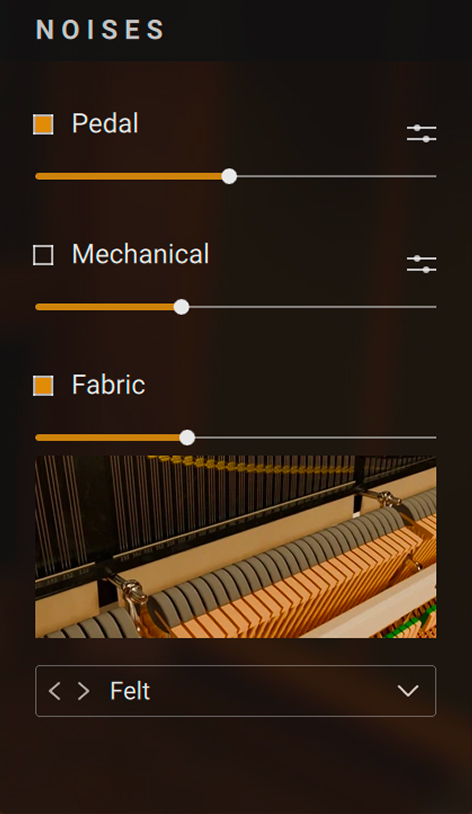 |
Pedal controls: Adjust the sustain pedal noises.
Pedal Noises On/Off switch: Turns the noises created by the sustain pedal on or off.
Pedal Noises slider: Adjusts the volume of all sustain pedal noises.
Pedal Noises settings: Displays the details of the pedal noises. Here you can set individual levels for Rumble, Damper and Strings.
Mechanical controls: Adjust the mechanical noises.
Mechanical Noises On/Off switch: Turns on or off the noises created when hitting or releasing a key.
Mechanical Noises slider: Adjusts the volume of all mechanical noises.
Mechanical Noise settings: Displays the details of the mechanical noises. Here you can adjust the balance between the Note On noises (hitting the key) and Note Off noises (releasing the key), and adjust the cutoff frequency of a Low Cut filter applied to these noises.
Fabric controls: Control an additional layer of sounds from different kinds of fabrics placed between the hammers and the strings.
Fabric On/Off switch: Turns the additional fabric sounds on or off.
Fabric slider: Adjusts the volume of the fabric sounds.
Fabric menu: Selects from various sounds using different materials.