Settings page
Learn how to use the Settings page in Vertikal, which provides global settings relating to the behavior and response of the instrument.
The Settings page provides global settings regarding the sound and the control of your instrument.
Click Settings at the top right of the instrument to open the Settings page.
The Settings page is split into three sections:
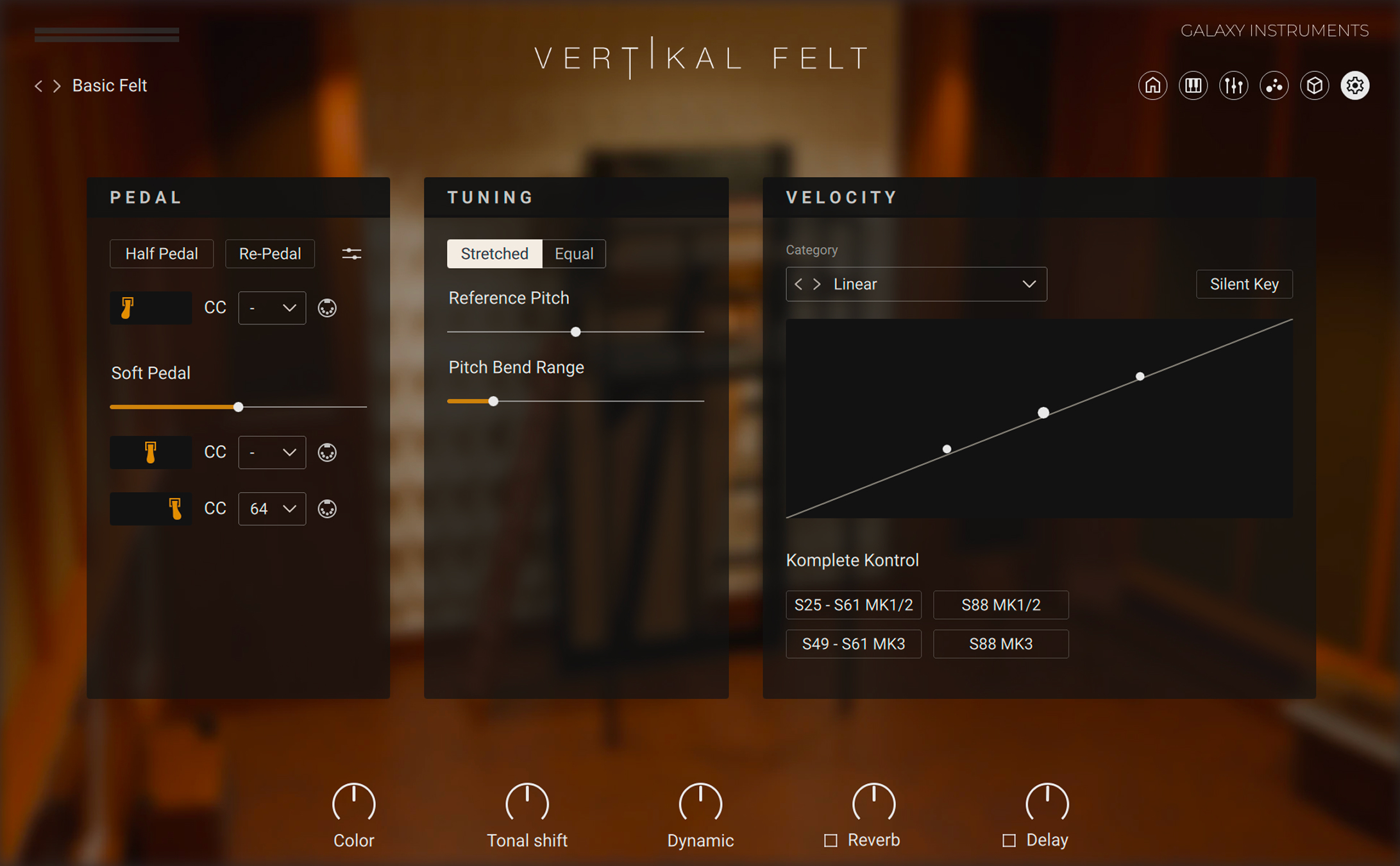
Pedal section: Adjusts the pedal settings. You can find more information in Pedal section.
Tuning section: Adjusts the tuning of the instrument. You can find more information in Tuning section.
Velocity section: Adjusts the velocity response of the instrument. You can find more information in Velocity section.
Pedal section
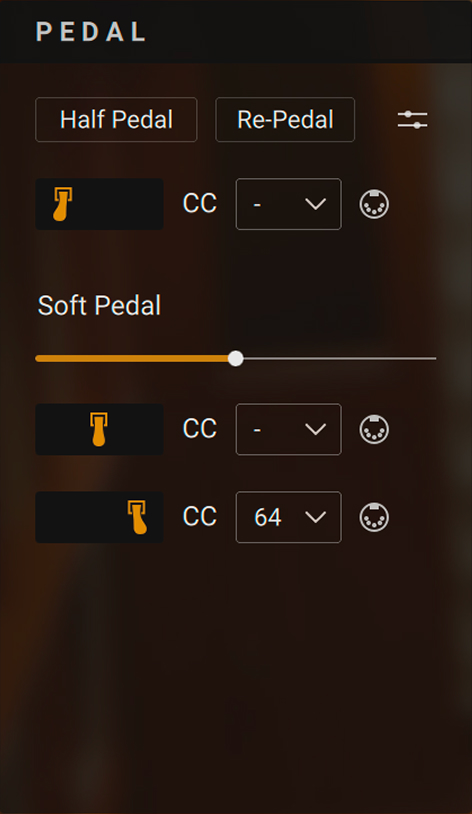 |
Half Pedal: Enables the use of a continuous sustain pedal for half-pedaling, which affects the release time and the amount of resonance. For half-pedaling you need a special continuous sustain pedal. If the Half Pedal button is off, a continuous sustain pedal is transformed into an on/off switch.
Re-Pedal: Enables re-pedaling. When on, the sustain pedal is depressed during note release and the remaining sound sustains.
Pedal settings: Opens the settings for the sustain pedal ranges. Pedal Limit sets the threshold for the sustain pedal to take effect. Half Pedal Range adjusts the range for half-pedaling, which simulates the dampers slightly touching the strings. The visualization shows the ranges as well as the current sustain pedal value.
Soft Pedal settings (left pedal icon): Adjust the behavior of the soft pedal. The soft pedal softens both the loudness and the timbre of the piano.
Soft Pedal CC: Shows the MIDI CC number assigned to the soft pedal. You can choose another MIDI CC number by clicking the display and selecting the desired number from the drop-down menu. Alternatively you can click the MIDI Learn button (MIDI socket icon) next to the CC field and move the desired control element on your MIDI controller to quickly assign it to the soft pedal.
Soft Pedal Strength: Adjusts how much the sound should be softened when pressing the pedal. By default the slider is in the middle (100 %). From that middle position, dragging the slider left will attenuate the original soft pedal effect, while dragging it right will amplify it.
Sostenuto Pedal settings (middle pedal icon): Adjust the behavior of the sostenuto pedal. Sostenuto Pedal CC: Shows the MIDI CC number assigned to the sostenuto pedal. You can choose another MIDI CC number by clicking the display and selecting the desired number from the drop-down menu. Alternatively you can click the MIDI Learn button (MIDI socket icon) next to the CC field and move the desired control element on your MIDI controller to quickly assign it to the sostenuto pedal.
Sustain Pedal settings (right pedal icon): Adjust the behavior of the sustain pedal. Sustain Pedal CC: Shows the MIDI CC number assigned to the sustain pedal. You can choose another MIDI CC number by clicking the display and selecting the desired number from the drop-down menu. Alternatively you can click the MIDI Learn button (MIDI socket icon) next to the CC field and move the desired control element on your MIDI controller to quickly assign it to the sustain pedal.
Tuning section
The Tuning section contains settings affecting the pitch and tune of the instrument. It contains the following controls:
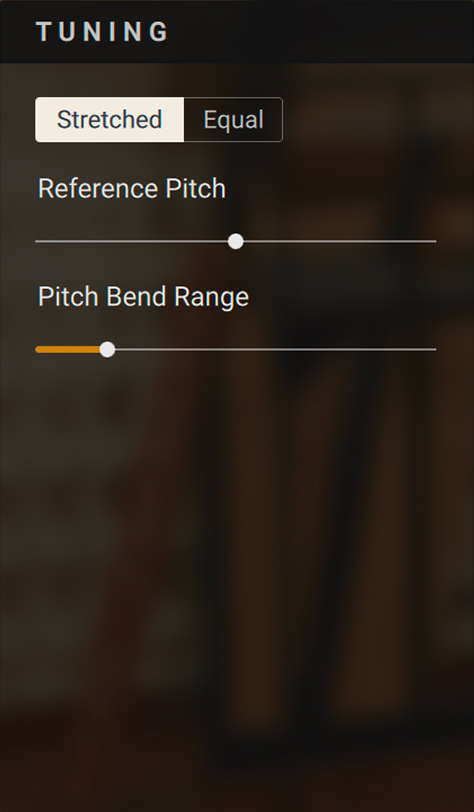 |
Stretched/Equal selector: Switches the tuning system (or temperament) of the instrument between Stretched and Equal. The default setting is Stretched, which is the way the piano was tuned for sampling. Stretched tuning accommodates the natural “inharmonicity” of metal strings, which stretch harmonics beyond the strings’ ideal frequencies. Therefore, to make the instrument sound more harmonically pleasing (or “musical“), higher notes are stretched upwards. You can otherwise switch to Equal temperament, which is the most common tuning system used in Western music.
Reference Pitch: Adjusts the instrument’s basic pitch, from 436 Hz to 444 Hz.
Pitch Bend Range: Selects the pitch range available on the Pitchbend wheel, in semitones.
Velocity section
The Velocity section lets you adapt the instrument’s velocity response to your keyboard and to your way of playing. It contains the following controls:
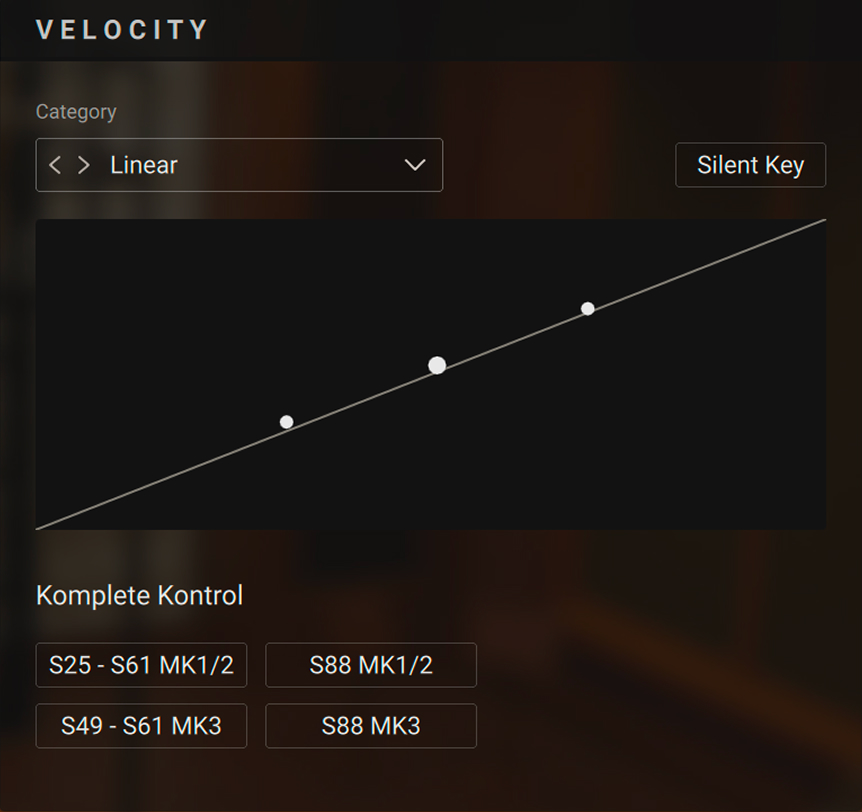 |
Velocity Curve menu: Selects from different velocity curve presets. The selected velocity curve is shown in the display below.
Silent Key: Turns the Silent Key function on or off. When Silent Key is on, very low velocities result in no sound, as on a grand piano. Fabric and mechanical noises will be triggered though and the overtone function is active as well as the virtual string is free to vibrate sympathetically.
Velocity Response display: Shows the current velocity response. Starting from a velocity curve preset, you can customize the response by dragging the three white dots on the display: The middle dot adjusts the position of the inflection point, and the other two dots adjust the lower and upper part of the curve.
Kontrol Keyboards Preset buttons: Click either button to quickly select the velocity curve of that particular Kontrol keyboard. These buttons are shortcuts for the corresponding entries in the Velocity Curve menu above.