Vertikal overview
Learn the main navigation and interface elements of Vertikal.
This chapter introduces the main controls and areas of Vertikal.
When you first open Vertikal, you see the Main page along with a set of global controls:
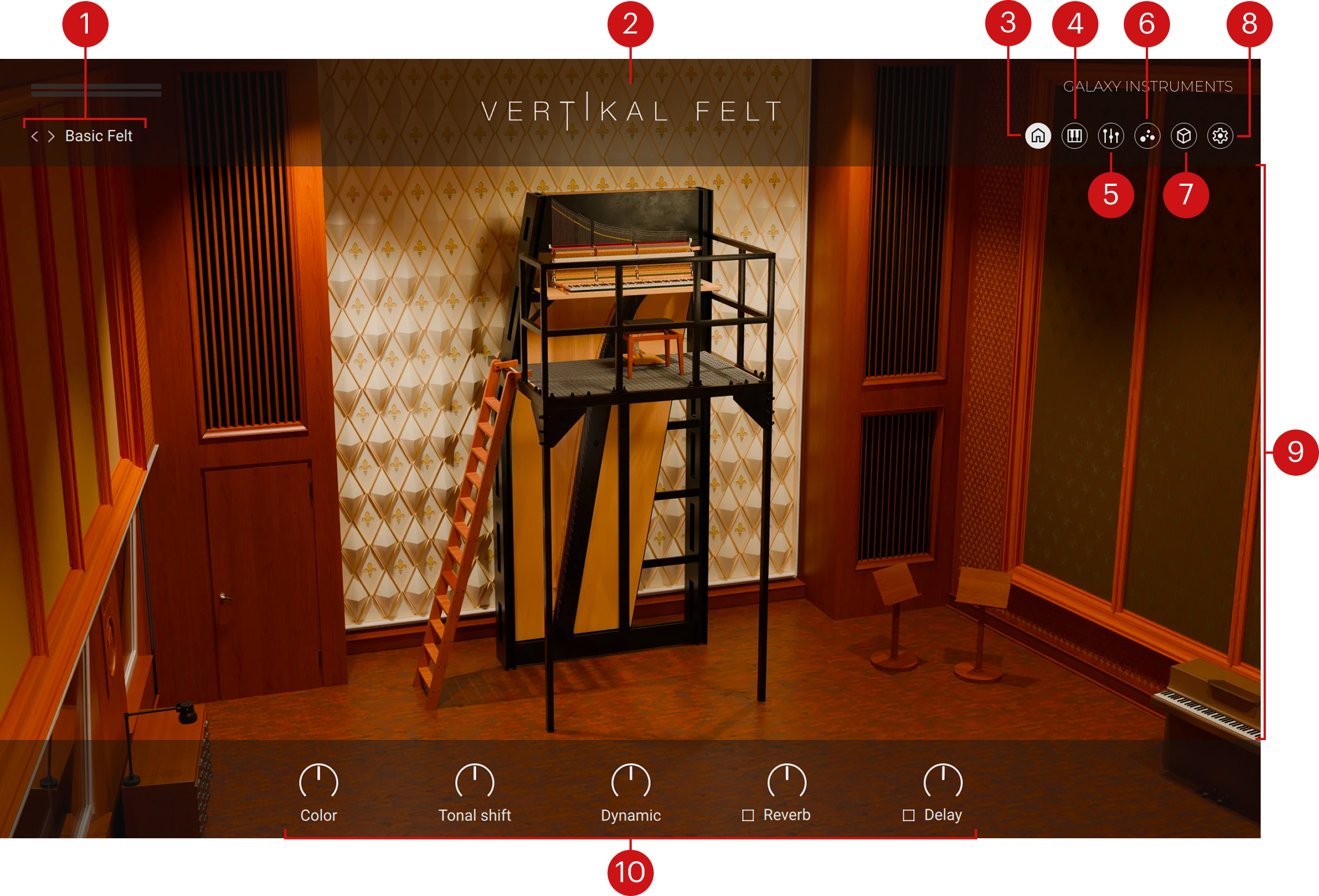
Preset selector: The name of the loaded preset is always visible. Presets contain values for all parameters of the instrument: They correspond to Kontakt Snapshots. The name of the preset currently loaded is displayed here. Click the left and right arrows to cycle through presets, or click the name of the preset to open the Preset Browser and select another preset from the Vertikal factory library.
About: Clicking the instrument name opens the About screen, which displays the credits for this instrument. You can click the About screen to close it again.
Main: Opens the Main page, showing an animated artwork of the original instrument (depicted above). This is the default page that appears when you load the instrument in Kontakt.
Piano: Opens the Piano page, which lets you adjust the sonic characteristics of your instrument. You can find more information in Piano page.
FX: Opens the Effect page, where you can configure various effects that will process the sound of your instrument, including equalization, dynamics, saturation, stereo image, creative, and ambience effects. You can find more information in Effect page.
Particles: Opens the Particles page, where you can configure the Particles engine. The Particles engine generates and processes a cloud of additional notes based on the notes that you play on the keyboard. Hovering the Particles icon shows the On/off switch that you can use to quickly turn the Particles engine on or off. You can find more information in Particles page.
Space: Opens the Space page, which lets you adjust a reverberation and a delay used as send effects. You can find more information in Space page.
Settings: Opens the Settings page, which provides global settings including tuning, response, and pedal controls. You can find more information in Settings page.
Central area: This is the biggest part of the instrument and it shows the various pages and Browsers.
Performance controls: Provide a set of controls directly available while playing the Instrument. The Performance controls are always visible. You can find more information in Performance controls for more information.
Performance controls
The Performance controls are always available at the bottom of the instrument. They include the following elements:
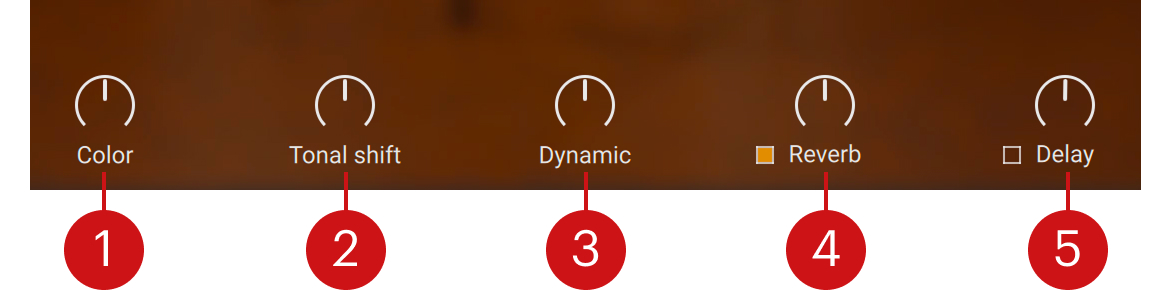
Color: Adjusts the tone from soft to hard by readjusting the sample mapping. Turning the knob right will make the instrument sound harder and crisper, with a more pronounced attack phase. Turning the Color knob to the left will achieve a warmer and softer sound, and the attack phase will be less pronounced.
Tonal Shift: Adjusts the playback speed of each sample, resulting in formant or character changes. Moving the slider to the right will make the instrument sound sharper and moving it to the left will result in a deeper, darker sound with a less defined attack.
Dynamic: Controls the dynamic range by adjusting the volume while still using all velocity samples. Turning the knob left will compress the sound, turning it right will expand the dynamic range.
Reverb: Controls the amount of signal sent to the reverb unit, and thus determines the volume of the reverb signal. The On/off switch lets you turn the reverb unit on or off. Clicking the Reverb label takes you directly to the Space page where you can edit the effect. You can find more information in Reverb.
Delay: Controls the amount of signal sent to the reverb unit, and thus determines the volume of the delay signal. The little On/off switch at the top left lets you turn the delay unit on or off. Clicking the Delay label takes you directly to the Space page where you can edit the effect. You can find more information in Delay.