Browse view and presets
The Browse view in Massive XL helps you explore presets with intuitive filtering and tagging options.
Browse view lets you access the Massive XL factory library, Expansions, and user presets. You can filter sounds by tags, text search, and Favorites, helping you to quickly and intuitively find the right sound.
Click Browse in the Header to open the Browse view.

Browse view consists of the following areas and elements:
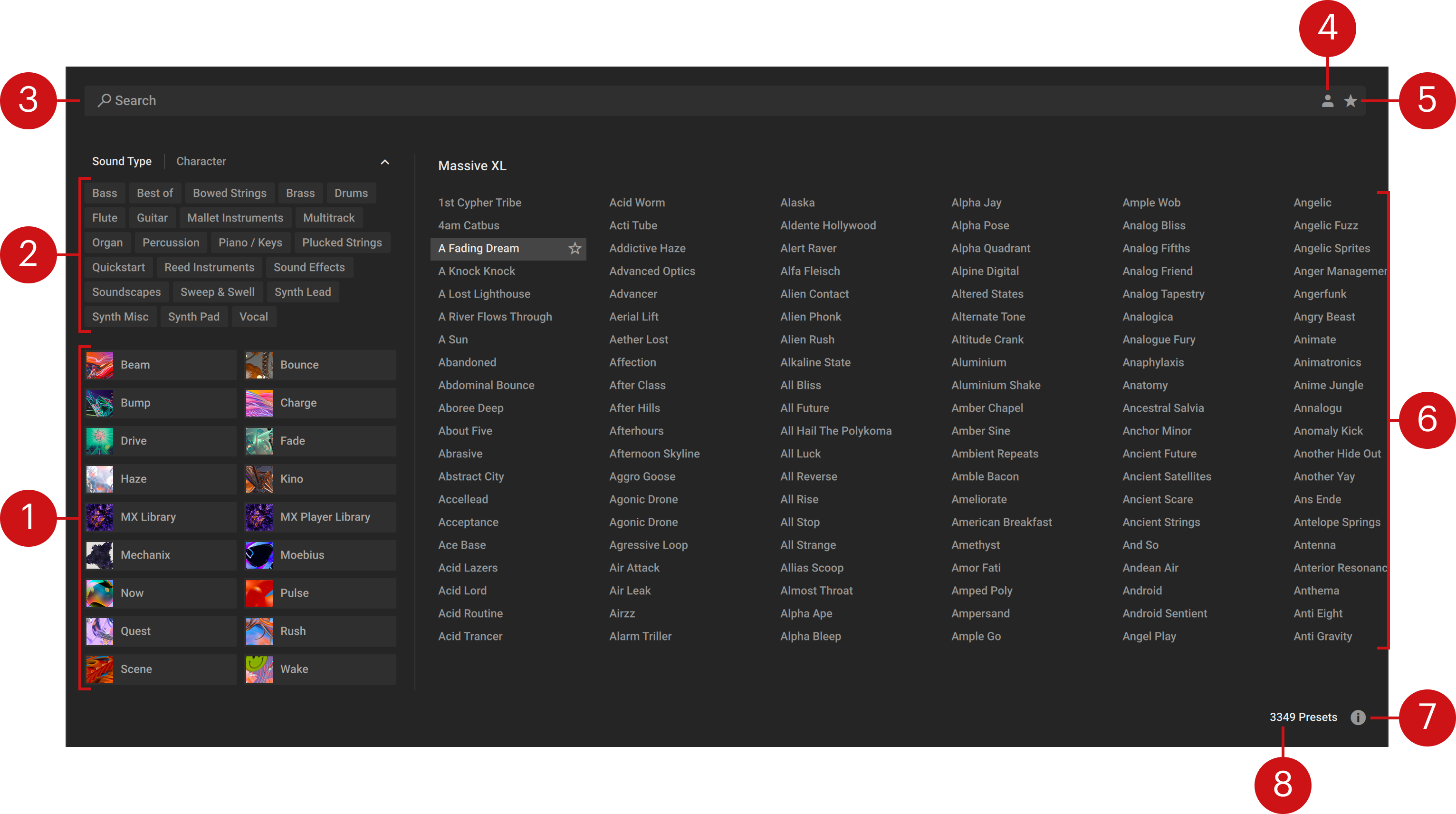
Product filter: Contains all of your factory libraries and Expansions. Selecting a library or Expansion filters the Results list to only show its included presets. Browsing with filters and the search adjusts the Product filter accordingly.
Tag filter: Contains Sound Type and Character filters that use NKS tagging to enhance the browsing experience. You can find more information in Using tag filters.
Search field: Filters presets in the Results list according to the entered text. The search engine considers preset names, author, Sound Type and Character filters, and other metadata. Additionally, the Search field shows your filter selection, and lets you remove filter tags. You can find more information in Using the search field.
User: Filters the Results list to only show user content, making it easy for you to find the user presets you saved. You can find more information in Using presets.
Favorites: Filters presets in the Results list by Favorite tags. You can assign a Favorite tag to any preset in the Results list, creating quick access to a custom collection of your most beloved presets sounds. You can find more information in Using Favorites.
Results list: Displays the list of presets according to the Product and Tag filters, the search field, and the User and Favorites filters. Presets are listed in alphabetical order. The entry for the loaded preset is highlighted. Clicking an entry loads the preset. Double-clicking an entry loads the preset and closes Browse view. You can scroll in the Results list horizontally, or use the scroll bar that appears upon hover at the bottom of the list.
Metadata editor: Opens or closes the Metadata editor, which lets you edit information saved in your user presets including user banks. You can find more information in Metadata editor.
Preset count: Displays the number of presets shown in the Results list, giving you an indication of how much you have narrowed down the choice of presets according to your filter selection and search.
Using tag filters
The Sound Type and Character filters let you browse for presets according to musical and aesthetic attributes. They are using the Native Kontrol Standard (NKS) and are shared between Massive XL, Maschine, and Komplete Kontrol. All presets in the Massive XL library are tagged in a meaningful way to help you find sounds quickly. The tag filters can be used in combination with the search field and product filter to further refine your search.
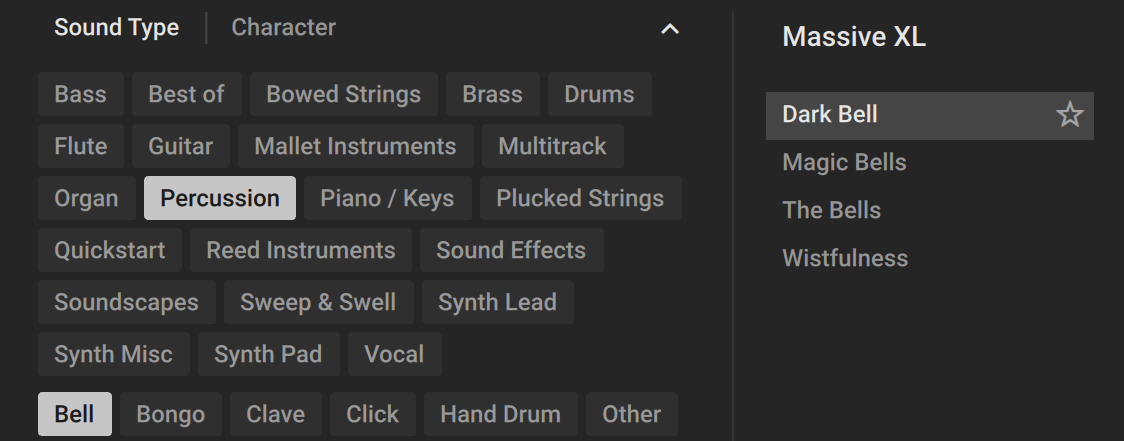
You can use the Sound Type filter to show results according to the types of instruments or sounds they are associated with. Selecting a tag will automatically amend the tag list with related sub-tags, if available. The Character filter lets you to further refine your search by selecting various attributes and characteristics that can be used to describe the sound you are looking for.
When a tag is selected it is highlighted and the Results list is updated accordingly. Clicking a tag selects it and removes all other tags from the selection. Pressing [command] (macOS) or [Ctrl] (Windows) and clicking a tag adds it to your existing selection. You can hide the Sound Type and Character filters by clicking the arrow icon in the upper right corner of the filter area.
To browse for presets using filter tags:
Click Sound Type or Character to open the respective filter and show its tags. You can move back and forth between filters without losing the selection you have made.
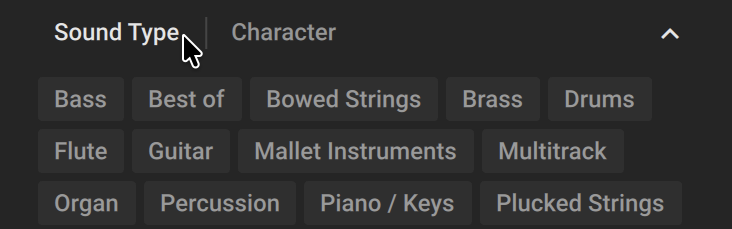
Click a tag to start filtering the presets in the Results list.
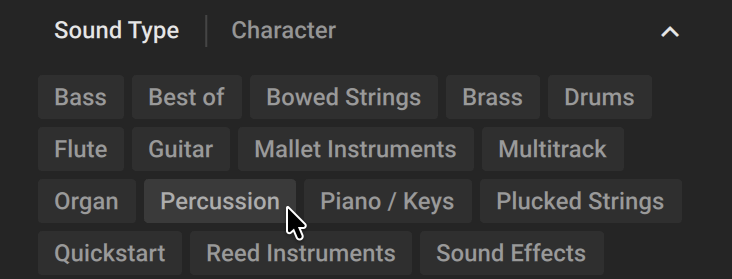
Press [command] (macOS) or [Ctrl] (Windows) and click to select another tag from the same filter.
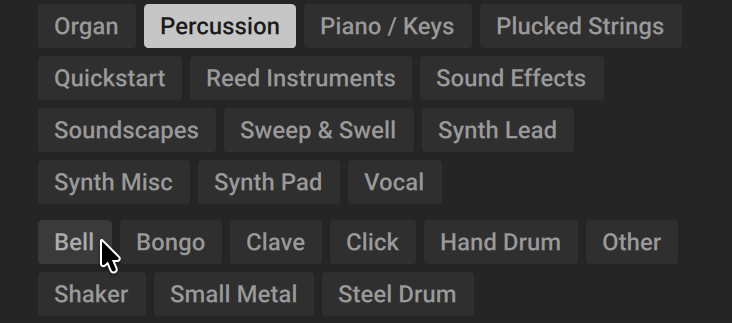
The presets in the Results list are filtered according to the selected tags.
Tip
Your selection in the Sound Type and Character filters is shown in the search field, which also lets you remove them from your search. You can find more information in Using the search field.
Using Favorites
Favorites let you tag your most beloved presets to create personal collection of your favorite sounds. Favorite tags can be assigned to both factory and user presets. Favorite preset files are shared between Massive XL, Maschine, and Komplete Kontrol.
To assign a Favorite tag, click the star icon that appears when a preset is selected or hovered over.
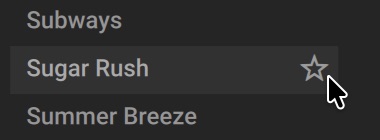
The Favorite tag is assigned. Clicking the star again removes the tag.
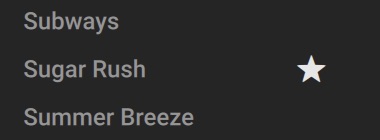
Once assigned, Favorites serve as an additional filter in the Browser. You can continue to use other filters to refine your search, including the search field.
To view your Favorites in the Results list, click the Favorites icon in the search field.
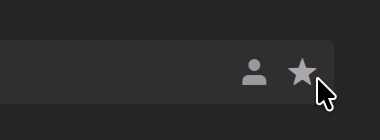
Only presets that have the Favorite tag assigned are shown in the Results list.
Using the search field
The search field at the top of Browse view lets you find presets according to the text you enter. The search considers preset, author, and bank names as well as other metadata and the filter tags.
To find presets using the search field:
Activate the search field by clicking it.
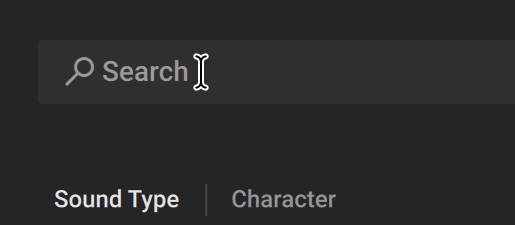
Enter your search terms.
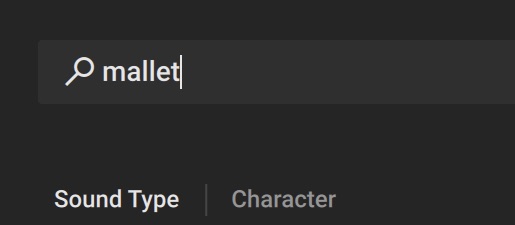
The Result list is filtered according to the terms entered in the search field.
Your search entry remains in the field even when you leave Browse view.
To clear the search, click the cross icon on the right side of the search field.
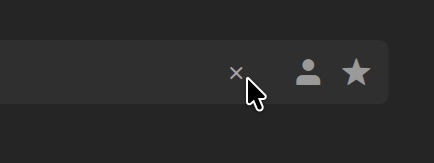
If you are browsing using the Sound Type and Character filters, your search will only display results matching both the selected filters tags and your search terms. The search field shows all selected filter tags, and lets you remove them from your search:

To remove a specific filter tag from your search, click its name in the search field.
To remove all filter tags as well as your search terms from your search, click Reset in the search field.
Using presets
Massive XL's preset library and Expansions can be accessed and managed in Browse view as well as the User Content folder on your computer. You can load, save, and import presets, manage your user presets, and edit the information saved in them using the Metadata editor.
Loading a preset
Presets can be loaded directly from the Header or in Browse view. In the Header, you can quickly step through presets using the arrow buttons in the Preset menu. In Browse view, you can view and search your whole library to find presets.
To load a preset from the Header, click the up and down arrow buttons in the Preset menu to select the previous or next preset in the Results list of the Browse view.
The previous or next preset is loaded instantly.
To load a preset in Browse view:
Saving user presets and banks
Saving user presets lets you add your own sounds to your library. They are saved as preset files in the User Content folder and added to the User presets in Browse view. You can also create user banks and use them to organize your user presets.
Note
You cannot overwrite presets in the Massive XL Factory Library. Instead, edited factory presets are saved as new user presets.
To save a user preset:
Click the Save Preset button (disk icon) in the Header.
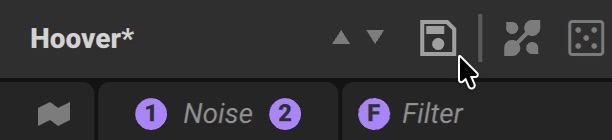
Enter a new Name for your user preset. You can also edit the Author of the preset.
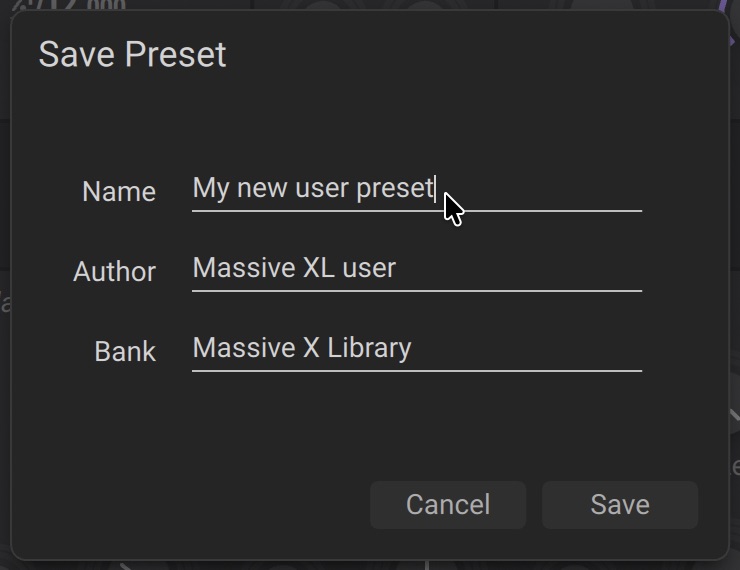
Enter the name of the Bank you want the user preset to be associated with. You can create a new user bank by entering a custom name.
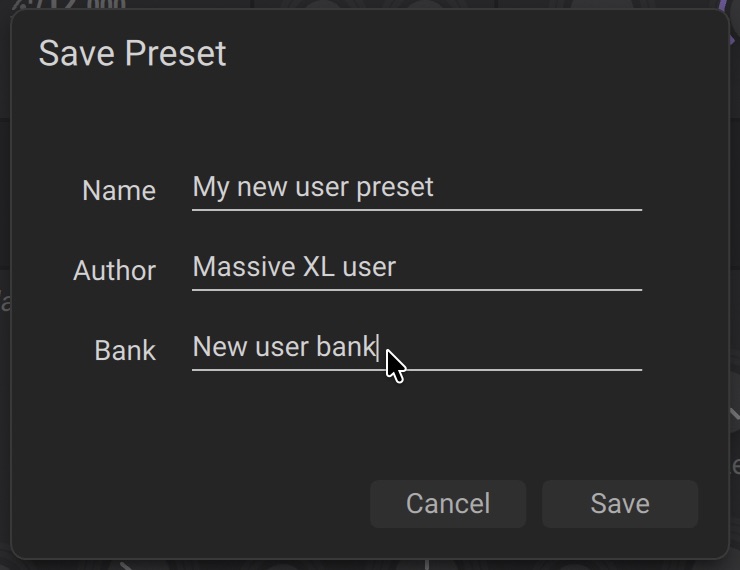
Click Save. If the preset name already exists, you can click Replace to overwrite the existing user preset or enter a new name.
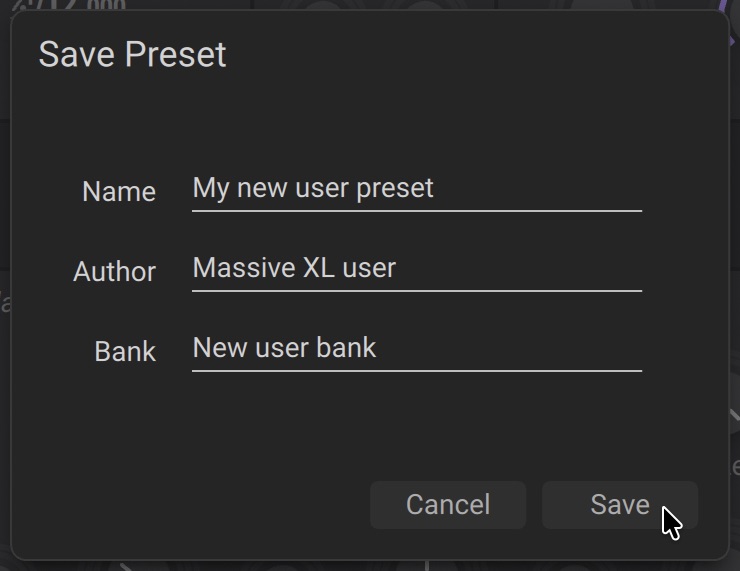
The preset file is saved in the User Content folder and added to the User presets in Browse view along with your new user bank, if you created one.

Tip
You can edit the information saved in your user presets including user banks using the Metadata editor in Browse view.
Importing user presets
User presets can be imported into your library using drag and drop, making it easy to share presets across computers. You can drop preset files anywhere onto the Massive XL plugin, except for the Wavetable oscillators and the Noise module, which are drop areas for wavetables and noisetables, respectively.
To import a preset file:
Locate the preset file on your computer.
Drag and drop the preset file onto the Massive XL plugin, but not onto the Wavetable oscillators or Noise module.
The preset file is saved in the User Content folder and added to the User presets in Browse view.
Tip
You can access your user presets in the User content folder by selecting Show User Content Folder from the Settings menu.
Managing user presets
You can manage your user presets by viewing, adding, or deleting the preset files in the User Content folder. The Settings menu gives you two options to help you manage your user presets: Show User Content Folder and Rescan Content.
To view, add, or delete your preset files in the User Content folder:
Open the Settings menu, located next to the Massive XL logo on the left side of the Header.
Select Show User Content Folder.
Use your computer's file manager to view, add, or delete your user preset files in the User preset folder.
Go back to Massive XL and select Rescan Content from the Settings menu.
Your library is updated and your changes show up in Browse view.
Metadata editor
The Metadata editor in Browse view lets you edit information saved in your user presets, including user banks and filter tags. By customizing the metadata you can adjust how your presets show up as you browse and search your library.
You can edit individual presets, or select multiple presets in the Results list and apply your changes to all of them.
To open the Metadata editor, click the i icon at the bottom-right corner of the Results list in Browse view.
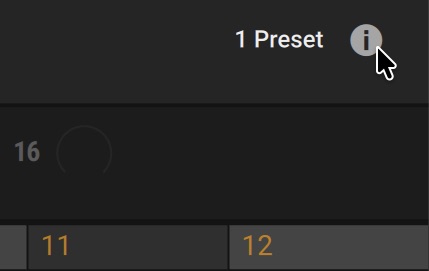
The Metadata editor is shown to the right of the Results list, displaying the information of the preset, or multiple presets, you have selected.
Properties
The first tab in the Metadata Editor lets you view and edit file information and metadata including user banks:
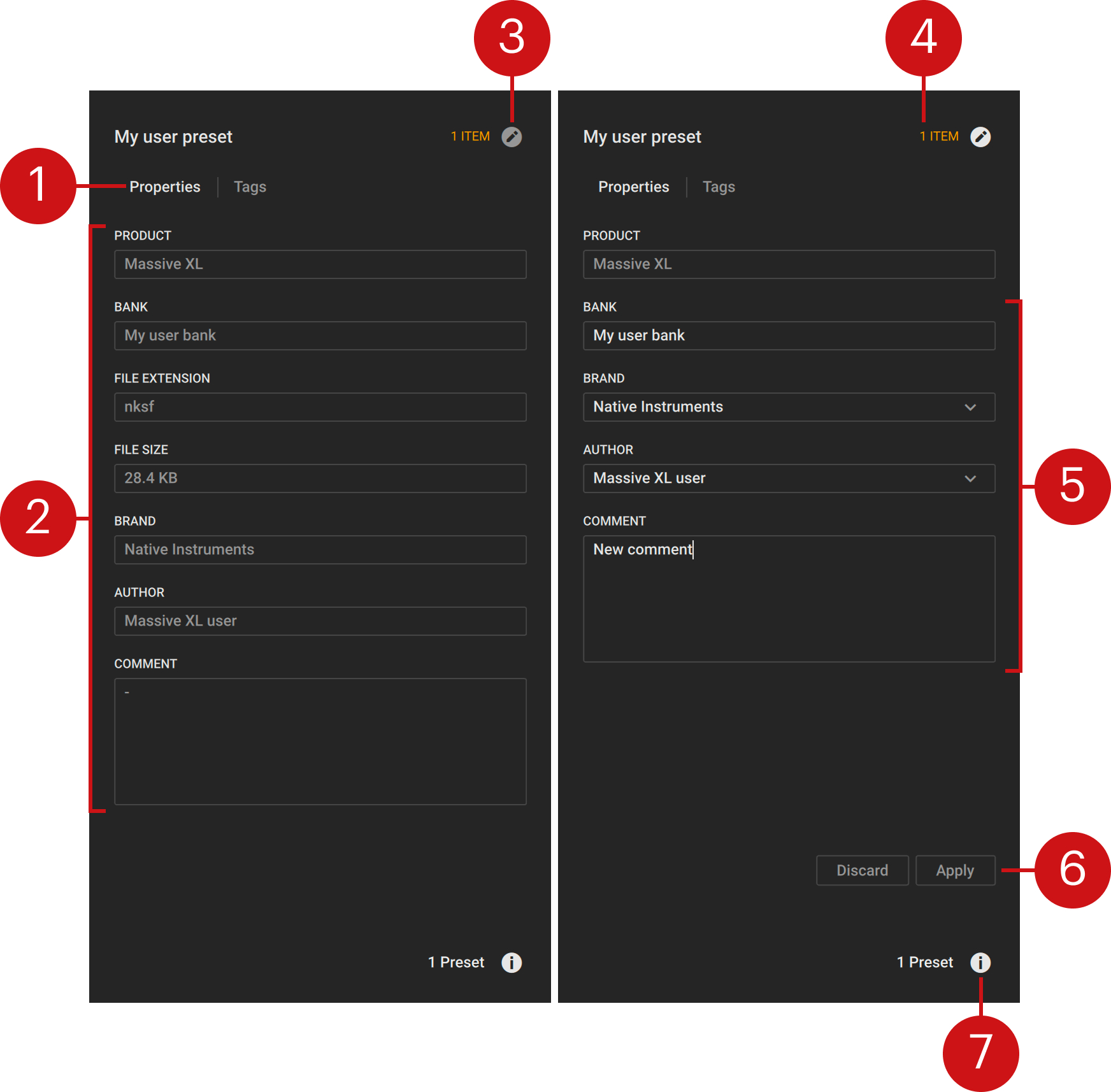 |
Properties/Tags: Switches between the two tabs of the Metadata editor, one for viewing and editing the Properties, and one for viewing and editing the Tags.
Info fields: Displays file information and metadata of the selected preset(s).
Edit mode on/off: Toggles the Edit mode of the Metadata editor on or off.
Preset count: Shows how many presets you are currently editing.
Editing fields: Lets you change the Bank, Brand, Author and Comment metadata saved in the selected preset(s).
Apply/Discard: Lets you Apply the changes you have made to the selected preset(s), or Discard them and reset all fields to their previous values.
Metadata editor: Opens or closes the Metadata editor.
Tags
The second tab in the Metadata Editor lets you view and edit filter tags:
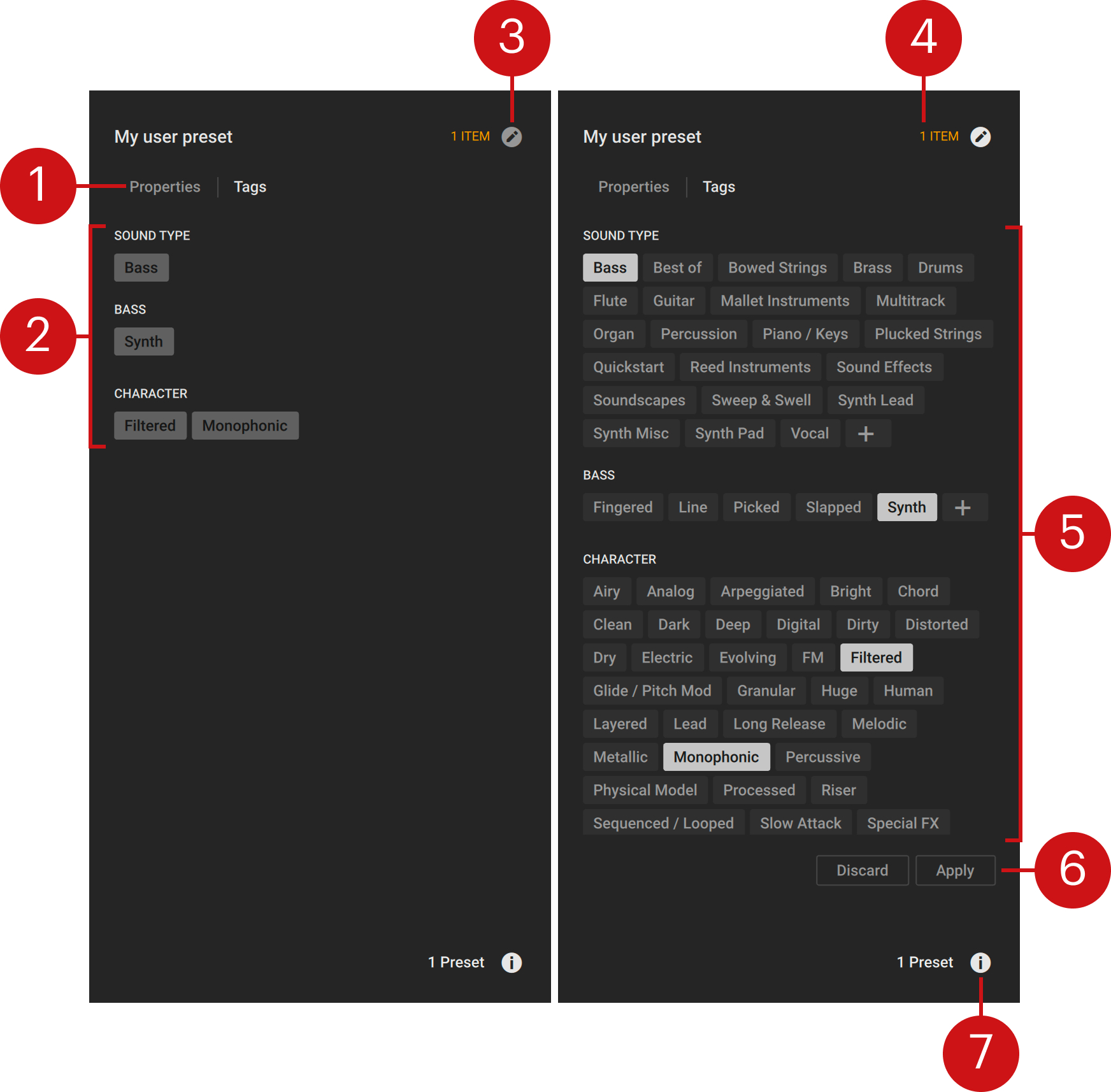 |
Properties/Tags: Switches between the two tabs of the Metadata editor, one for viewing and editing the Properties, and one for viewing and editing the Tags.
Filter tags: Shows all filter tags of the selected preset(s).
Edit mode on/off: Toggles the Edit mode of the Metadata editor on or off.
Preset count: Shows how many presets you are currently editing.
Filter tag assignment: Lets you assign the Sound Type and Character tags saved in the selected preset(s).
Apply/Discard: Lets you Apply the changes you have made to the selected preset(s), or Discard them and reset all fields to their previous values.
Metadata editor: Opens or closes the Metadata editor.
Sub-presets
Sub-presets are available for the Filter, Inserts, and Effects, making it possible to store and recall their settings individually. Each module slot has its own Sub-preset menu that comes with set of curated factory sub-presets.
The menu lets you load and save settings, enabling you to recall them at any time and from any preset or project. Clicking and dragging the header moves the menu to another position.
The Sub-preset menu consists of the following elements:
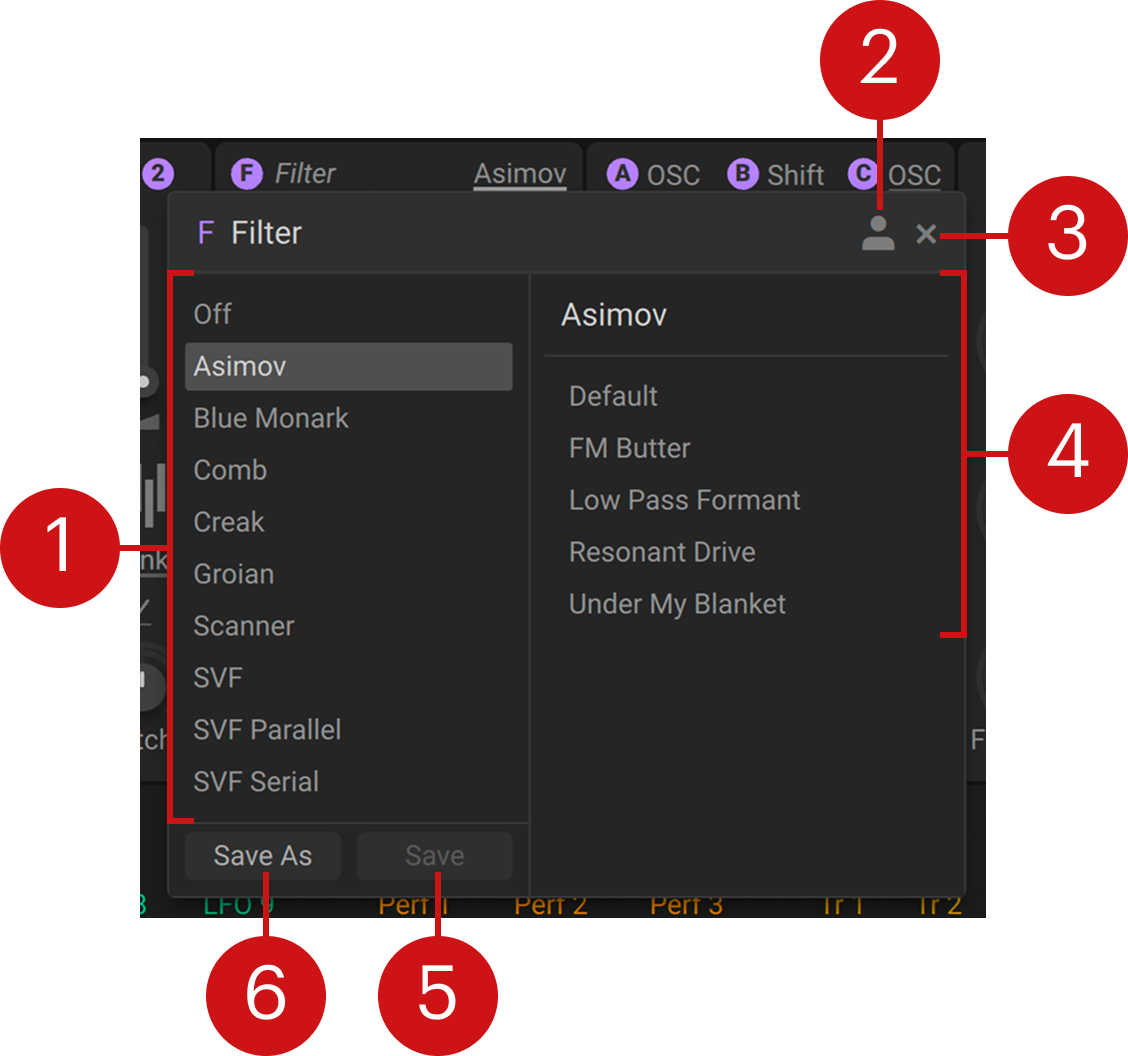 |
Type list: Shows all module types you can load in this slot. Clicking an entry filters the list to only show sub-presets for the selected type. Double-clicking loads the type's default sub-preset and closes the menu.
User: Filters the list to only show user content, making it easy for you to find the items you saved.
Close: Closes the menu.
Sub-preset list: Shows all available items. Clicking loads the item but keeps the menu open. Double-clicking loads the item and closes the menu.
Save: Overwrites the selected item with the current settings.
Save As: Saves the current settings as a new item.