Side pane
The Side pane in Massive XL lets you access the Mutate and Generate views for transforming and generating presets.
The Side pane lets you access the Mutate and Generate views for transforming and generating presets. Whether you start from an existing preset or an audio file, Mutate and Generate will give you inspiring new sounds and ideas with a fast and intuitive workflow.
Click the Side pane button in the Header to open the Side pane.

The Side pane has two tabs that you can use to switch between Mutate and Generate view:
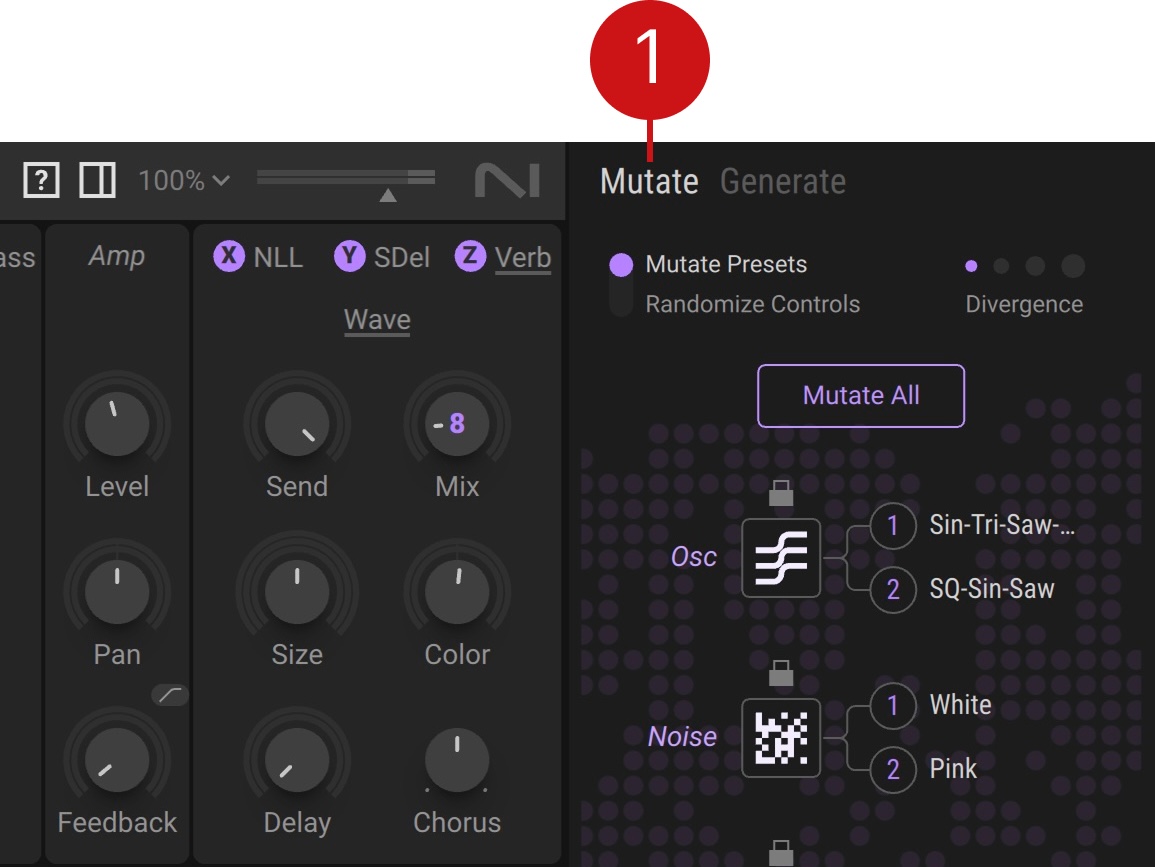
Mutate: Switches the Side pane to Mutate view, where you can partly or fully transform your presets with new modules and settings, or apply randomization. You can find more information in Mutate.
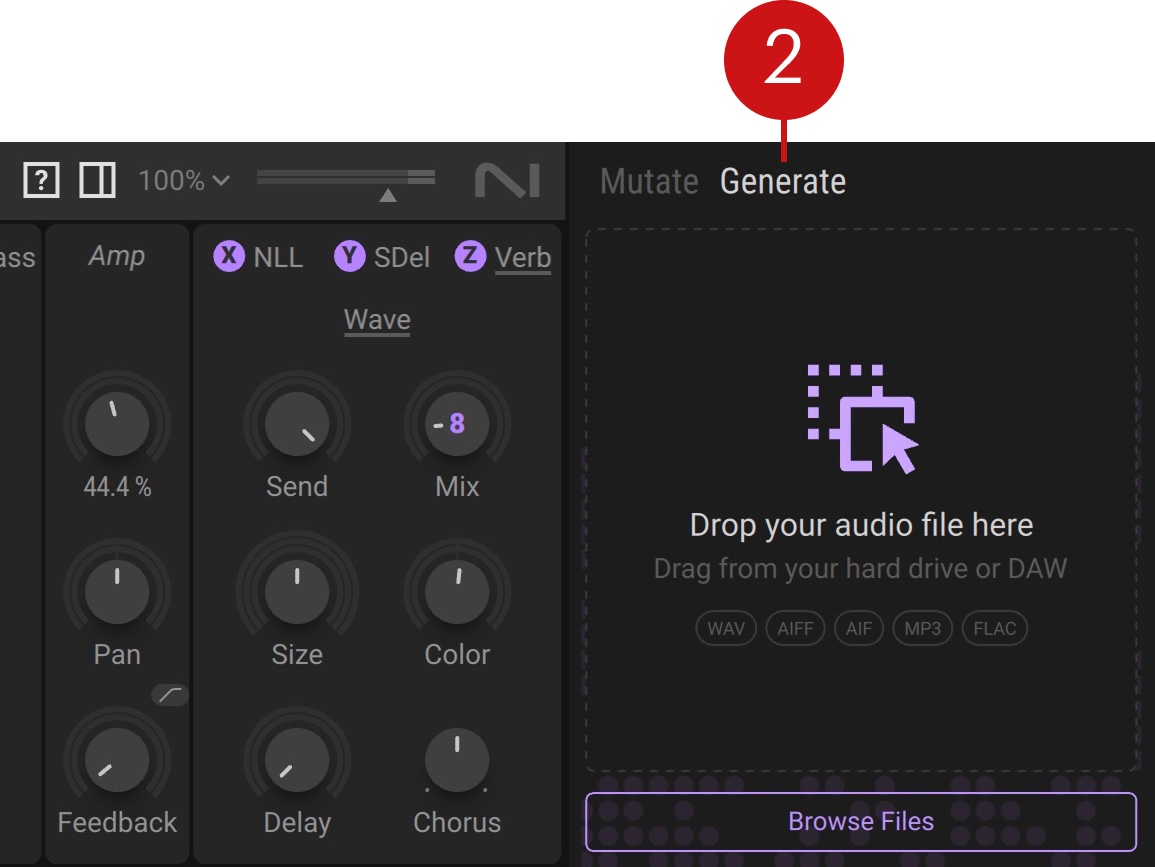
Generate: Switches the Side pane to Generate view, where you can create new presets from audio files. You can find more information in Generate.
Note
The Side pane is not available in Massive XL Player.
Mutate
Mutate view is a homage to the preset mutation feature in Native Instruments Absynth 6. It lets you quickly come up with new sounds and patches based on the preset you have loaded by introducing algorithmically generated mutation or randomization.
When you Mutate Presets, the Oscillators, Noise, Filter, Inserts, Effects, and Amp envelope integrate settings from other presets in your library. You can mutate all modules at the same time or individually. If you lock a module, it will be excluded from mutation even if you click Mutate All.
Divergence gives you control over how far mutation strays from your starting point, so you can decide if you want to introduce subtle changes or radically transform your preset. Every mutation is tracked in the undo/redo history, so you always use the controls in the header to go back and find your favorite.
When you Randomize Controls, all parameters acquire new, random values, opening up an even wider, unpredictable range of possibilities. You can trigger randomization for specific modules, lock modules to keep their settings when using Randomize All, and set the range of randomization using Divergance.
Tip
Mutate All and Randomize All are also available as shortcuts directly in the header.
Mutate view contains the following options and controls:
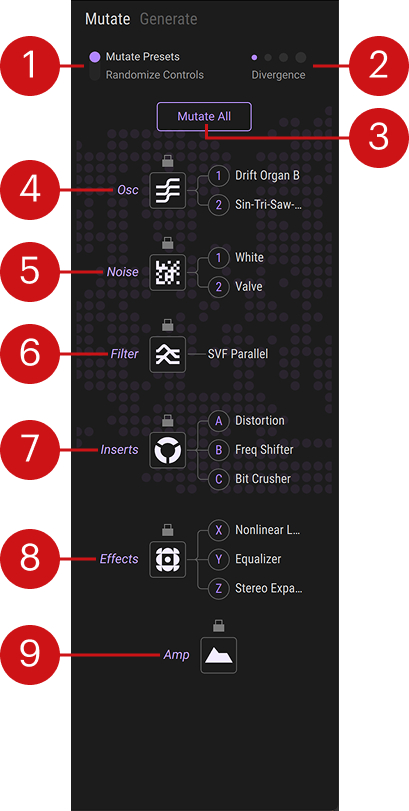 |
Mutate / Randomize: Switches between Mutate and Randomize modes for changes triggered across all modules. Mutate mode fuses settings from related presets into the current one. Randomize mode changes values of controls in a random fashion.
Divergence: Sets how far each change strays from the current sound, with higher values producing more unpredictable results. In Randomize mode, it sets the maximum range of randomization.
Mutate/Randomize All: Mutates or randomizes all modules at once, excluding locked modules.
Oscs: Mutates or randomizes both Wavetable oscillators.
Oscs Lock: Locks the Wavetable oscillators so they do not change when Mutate/Randomize All is used.
Oscillator 1: Mutates or randomizes Wavetable oscillator 1 only.
Oscillator 2: Mutates or randomizes Wavetable oscillator 2 only.
Filter: Mutates or randomizes the Filter.
Filter Lock: Locks the Filter so it does not change when Mutate/Randomize All is used.
Noise: Mutates or randomizes both Noise modules.
Noise Lock: Locks both Noise modules so they do not change when Mutate/Randomize All is used.
Noise 1: Mutates or randomizes Noise module 1 only.
Noise 2: Mutates or randomizes Noise module 2 only.
Inserts: Mutates or randomizes all three Inserts.
Inserts Lock: Locks all three Inserts so they do not change when Mutate/Randomize All is used.
Insert A: Mutates or randomizes Insert A only.
Insert B: Mutates or randomizes Insert B only.
Insert C: Mutates or randomizes Insert C only.
Effects: Mutates or randomizes all three Effects together.
Effects Lock: Locks all three Effects so they do not change when Mutate/Randomize All is used.
Effect X: Mutates or randomizes Effect X only.
Effect Y: Mutates or randomizes Effect Y only.
Effect Z: Mutates or randomizes Effect Z only.
Amp: Mutates or randomizes the Amp envelope.
Amp Lock: Locks the Amp envelope so it does not change when Mutate/Randomize All is used.
Generate
Generate lets you create new presets from audio files. It uses an AI model developed by NI that analyzes your samples and recreates the sound for you by building a fully tweakable patch from scratch. You can generate presets from the original audio file, or use stem separation powered by machine learning to run preset generation on individual stems from your audio.
You can make preset generation closely Match the original sound, or give it creative freedom to Imagine new sounds. Each preset generation creates four variants to choose from. Variant Diversity determines how much variety can be found across the variants. Finally, Adjust Character lets you fine-tune the sound of the selected variant in real time, with each variant featuring automatically curated controls that provide meaningful interaction with the sound.
Loading an audio file
When you open Generate in the Side pane, the first screen lets you load an audio file using drag and drop or a file dialog.
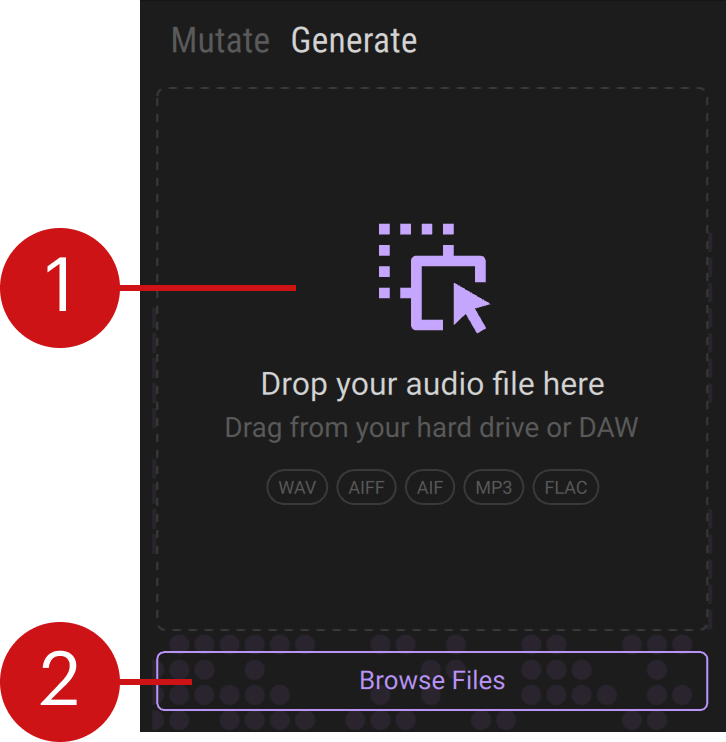 |
Drop your audio file here: Lets you drag and drop an audio file for preset generation from your hard drive or your DAW. You can use WAV, AIFF, MP3, or FLAC files.
Browse Files: Shows a file dialog that lets you open an audio file for preset generation. You can use WAV, AIFF, MP3, or FLAC files.
Generating presets
Once you have loaded an audio file, Generate lets you define the parameters of the preset generation before you start generating.
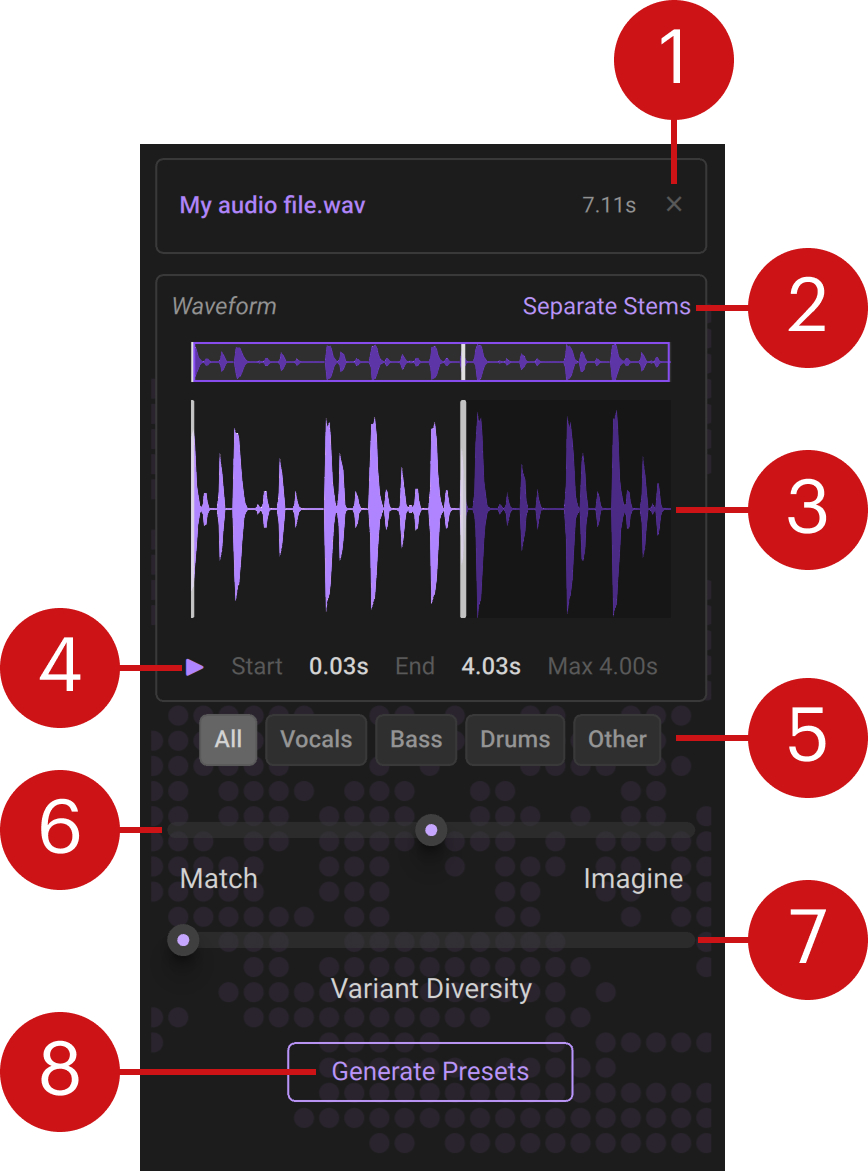 |
Remove File: Clears the loaded audio file and shows the options to drag and drop or browse for a different audio file.
Waveform: Displays the loaded audio file and lets you select the section used for preset generation by moving the start and end handles across the waveform. Alternatively, you can drag the Start and End values underneath the waveform up or down.
Preview: Plays back the selected section of the loaded audio file.
Separate Stems: Splits the audio into separate stems that can be used individually for preset generation.
Stem: Selects a stem to be used individually for preset generation, such as Vocal, Bass, Drums, or Other.
Match / Imagine: Adjusts how closely the preset generation mimics the sound of the audio file. Moving the slider to the left produces stricter matches, while moving it to the right creates more imaginative preset variants.
Variant Diversity: Adjusts how much the preset variants differ from one another, with high values creating the most diverse sounds.
Generate Presets: Generates preset variants from the selected audio file. While running, Cancel stops preset generation. Once completed, Regenerate Presets starts preset generation again using the same audio file.
Refining your generated preset
You can select from four preset variants for every preset generation, and use the Character controls to fine-tune your sound.
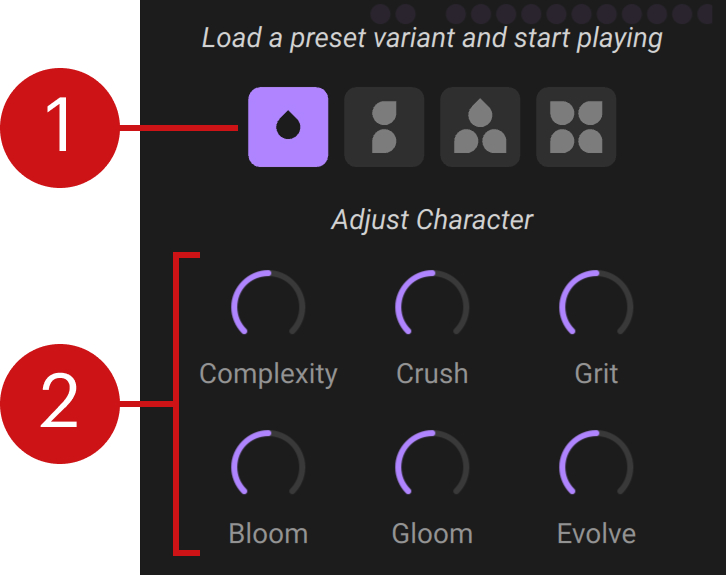 |
Variant: Selects one of four preset variants resulting from the preset generation. Once selected, you can play them just like a regular preset.
Adjust Character: Lets you tweak the sound of the selected variant using automatically generated controls. You can find more information in Character controls.
Character controls
Air: Adds sparkle and breath by opening the filter, boosting high frequencies, and mixing in a hint of noise.
Bite: Sharpens the attack by combining the Insert oscillator with snappy filter settings.
Bloom: Lets notes open slowly into a large reverb.
Breath: Softens and opens up the sound by mixing in noise with a gentle attack and boosting high frequencies.
Brightness: Tilts the overall timbre from dark to brilliant by adjusting filter and EQ controls.
Choke: Cuts notes short by reducing release times and delay feedback.
Clarity: Brings out the core tone by pulling back noise, drive, and delay feedback.
Complexity: Adjusts the depth of modulation. Turning to the left reduces modulation, turning to the right makes existing modulation more pronounced.
Crush: Creates a compressed, saturated sound by increasing the level going into the drive stage.
Drift: Adds analog instability by introducing jitter on cutoff frequencies and envelope times.
Echoes: Brings in the delay effect by increasing mix, feedback, and delay time.
Evolve: Sets the patch in motion by changing LFO rates and increasing their modulation depths.
Fat: Widens and thickens the sound by boosting low frequencies, stacking unison voices, and adding gentle drive.
Glass: Adds a crystalline quality to the sound by using phase modulation, boosting high frequencies, and cleaning the noise floor.
Gloom: Creates a darker and more distant sound by lowering the cutoff, cutting mid frequencies, and emphasizing the reverb tail.
Gravel: Makes the sound rougher and more growly by overdriving the lower-mid frequencies.
Grit: Adds dirt and attitude by pushing the distortion stage for a saturated, aggressive tone.
Haze: Wraps the sound in fog by adding a long reverb with dampened high frequencies.
Hold: Emphasizes the body of the sound by increasing the envelope sustain and release.
Hollow: Carves out the sound by narrowing the filter band and blending in the second filter.
Linger: Lets every note trail off by increasing envelope release and adding a touch of reverb.
Liquid: Produces highly resonant filter movement by increasing resonance and slowing down the LFOs to create flowing sweeps.
Metal: Adds inharmonic bite by increasing phase modulation depth and blending in the Insert oscillator for bell-like tones.
Pluck: Makes notes snappy by reducing the filter's envelope decay and increasing its modulation depth.
Punch: Emphasizes the attack by reducing envelope sustain and decay, making every note hit like a drum.
Resonance: Makes the sound more resonant by increasing filter resonance and EQ peak.
Rubber: Adds an elastic quality to the sound by bending the wavetables in the oscillators.
Shimmer: Moves the wavetables toward brighter sounds and emphasizes the upper octave.
Slam: Maximizes the impact of the sound by reducing the amplifier's envelope attack to zero and driving the transient into saturation.
Space: Moves the sound between intimate and vast by adjusting the delay and reverb mix.
Sub Weight: Anchors the low end by boosting low frequencies and applying gentle drive.
Swell: Produces a slowly rising, breathing sound by increasing envelope attacks.
Tension: Makes the sound tighter by reducing envelope sustain and release, and increasing filter resonance.
Thin: Makes the sound slimmer by cutting low frequencies and reducing the noise floor while opening the filter.
Vocalic: Produces vowel-like sounds by narrowing the filter band toward a formant and increasing the EQ peak.
Stereo Width: Spreads the sound across the stereo image by increasing unison voices and detuning.
Wobble: Creates heavy modulation by slowing down the LFOs and increasing their modulation depths.