Wavetable oscillators
At the heart of Massive XL are the two Wavetable oscillators that feature curated wavetables, powerful wavetable modes, flexible phase modulation, and wavetable import.
At the heart of Massive XL are the two Wavetable oscillators, which generate sound by reading out single-cycle waveforms that are arranged in a table. Scanning through the waveforms in the table using the Position control gives you different sounds, and by modifying the waveform readout using Wavetable modes you can explore even more variations in timbre.
Wavetable synthesis operates in two dimensions. One dimension is the readout, or playback, of the individual waveforms. The readout is controlled by the internal phase of the oscillator, which follows the pitch of MIDI notes. The internal phase can be manipulated by a variety of Wavetable modes. The other dimension is the stack of waveforms in each wavetable, letting you scan through and blend different waveforms.
A diverse collection of wavetables has been curated to cover anything from basic waveforms to special harmonics, formants, acoustic sounds, and wavetables that play well with specific Wavetable modes. Additionally, you can import audio files directly into Massive XL and use them as your own custom user wavetables.
Tip
The Wavetable oscillator modules can be freely placed in the signal flow on the Routing page. You can find more information in Generators and processors.
Note
Editing the Wavetable oscillators is not available in Massive XL Player.
Wavetable oscillators overview
You can edit the two Wavetable oscillators individually in Single view or both at the same time in Dual view.
Click the Oscillator view icon to toggle between Single view and Dual view.
Single view
In Single view, the Wavetable oscillators contain the following options and controls:
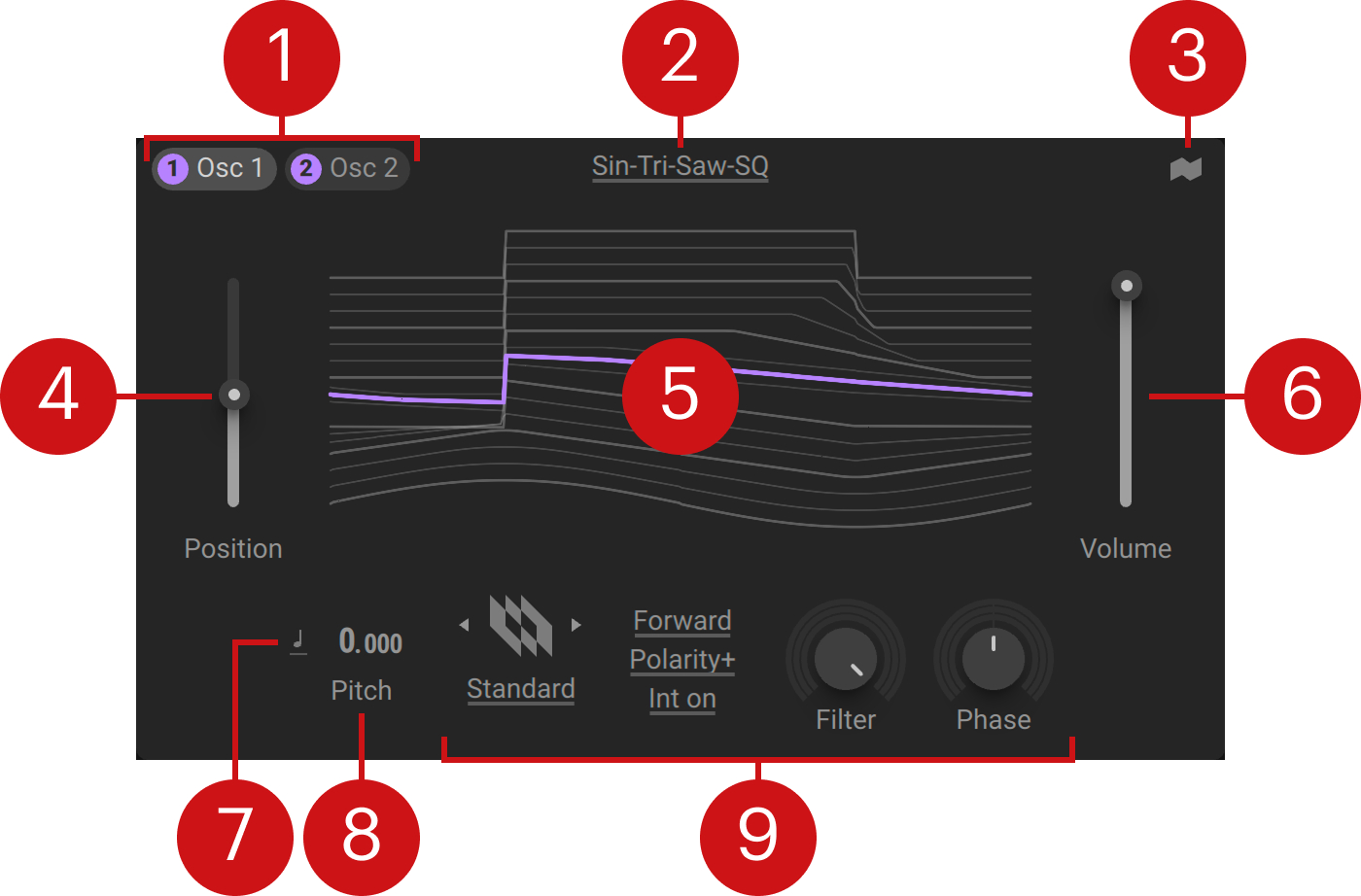 |
Oscillator selector: Switches the view between the two Wavetable oscillators. Clicking the number switches the respective Wavetable oscillator on or off.
Wavetable menu: Opens the Wavetable menu that lets you load a wavetable into the oscillator, and add folders with user wavetables. When hovering the menu you can use the arrows to load the previous or next wavetable from the selected category. You can find more information in Wavetable menu.
Oscillator view: Toggles the view between focusing on one Wavetable oscillator and showing both Wavetable oscillators side by side.
Wavetable Position: Scans through the waveforms in the selected wavetable. Each wavetable can stack 2–128 waveforms.
Wavetable display: Visualizes the waveforms in the selected wavetable, with the current waveform highlighted in purple. When changing the Wavetable mode and its settings the visualization is updated according to how the waveform is read out.
Level: Adjusts the output volume of the Wavetable oscillator.
Pitch mode: Selects one of three pitch tracking modes, Key Track, Fix, Ratio. Key Track locks the pitch to MIDI. Fix sets an independent, fixed pitch in MIDI note numbers, defaulting to 60 (middle C). Ratio multiplies or divides MIDI pitch. For example, a ratio of 3 multiplies the pitch by 3, producing the 3rd harmonic.
Pitch: Adjusts the tuning of the oscillator in semitones and cents. Pitch can be modulated to produce vibrato and arpeggio effects by assigning a Modulator to the modulation slots.
Wavetable mode controls: Lets you select a Wavetable mode and change its settings. You can find more information in Wavetable modes.
Dual view
In Dual view, the Wavetable oscillators contain the following options and controls:
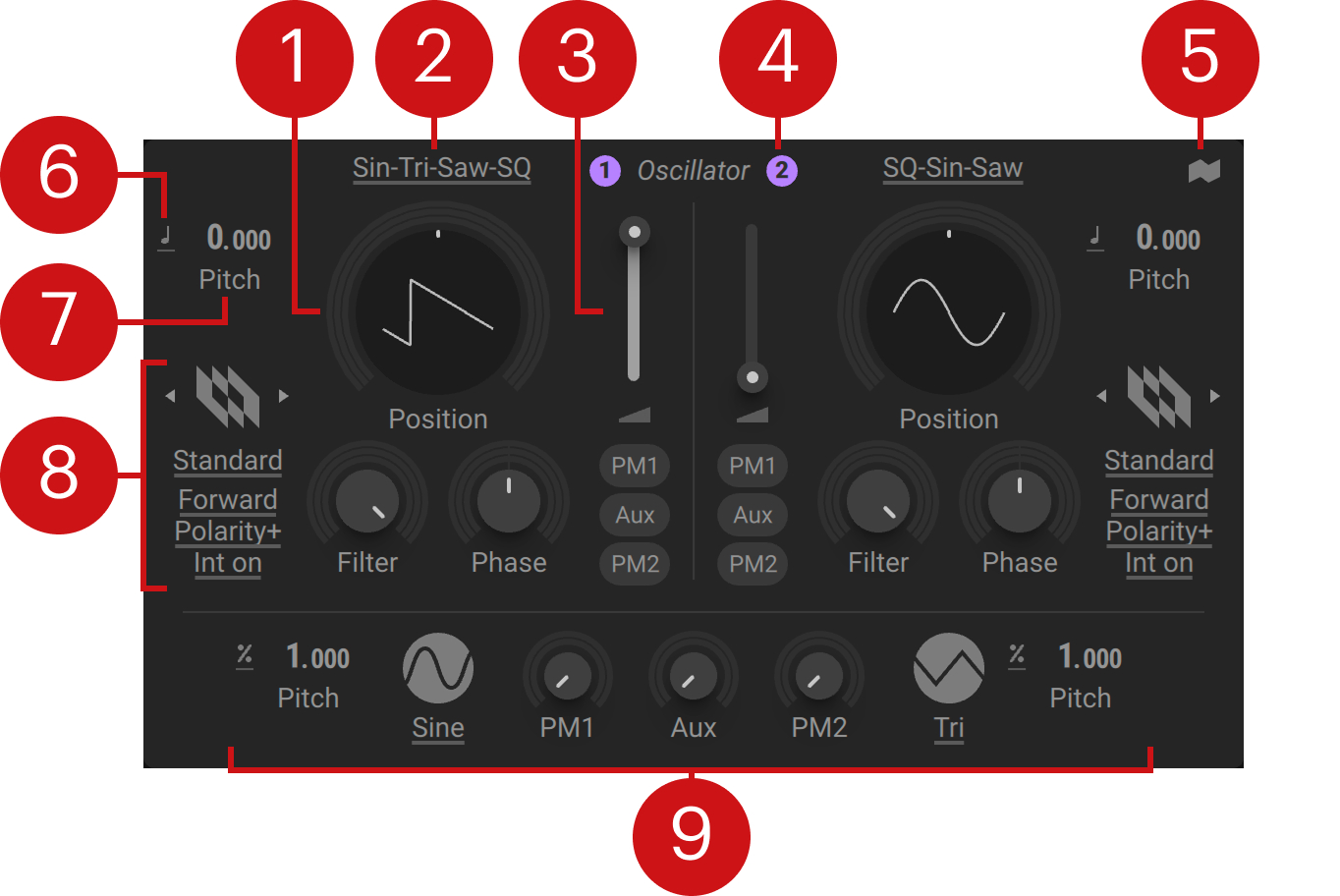 |
Wavetable Position: Scans through the waveforms in the selected wavetable. Each wavetable can stack 2–128 waveforms.
Wavetable menu: Opens the Wavetable menu that lets you load a wavetable into the oscillator, and add folders with user wavetables. When hovering the menu you can use the arrows to load the previous or next wavetable from the selected category. You can find more information in Wavetable menu.
Level: Adjusts the output volume of the Wavetable oscillator.
Oscillator on/off: Switches the Wavetable oscillator on or off.
Oscillator view: Toggles the view between focusing on one Wavetable oscillator and showing both Wavetable oscillators side by side.
Pitch mode: Selects one of three pitch tracking modes, Key Track, Fix, Ratio. Key Track locks the pitch to MIDI. Fix sets an independent, fixed pitch in MIDI note numbers, defaulting to 60 (middle C). Ratio multiplies or divides MIDI pitch. For example, a ratio of 3 multiplies the pitch by 3, producing the 3rd harmonic.
Pitch: Adjusts the tuning of the oscillator in semitones and cents. Pitch can be modulated to produce vibrato and arpeggio effects by assigning a Modulator to the modulation slots.
Wavetable mode controls: Lets you select a Wavetable mode and change its settings. You can find more information in Wavetable modes.
Phase modulation controls: Lets you apply phase modulation to the Wavetable oscillators using flexible PM oscillators and routing. You can find more information in Phase Modulation.
Wavetables
The wavetables in Massive XL are grouped in categories according to their sound and application. While all of them can serve as the starting point for your own sound exploration, some wavetables are more suitable for specific use cases than others. For example, Basics wavetables are best suited for sounds based on subtractive synthesis, while Operators wavetables are specifically designed to be used for phase modulation. You can find more information in Wavetables categories.
In some cases, the wavetables are not particularly exciting on their own, but work well in combination with a specific Wavetable mode. Each Wavetable mode has its own distinct sound, and by combining different wavetables with the Wavetable modes you can achieve a wide range of timbres that go beyond the sounds commonly associated with wavetable synthesis. You can find more information in Wavetable modes.
Wavetable menu
The Wavetable menu lets you load a wavetable into the Wavetable oscillator. By adding a folder containing audio files, you can use them as user wavetables. Clicking and dragging the header moves the menu to another position.
The Wavetable menu consists of the following elements:
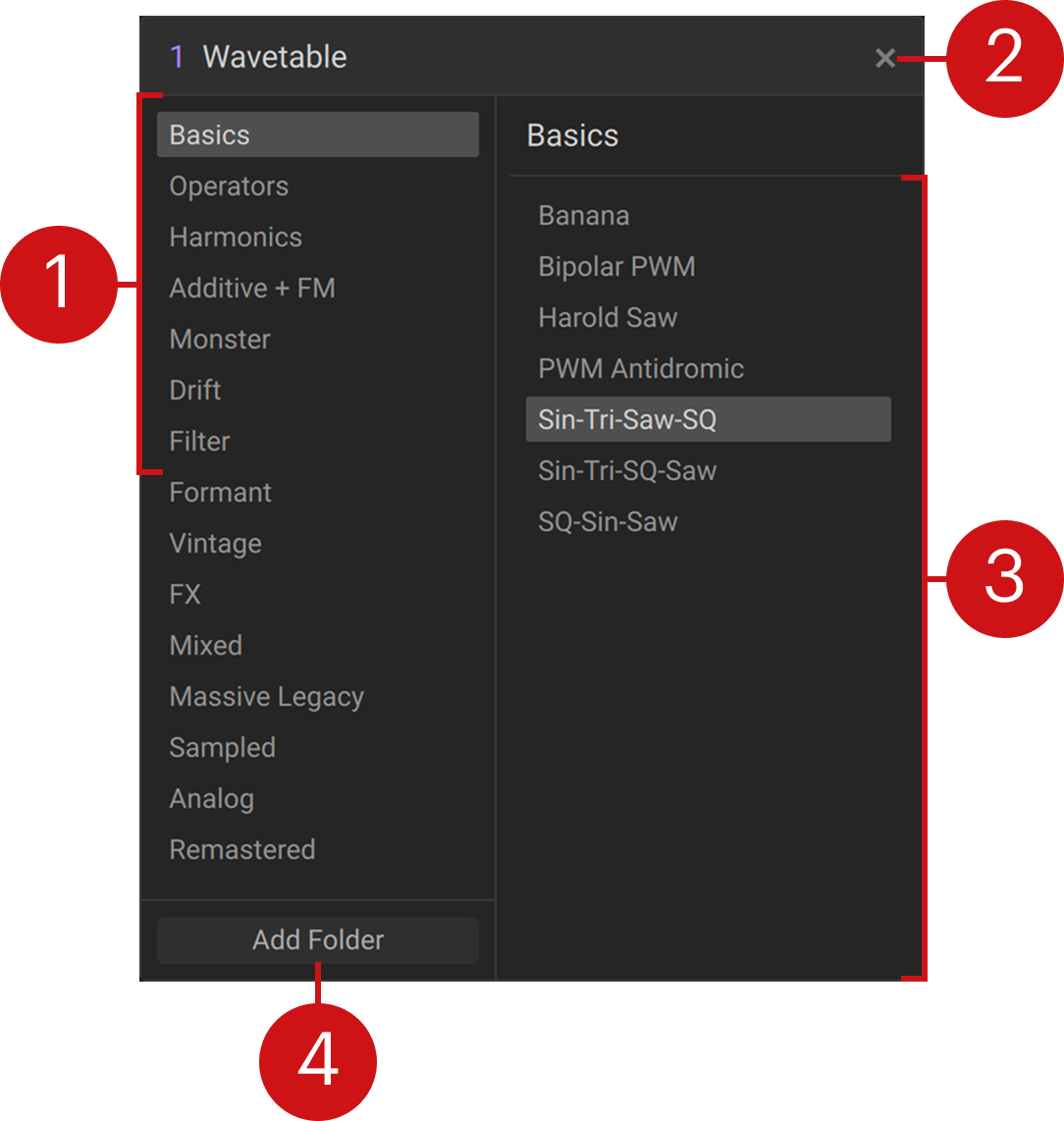 |
Category list: Selects the category of items to be shown in the list on the right side of the menu.
Close: Closes the menu.
Item list: Shows all items in the selected category. Clicking an entry loads the item but keeps the menu open. Double-clicking an entry loads the item and closes the menu.
Add Folder: Opens a file dialog that you can use to import a folder containing audio files. All compatible audio files will be processed and imported as user wavetables.
Wavetables categories
Massive XL includes a curated library of wavetables that are organized in the following categories.
Basics
In this category you will find the most common oscillator waveforms, which serve as the basis for subtractive synthesis and are well suited for classic analog synth sounds. SQ-SIN-SAW is a good starting point for any type of synthesis. Basics also consists of classic analog waveforms, including PWM (pulse width modulation). TBanana is designed for Gorilla mode and sounds great with modulation applied to the mode's Over and Bend controls.
Operators
Specifically made to be used for phase modulation, these wavetables turn the Wavetable oscillators into FM operators. They can also be used to add body to a layered sound. WM (width modulation) is provided in wavetables that contain only few harmonics, allowing for a more dynamic and animated sound.
Harmonics
Wavetables in this category feature a specific effect that emphasizes the harmonic series when scanning through the wavetable. They combine well with subtle filtering or EQ, and produce interesting results when applying modulation to the wavetable position.
Additive + FM
You can use these wavetables to produce sounds typically associated with additive or FM synthesis. They are ideal for producing cold, shimmery, metallic, or glassy sounds.
Monster
In this category you will find wavetables with a strong character that shines when played in low registers. Combining them with phase modulation or Bend and Mirror modes produces even more aggressive timbres. Modulating the wavetable position creates wobble sounds typically associated with dubstep. The SV (state-variable) filters are ideal for taming and shaping the sound. The Gorilla wavetables produce an effect similar to Gorilla mode when scanning through the wavetable.
Drift
These wavetables provide hard transients that work well with subtractive filtering, from PWM to the unique Drift wavetables, which create the illusion of multiple, slightly detuned oscillators beating against each other when modulating the wavetable position.
Filter
Wavetables in this category mimic filter sounds, including BP (band-pass) and LP (low-pass) options. They combine well with EQ, unison and distortion. Scanning through the wavetable emulates the effect of adjusting filter cutoff at high resonance.
Formant
These wavetables feature characteristics of the human voice and can be used for creating vowel sounds, especially when combined with Formant Capture mode and modulating the wavetable position. Experiment with the modulation rate to emphasize human-like articulations and achieve nuanced vocal sounds.
Vintage
In this category you will find wavetables from the classic PPG Wave wavetable synthesizers.
FX
Wavetables in this category produce complex sound colors suitable for sound effects rather than standard oscillator sounds. You can use them to add shimmer and texture to layered sounds. When pitched down at a fixed frequency they can serve as noise generators, emulate environmental resonances, or produce inharmonic bell sounds. These wavetables are most effective with strong modulation applied to the wavetable position.
Mixed
These wavetables are made up of a variety of unrelated waveforms, creating diverse sonic palettes. As such, they do not morph smoothly like most typical wavetables, but can be used to create interesting stepping effects.
Massive Legacy
In this category you will find the original wavetables from Native Instruments Massive.
Sampled
Based on recordings of real instruments and voices, these wavetables let you add an acoustic quality to your sounds.
Analog
These wavetables are created from recordings of analog synthesizers, capturing their nuanced waveforms and imperfections.
Remastered
In this category you will find remastered wavetables from Native Instruments Massive.
User wavetables
In addition to the factory wavetables, you can also import audio files into Massive XL and use them as user wavetables.
The supported file formats are WAV, AIFF, MP3, FLAC, OGG and M4A. Stereo audio files will be converted to mono. The files must have at least 2,048 samples, which is the length of a single waveform. One wavetable can hold a maximum of 256 waveforms, so any audio exceeding a length of 524,288 samples will be ignored.
When you import an audio file, it is cut into consecutive, non-overlapping blocks of 2,048 samples, with each block becoming one waveform in the wavetable. The order will be the same as in the audio file. Each waveform goes through the same band-limiting process the factory wavetables use.
Audio files can be loaded individually using drag and drop. You can also import them to your library by adding custom folders in the Wavetable menu, or by adding audio files to the User Content folder on your computer.
Note
User wavetables are not embedded in preset files. If you open a user preset created with user wavetables on another computer, make sure to also add the user wavetables to your library.
Importing audio files using drag and drop
You can drag and drop an audio file onto the Wavetable oscillators to immediately load them as a wavetable. It will be imported to your library appear under User in the Wavetable menu.
To load an audio file using drag and drop:
Locate the audio file on your computer.
Drag and drop the audio file onto either one of the Wavetable oscillators.
The audio file is loaded as user wavetable and imported to your library.
Adding a folder
You can add folders from your computer to import them to your library and show them as custom categories in the Wavetable menu. All compatible audio files contained in the folders you have added will be available as wavetables.
To add a folder:
Open the Wavetable menu.
Click Add Folder.
Locate the folder containing the audio files you want to import and click Open.
The selected folder is added as a new User category in the Wavetable menu.
Managing wavetables in the User Content folder
You can add, remove, or rename audio files in the user Wavetables folder to make changes to the User and custom categories in the Wavetable menu. Any changes will only be reflected in the Wavetable menu after performing a rescan of your content.
To view, add, or edit wavetables in the User and custom categories:
Open the Settings menu by clicking the three dots icon next to the Massive XL logo in the Header.

Select Show User Content Folder to open the User Content folder in your computer's file manager.
Open the Wavetables folder in the file manager window.
Add, remove, or rename the folders and audio files in the Wavetables folder.
Go back to Massive XL and open the Settings menu.
Select Rescan Content.
The changes you have made in the User Content folder will be reflected in the User and custom categories of the Wavetable menu. If you have added audio files, they will be imported as user wavetables.
Wavetable modes
The Wavetable modes modify the internal phase of the oscillator and therefore the readout of the waveform. They are key to unlocking the full potential of the Wavetable oscillators. Every mode features two dedicated controls for real time manipulation and additional settings to define its behavior.
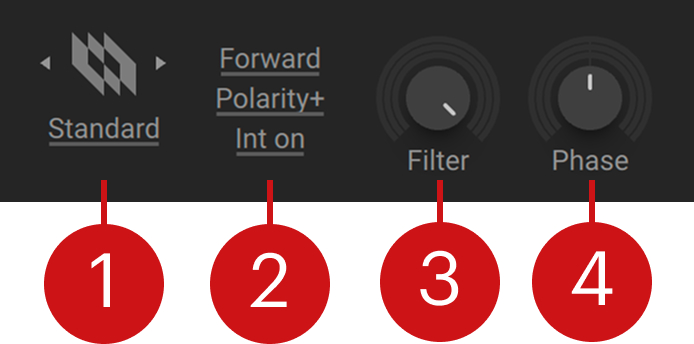 |
Wavetable mode: Selects one of ten modes that modify the readout of the waveform.
Standard: The default mode with controls and options that work well with most wavetables.
Bend: Warps the waveform by compressing some parts and expanding others.
Mirror: Reads out the waveform back and forth, folding the waveform in certain settings.
Hardsync: Produces the classic hard sync sound and variations thereof without the need for a second oscillator.
Wrap: Produces hard sync effects with reduced pitch artifacts.
Formant: Preserves strong formants in wavetables even when playing different pitches.
ART: Mimics the sound of a resonant filter only by manipulating the waveform readout.
Gorilla: Produces intense harmonics and is best combined with basic waveforms.
Random: Applies randomness to the waveform readout, producing interesting noise sounds.
Jitter: Introduces random deviations at the end of each cycle, making the signal read out faster or slower.
Wavetable mode settings: Options for defining the specific behavior of each Wavetable mode.
Wavetable mode controls: Controls for key parameters that let you tweak the sound of the Wavetable mode in real time.
Standard mode
Standard is the default Wavetable mode and similar to Spectrum mode in the original NI Massive. It features a Filter control that reduces high frequency harmonics down to the point where only the fundamental frequency can be heard, turning any waveform into a clean sine wave.
Standard mode contains the following controls and options:
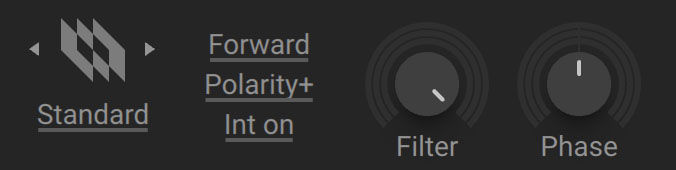 |
Direction: Switches between Forward and Backward modes for the wavetable readout.
Polarity +/-: Switches between positive and negative polarity, effectively flipping the waveform.
Internal phase on/off: Switches the waveform readout on or off. When Int on is selected, the internal phase reads out the wavetable according to the oscillator pitch. Selecting Int off bypasses the internal phase and fixes the frequency at 0 Hz, effectively turning the oscillator into a wave shaper for the PM oscillators or the PM Aux bus.
Filter: Reduces the high frequency harmonics of the selected waveform. The effect is similar to adjusting the cutoff frequency of a low-pass filter.
Phase: Adjusts the oscillator phase.
Tip
Check out the preset Amber Chapel for a classic organ sound, and the preset Analogica for a classic analog saw wave sound.
Bend mode
Bend mode warps the waveform by accelerating and decelerating the readout depending on the position in the wavetable, compressing some parts while expanding others. Up-down mode can be used to create a hollow, square-like sound.
Bend mode contains the following controls and options:
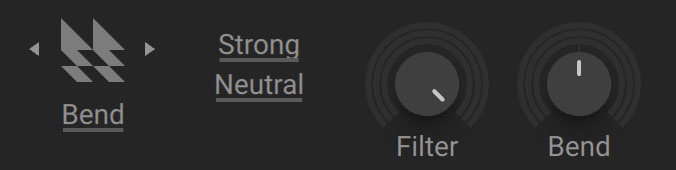 |
Bend Curve: Selects the type of Bend, Strong, Medium, or Gentle. Gentle has a subtle effect, similar to the +/- Bend mode in the original NI Massive.
Direction: Sets the direction of the wavetable readout, Neutral, Up-Down, or For-Back. Neutral continuously cycles through the waveform in one direction. Up-Down inverts every second fundamental cycle of the waveform. For-Back (Forward-Backwards) reads out every second fundamental cycle of the waveform backwards.
Filter: Reduces the high frequency harmonics of the selected waveform. The effect is similar to adjusting the cutoff frequency of a low-pass filter.
Bend: Bends the phase by accelerating and decelerating the readout of the waveform.
Tip
Check out the presets Alkaline State and Alpha Ape for a basic introduction to this mode. The preset Anaphylaxis showcases Bend mode in combination with wavetables from the Monster category, producing hollowed out square wave sounds. The preset Andean Air uses two Operator wavetables in Bend mode to create a breathy, hollow instrument sound.
Mirror mode
Mirror mode reads out the wavetable back and forth. High Ratio settings will force the waveform to be folded, producing sounds similar to hard sync.
Mirror mode contains the following controls and options:
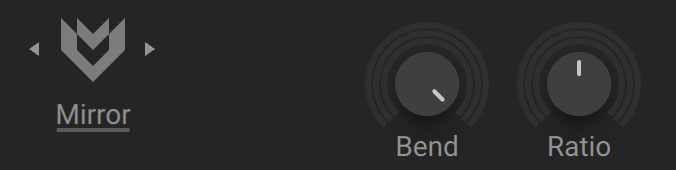 |
Bend: Bends the phase by accelerating and decelerating the readout of the waveform.
Ratio: Adjusts the depth ratio of the mirrored phase, effectively changing the range of mirroring up to folding the waveform onto itself.
Hardsync mode
Hardsync mode can be used to create variations of the classic hard sync sound without the need for a second oscillator as the sync source. High Ratio settings produce harsh sounds that can be smoothed out using the Soft and Grain window types, resulting in sounds that are not possible with classic analog hard sync.
Hardsync mode contains the following controls and options:
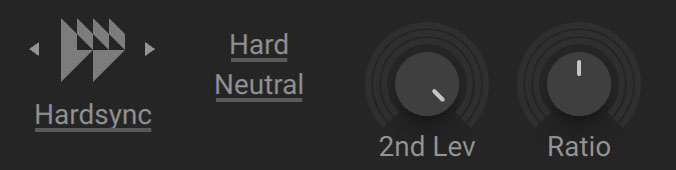 |
Window: Selects the type of Hardsync, Hard, Soft, or Grain. Hard applies a very subtle smoothing window to the end and start point of the fundamental cycle. Depending on the waveform, this results in the typical sound of classic hard sync. Soft applies a smoother window and Grain applies the smoothest window.
Direction: Sets the direction of the wavetable readout, Neutral, Up-Down, or For-Back. Neutral continuously cycles through the waveform in one direction. Up-Down inverts every second fundamental cycle of the waveform. For-Back (Forward-Backwards) reads out every second fundamental cycle of the waveform backwards.
2nd Lev: Adjusts the amplitude of every second reset cycle. Turning the control fully to the left shifts the pitch down by one octave.
Ratio: Adjusts the frequency ratio of the hard sync effect.
Wrap mode
Wrap mode is similar to Hardsync mode but with different behavior when modulated. It produces fewer pitch artifacts by multiplying the waveform symmetrically within the cycle.
Wrap mode contains the following controls and options:
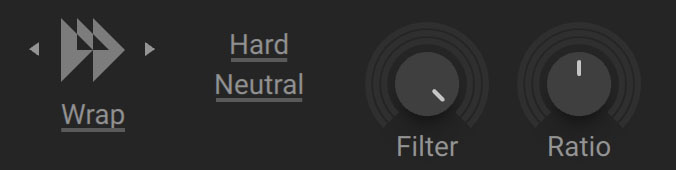 |
Window: Selects the type of Wrap, Hard, Soft, or Grain. Hard applies a very subtle smoothing window to the end and start point of the fundamental cycle. Depending on the waveform, this results in the typical sound of classic hard sync. Soft applies a smoother window and Grain applies the smoothest window.
Direction: Sets the direction of the wavetable readout, Neutral, Up-Down, or For-Back. Neutral continuously cycles through the waveform in one direction. Up-Down inverts every second fundamental cycle of the waveform. For-Back (Forward-Backwards) reads out every second fundamental cycle of the waveform backwards.
Filter: Reduces the high frequency harmonics of the selected waveform. The effect is similar to adjusting the cutoff frequency of a low-pass filter.
Ratio: Adjusts the frequency ratio of the hard sync effect.
Tip
Check out the preset Ample Wob for a hard sync sound created using Wrap mode combined a with a square waveform.
Formant mode
Formant mode lets you adjust formant frequencies that are included in the wavetables as Formant Center metadata, and preserves them when playing different pitches. Rather than with sine, sawtooth or square waveforms, it is most effective when used with wavetables that have a strong formant.
Tip
Wavetables in the Formant category are designed to work well with Formant mode. They mimic characteristics of the human voice and can be used for creating vowel sounds.
Formant mode contains the following controls and options:
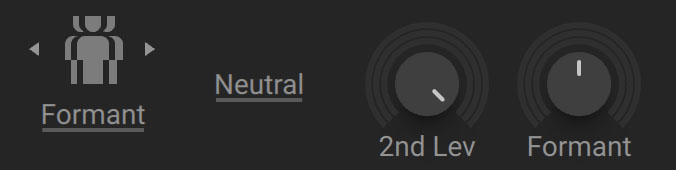 |
Direction: Sets the direction of the wavetable readout, Neutral, Up-Down, or For-Back. Neutral continuously cycles through the waveform in one direction. Up-Down inverts every second fundamental cycle of the waveform. For-Back (Forward-Backwards) reads out every second fundamental cycle of the waveform backwards.
2nd Lev: Adjusts the amplitude of every second reset cycle. Turning the control fully to the left shifts the pitch down by one octave.
Formant: Shifts the formants in the frequency spectrum.
Tip
As a starting point, try Formant mode with the wavetable Talkative SQ and turn 2nd Lev fully to the left. When combined with the SVF Parallel or Groian filter you can adjust the wavetable position and filter frequency to create vocal sounds. For more subtle vocal effects, check out the preset Android that combines wavetables from the Formant and Basics categories.
ART mode
ART (Artificial Resonance Technology) mode utilizes hard sync techniques and windowing to mimic a resonant filter. It embeds the sound of a highly resonant band-pass filter in the wavetable readout, resulting in timbres that a real filter cannot achieve.
ART mode contains the following controls and options:
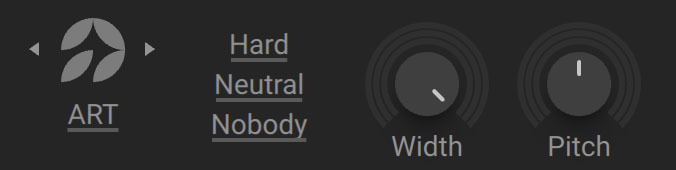 |
Window: Selects the type of ART, Hard, Bity, or Soft. Hard is the most aggressive setting, creating a sharp impulse window. Soft is smooth sounding and the least aggressive setting. Bity has a balanced character and is a good starting point. The differences in the three modes can best be heard with low Pitch settings.
Direction: Sets the direction of the wavetable readout, Neutral, Up-Down, For-Back, FU-DB. Neutral continuously cycles through the waveform in one direction. Up-Down inverts every second fundamental cycle of the waveform. For-Back (Forward-Backwards) reads out every second fundamental cycle of the waveform backwards. FU-DB combines Up-Down and For-Back.
Body: Switches between two types of artificial bodies that are applied to the sound, Body and Nobody. When Body is active, this response adds bass to the sound. When Nobody is selected, you have the excitation response of an artificial filter.
Width: Narrows or widens the impulse window, similar to the resonance amount of an analog filter.
Pitch: Adjusts the frequency of the artificial resonance, similar to the cutoff of an analog filter.
Tip
You can check out the signature sound of ART mode in the presets Alpine Digital, BAMX2 and Golden Child.
Gorilla mode
Gorilla is an aggressive sounding mode that produces uniquely exaggerated results. It produces intense harmonics and is best combined with basic waveforms. Applying modulation to both Over and Bend creates rich and animated sounds.
Gorilla mode contains the following controls and options:
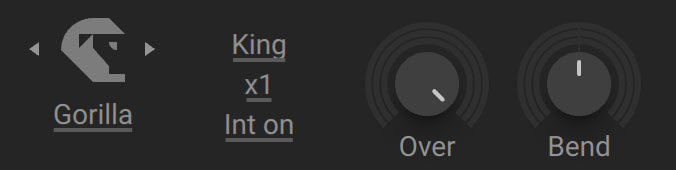 |
K!ings: Selects the type of Gorilla, King, Kong, or Kang, which determine how the phase of the readout is bent. King is the cleanest sounding option, providing the classic screaming sound. Kang provides medium bending for a dirtier sound. Kong has maximal bending for the dirtiest sound.
Ratio: Sets the frequency ratio of a second internal oscillator phase, which has a huge impact on the sound. A ratio of x2 is a good starting point for exploring the sound of Gorilla mode.
Internal phase on/off: Switches the waveform readout on or off. When Int on is selected, the internal phase reads out the wavetable according to the oscillator pitch. Selecting Int off bypasses the internal phase and fixes the frequency at 0 Hz, effectively turning the oscillator into a wave shaper for the PM oscillators or the PM Aux bus.
Over: Adjusts the strength of the harmonics.
Bend: Shifts the harmonics in the frequency spectrum. Assigning modulation to both Bend and Over lets you fully animate the formant frequencies created by Gorilla mode.
Tip
As a starting point, try the wavetable Banana and set the Ratio to x2, then use an LFO to modulate both the Over and Bend controls.
Random mode
Random mode uses two randomizers that are applied to the wavetable readout in several ways, creating unusual noise sounds.
Random mode contains the following controls and options:
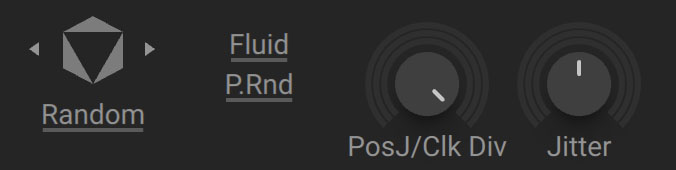 |
Mode: Selects the type of Random, Fluid, Thunder, or Divide, each providing different flavors of randomization. The Pos J/Clk Div control adjusts different aspects of the randomization depending on the selected mode.
P.Rnd (Pitch Random): Switches between Pitch Random and Pitch Switch modes. When P.Rnd is selected, randomization is applied every cycle, depending on the Jitter rate. P. Switch produces static, quantized deviations rather than fully random ones.
PosJ/Clk Div (Position Jitter/Clock Divide): Adjusts different aspects of the randomization depending on the selected mode.
In Fluid mode, PosJ/Clk Div randomizes the wavetable position.
In Thunder mode, PosJ/Clk Div randomizes the wavetable position and reduces the randomizer clock.
In Divide mode, PosJ/Clk Div reduces the clock of the randomizer.
Jitter: Adjusts the amount of randomization applied to the oscillator frequency, ranging from subtle jitter to sound destruction. The frequency is only randomized at the start of the cycle.
Jitter mode
Jitter mode introduces random deviations at the end of each cycle, making the signal read out faster or slower. It can add a shimmering quality to wavetables from the Basics category. Turning up the Jitter control creates more pronounced and chaotic effects.
Jitter mode contains the following controls and options:
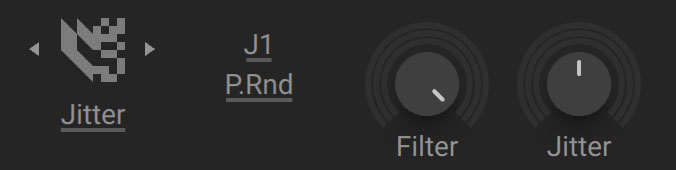 |
Jitter Rate: Adjusts how often the waveform is flipped in each cycle, letting you spread out the randomization. J1 applies randomization once every cycle, J2 every 32 cycles, and J3 every 128 cycles.
P.Rnd (Pitch Random): Switches between Pitch Random and Pitch Switch modes. When P.Rnd is selected, randomization is applied every cycle, depending on the Jitter rate. P. Switch produces static, quantized deviations rather than fully random ones.
Filter: Reduces the high frequency harmonics of the selected waveform. The effect is similar to adjusting the cutoff frequency of a low-pass filter.
Jitter: Adjusts the strength of the effect from soft to strong. You can create noise by playing high pitches and turning up Jitter.
Tip
Check out the preset Aerial List for a Drift wavetable producing a classic 80s television show sound. The preset Ancient Strings showcases a more subtle shimmer effect.
Phase Modulation
Phase modulation is used in classic FM (frequency modulation) synthesizers. The Wavetable oscillators function as carriers, while secondary PM oscillators are used as modulators. Phase modulation creates rich harmonic sounds that can be used for plucked basses, digital pianos, bells, and abstract soundscapes.
Massive XL features two PM oscillators and an additional Aux bus. Each of these sources can be flexibly assigned to the Wavetable oscillators. The PM oscillators modulate the phase of the Wavetable oscillators using waveforms from pure sine and triangle waves to variations of each.
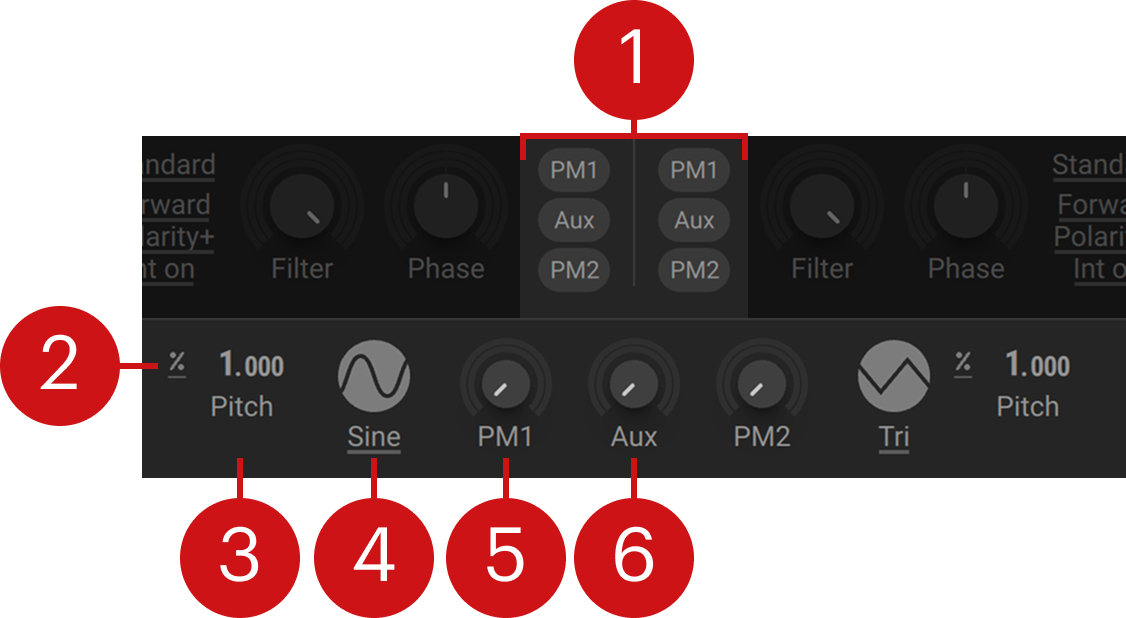 |
PM assign: Routes the two PM oscillators and the Aux bus to the phase modulation of the Wavetable oscillators.
Pitch mode: Selects one of three pitch tracking modes, Key Track, Fix, Ratio. Key Track locks the pitch to MIDI. Fix sets an independent, fixed pitch in MIDI note numbers, defaulting to 60 (middle C). Ratio multiplies or divides MIDI pitch. For example, a ratio of 3 multiplies the pitch by 3, producing the 3rd harmonic.
Pitch: Adjusts the tuning of the PM oscillator in semitones and cents. Pitch can be modulated to shift the phase modulation ratio by assigning a Modulator to the modulation slots.
Waveform: Selects from six waveforms for the PM oscillator, Sine, Tri, TriB1, TriB2, TriB3, and SinN.
PM1/2: Adjusts the amount of phase modulation applied from the PM oscillator to the assigned Wavetable oscillators. PM1/2 can be modulated to change the phase modulation index by assigning a Modulator to the modulation slots.
Aux: Adjusts the amount of phase modulation applied from the Aux bus to the assigned Wavetable oscillators. Any sound source can be routed to the Aux bus on the Routing page. You can find more information in PM Aux bus.