Play view
The Play view in Massive XL offers intuitive tools to play evolving sounds using the presets from your libraries and Expansions.
Play view lets you quickly load a preset, use the Macros to adjust the sound, and play with the Morpher, an intuitive tool for blending between Macro settings.
Click Play in the Header to open the Play view.

Play view consists of the following areas:
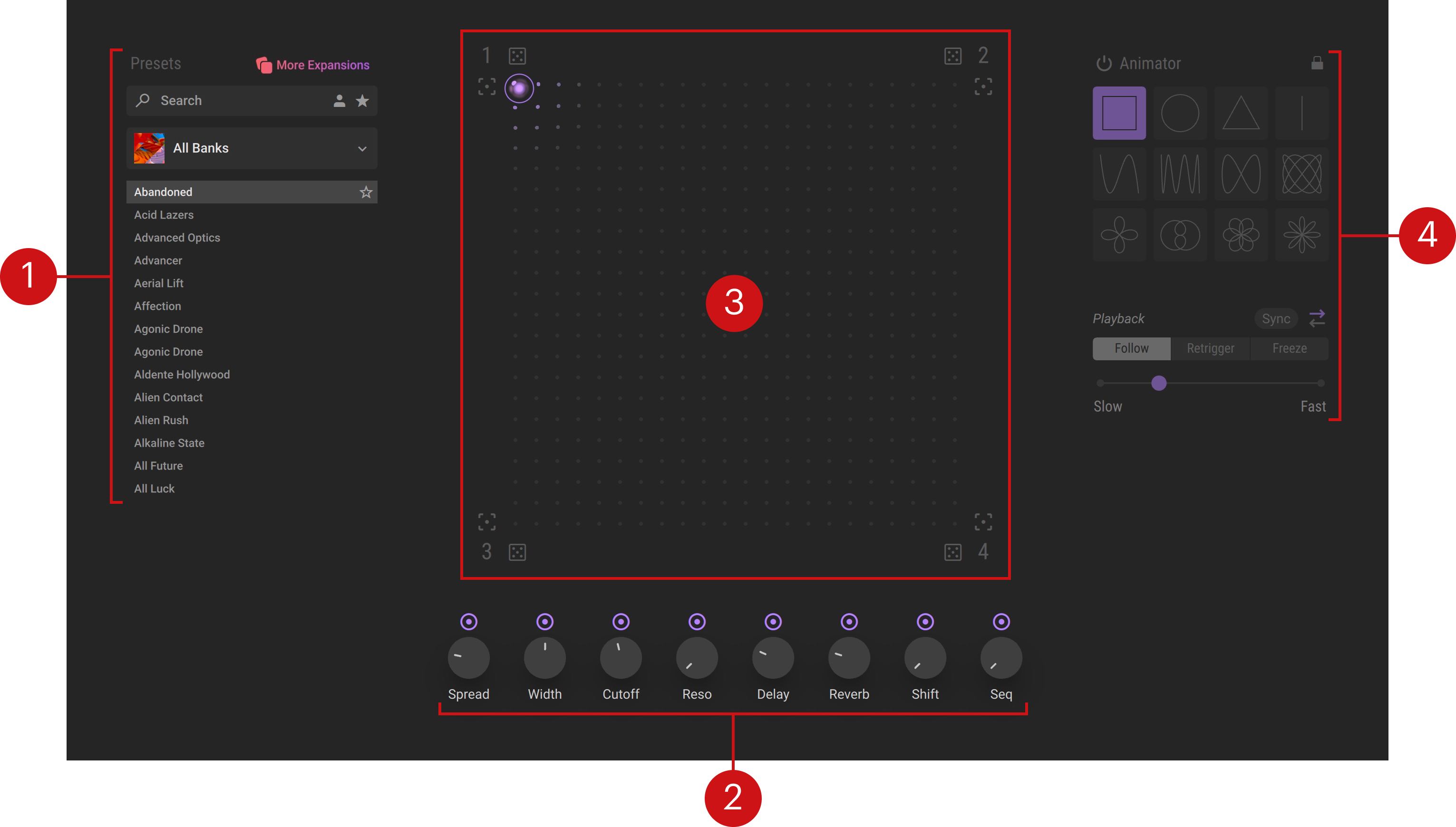
Presets browser: Lets you quickly search and load presets from your libraries and Expansions. You can find more information in Presets browser.
Macros 1–8: Provides access to the first eight Macros. You can find more information in Macros 1–8 in Play view.
Morpher: Adjusts the morphing between four different snapshots of the preset, each snapshot containing another set of values for the Macros 1–8. You can find more information in Morpher.
Animator: Configures an automatic morphing between the snapshots. You can find more information in Animator.
Presets browser
The Presets browser lets you quickly browse and load presets without leaving the Play page. It always stays in sync with Browse view, so you can pick up where you left off if you switch views.
The Presets browser consists of the following elements:
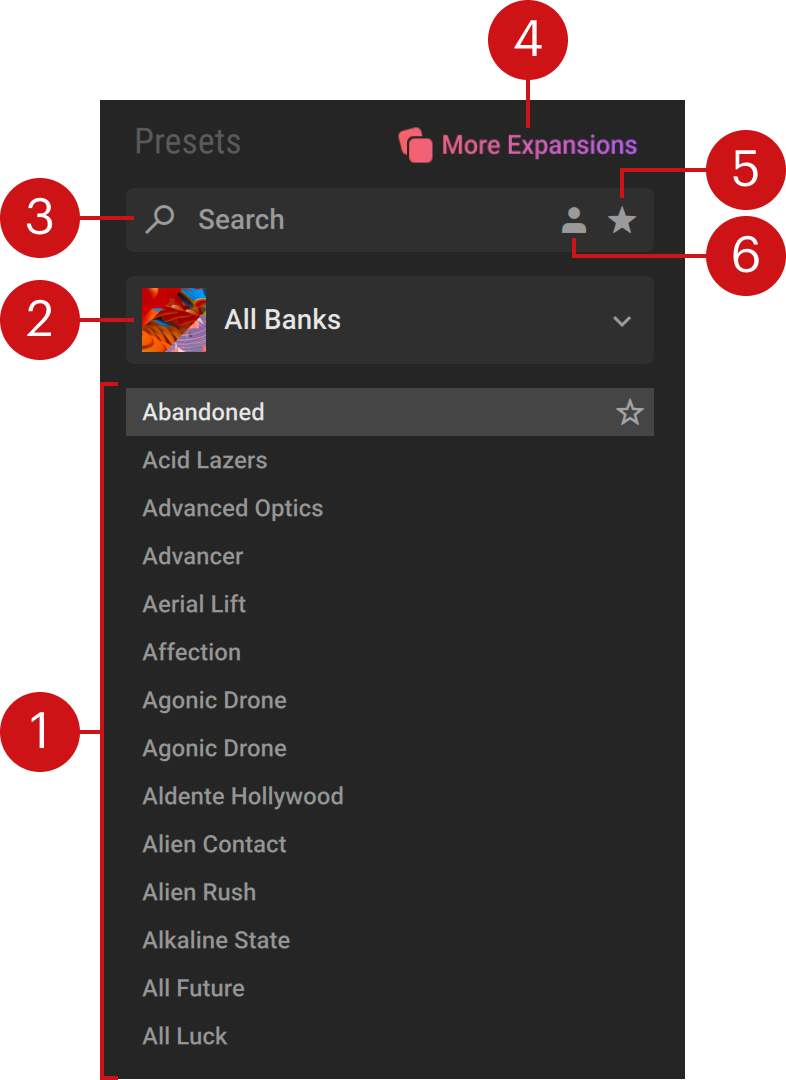 |
Results list: Displays the presets according to your search criteria. The presets are listed in alphabetical order and the selected preset is highlighted. You can click a preset to load it. As you hover over any preset with your mouse, a star icon appears on the right: If you click the star, the preset is set as Favorite and its star lights up. Clicking a lit star will remove the preset from your Favorites.
Bank selector: Displays the selected factory library or Expansion. Clicking the name opens a menu where you can select another bank from the factory libraries and Expansions installed on your computer. Selecting a bank filters the Results list accordingly. You can also select All Banks at the top of the menu to show the presets from all installed libraries and products. The selected entry is synchronized between the Presets browser and Browse view.
Search field: Filters the presets in the Results list according to the text entered in the field. The search engine considers the preset name, author, Character and Sound Type tags, and product name.
More Expansions: Opens the Massive XL Expansions page on the Native Instruments website.
Favorites: Filters the presets in the Results list by Favorite tags. You can assign the Favorite tag to any preset in the Results list, creating quick access to a custom collection of your most beloved presets sounds.
User content: Filters by user content. When activated, the Results list only shows user presets. When deactivated, the Results list only shows presets from your factory libraries and Expansions. You can find more information about user presets in Using presets. The state of this User Content button is synchronized between the Presets browser and Browse view.
Macros 1–8 in Play view
Macros are curated controls that are specific to each preset. You can think of them as shortcuts that are assigned to single or multiple controls under the hood. The first eight Macros of the loaded preset are available at the bottom of Play view.
Tip
In the full version of Massive XL all 16 Macros are available and fully customizable. You can find more information in Macros.
Each Macro in Play view consists of the following elements:
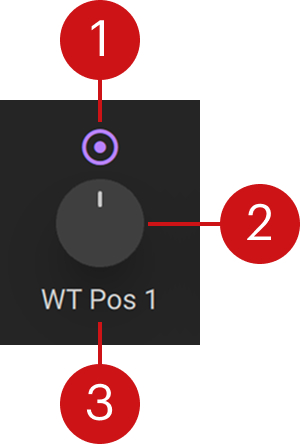 |
Macro label: Describes the Macro’s purpose or the controls it is assigned to.
Macro knob: Adjusts the Macro value, which in turn changes the controls it is assigned to. Hovering the Macro shows its current value underneath the label. Double-clicking resets the Macro to its default value.
Morph switch: Links the Macro to the Morpher. When activated, the Macro value depends on the position of the Morpher cursor. When deactivated, the Macro is independent from the Morpher cursor.
Morpher
The Morpher lets you create four snapshots of Macros 1–8 and morph between them. Each corner of the Morpher represents one of the snapshots. By moving the Morpher cursor in the XY pad you can smoothly blend between the Macro settings saved in the four snapshots.
The Morpher consists of the following elements:
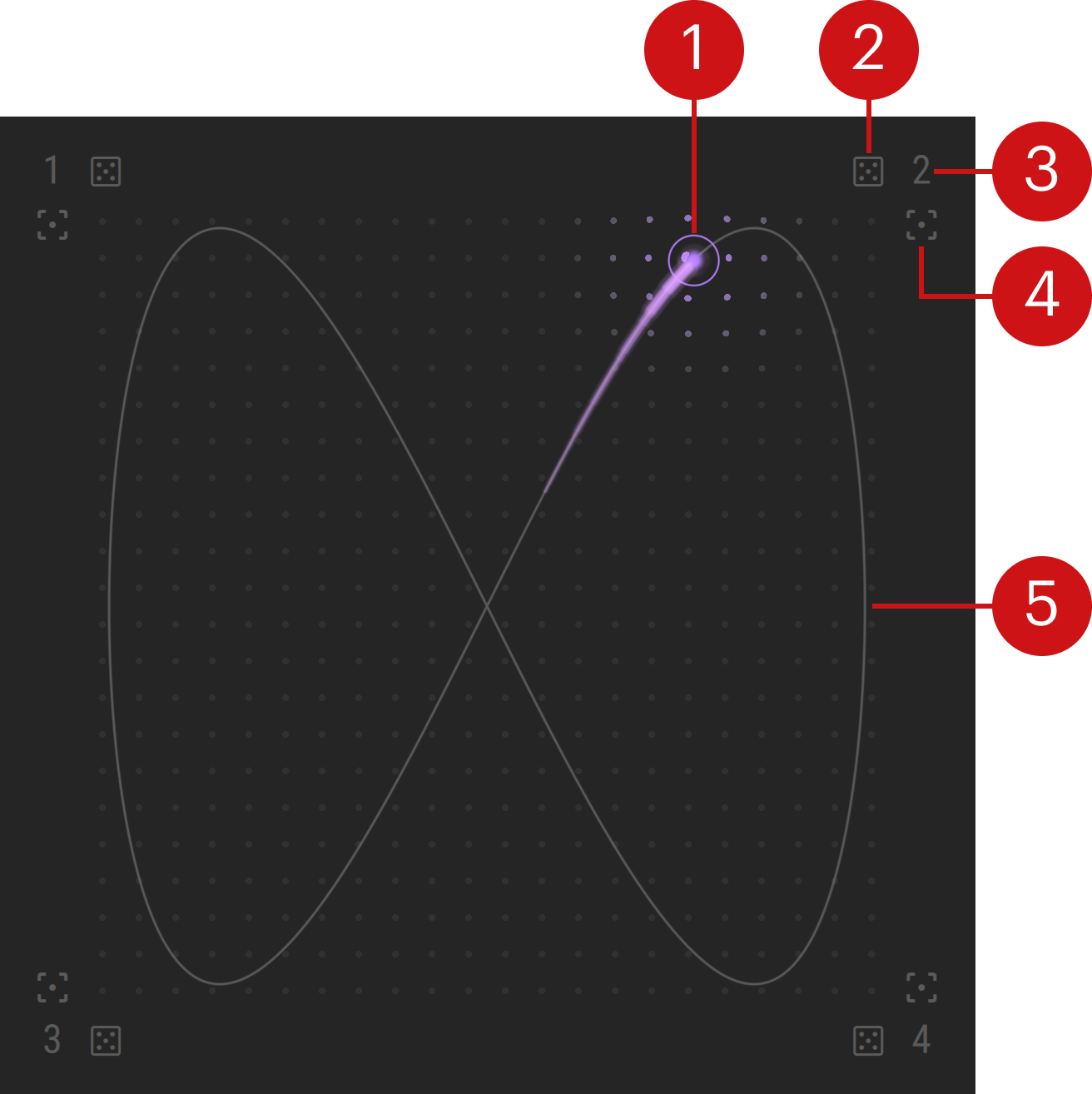 |
Morpher cursor: Blends between the Macro values saved in the four snapshots at the corners of the Morpher. The values are interpolated according to the relative distances to each corner. You can click and drag the Morpher cursor to morph between snapshots, or click anywhere in the XY pad to jump to that position. The Animator lets you create automatic movement.
Randomize Snapshot: Generates random values for the eight Macros and saves them in this snapshot. The Morpher cursor moves into this corner so you can see and play the new Macro settings.
Recall Snapshot: Moves the Morpher cursor to this corner so you can see and play the Macro settings saved in this snapshot.
Store Snapshot: Saves the current values of the eight Macros in this snapshot. The Morpher cursor moves into this corner so you can continue playing with your current Macro settings.
Trail: Indicates the trajectory of the Morpher cursor when the Animator is activated.
Note
When you click Store Snapshot or Randomize Snapshot, new values are captured for all eight Macros, whether or not their Morph switches are on or off. The Morph switches only determine if a Macro follows the values produced by the Morpher.
Using the Morpher with MIDI or host automation
You can control the position of the Morpher cursor from a MIDI keyboard/controller or by using host automation in your DAW by assigning the cursor’s horizontal (x axis) and vertical (y axis) positions.
The Morpher cursor modifies the values of the Macros 1–8, which are also available for host automation. You can choose which control changes are exposed to your DAW using the Morpher Automation entry in Settings menu:
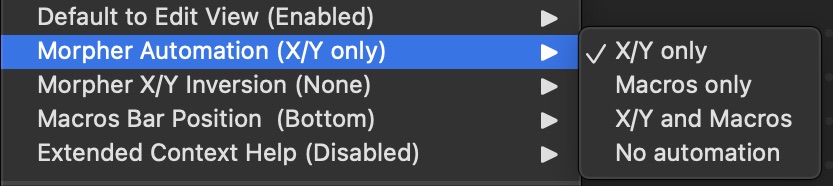 |
X/Y only (default setting): When you move the Morpher cursor, only the changes in the cursor position (horizontal and vertical) will be reported to your DAW.
Macros only: When you move the Morpher cursor, only the resulting changes in the Macro values will be reported to your DAW.
X/Y and Macros: When you move the Morpher cursor, both cursor position and the resulting changes in the Macro values will be reported to your DAW.
No automation: When you move the Morpher cursor, no parameter change will be reported to your DAW.
Note
These modes only affect the automation recorded when you move the Morpher cursor. Manual adjustments to the Macros themselves are always exposed to your DAW.
Additionally, you can invert the Morpher's response to automation data using the Morpher X/Y Inversion entry in the Settings menu:
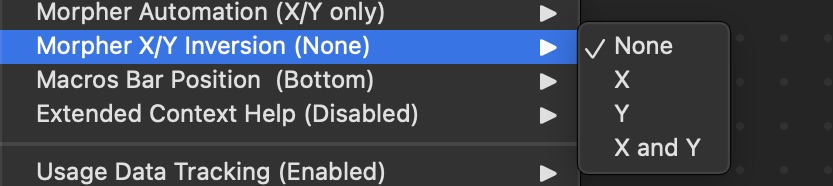 |
None (default setting): The response of the Morpher cursor to automation data is not inverted.
X: The Morpher cursor responds inversely to automation data applied to the horizontal axis.
Y: The Morpher cursor responds inversely to automation data applied to the vertical axis.
X and Y: The Morpher cursor responds inversely to automation data applied to both the horizontal and the vertical axis.
Animator
The Animator lets you automate the movement of the cursor in the Morpher, and thereby automate the morphing of the Macro values.
The Animator contains the following options and controls:
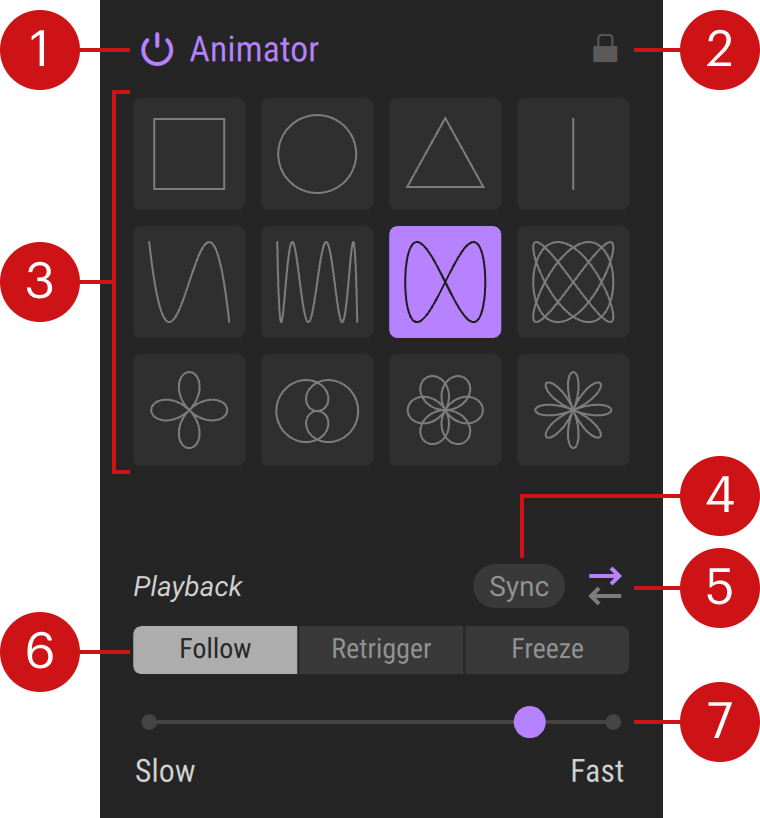 |
Animator on/off: Activates or deactivates the Animator. When the switch is off, the whole Animator area is grayed out, and you can still adjust its settings but they will not affect the Morpher cursor until you reactivate the Animator. When the Animator is on, the Morpher cursor moves automatically and you cannot change its position by dragging it with the mouse.
Animator Lock: Keeps the current Animator settings when you load another preset so you can use the movement you have created with different presets and their Macros.
Trail selector: Selects the trail followed by the Morpher cursor.
Sync: Synchronizes the movement of the Morpher cursor to the tempo of your DAW. When Playback mode is set to Follow, the position of the Morpher cursor is additionally linked to the song position of your DAW.
Playback direction: Toggles the movement of the Morpher cursor between forward and backward.
Playback mode: Sets the Morpher's response to incoming MIDI notes. Follow makes the cursor move along the Animator shape independently of MIDI events. Retrigger makes the cursor jump to the start of the shape at the start of each note. Freeze captures the cursor position at the start of each note and holds its value until the next note is played.
Rate: Adjusts how fast the Morpher cursor follows the trail. When Sync is on, Rate is set relative to the tempo of your DAW. In this case you can set the number of bars it takes the Morpher cursor to complete the trail.
Tip
In Freeze mode, try using a fast Rate with Sync off and one of the more complex Animator trails to make every note you play sound different. If you instead use a slow Rate with Sync on and a basic Animator trail, you will get recognizable patterns of changes that repeat as you keep playing notes.