Voice page
The Voice page in Massive XL lets you set how the instrument's voices respond to MIDI notes, and features unison with harmonization and chords.
The Voice page lets you manage voicing and polyphony. You can set how the instrument's voices respond to MIDI notes and add unison to your sound. The additional unison voices can be detuned, stacked, and spread to create wide ensemble-like effects as well as harmonies and chords.
Micro-detuning can be used to emulate the drifting and detuning of analog synthesizers. Chord Sets enable you to explore different harmonies and create transitions by applying modulation to the chord selection.
Note
The Voice page is not available in Massive XL Player.
Voice page overview
The Voice page consists of the following areas:
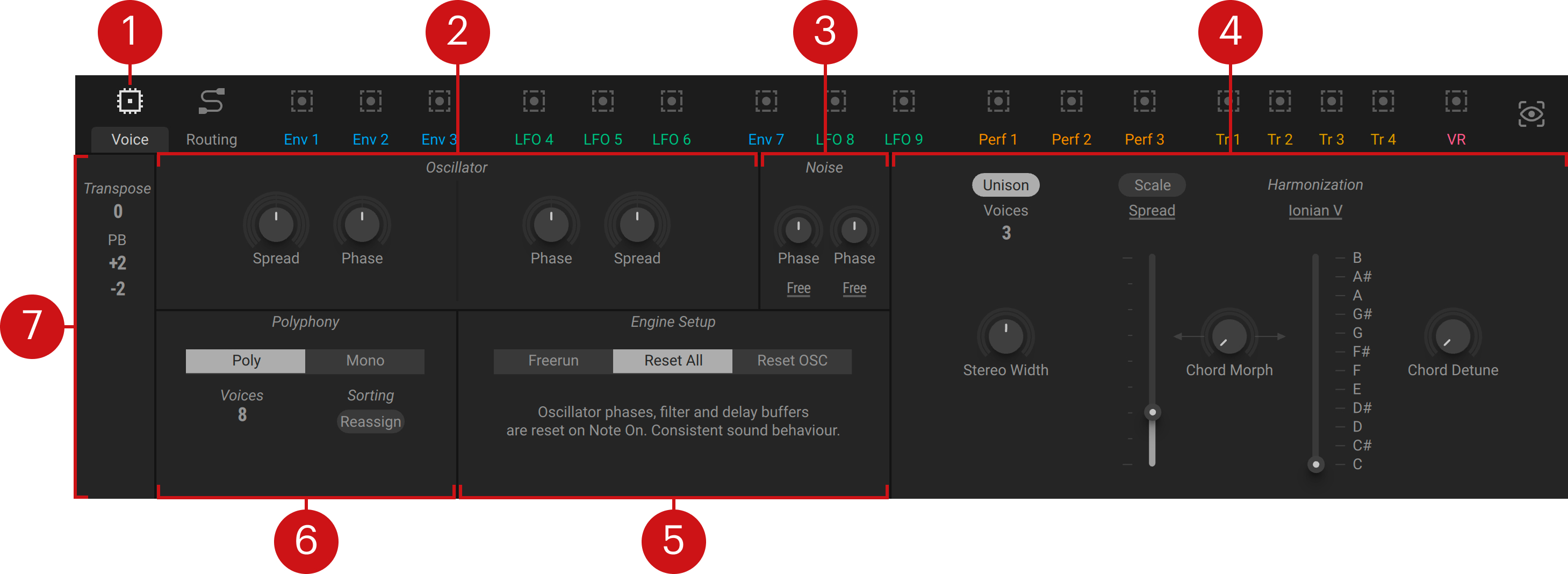
Voice page: Shows the Voice page in the Editor.
Oscillator: Settings for the initial phase and spreading of the Wavetable oscillators. You can find more information in Oscillator.
Noise: Settings for the start position and restart behavior of the Noisetables in the Noise module. You can find more information in Noise.
Unison: Settings for unison and harmonization. You can find more information in Unison.
Global Reset: Settings for the phase behavior of the voices. You can find more information in Global Reset.
Polyphony: Settings for polyphony handling and playing behavior. You can find more information in Polyphony.
Transpose: Settings for global transposition and pitch-bend. You can find more information in Transpose.
Transpose
Transpose lets you set the global transposition of the instrument as well as the range of pitch bend you can apply using your MIDI controller.
Transpose contains the following controls:
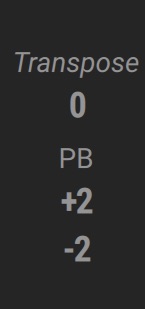 |
Transpose: Transposes the global pitch of the synthesizer in the range of -24 to +24 semitones.
PB: Sets the maximum up and down values of the pitch bend control in the range of -96 to +96 semitones. You can invert the action of the pitch bend control by setting a low value that is higher than the up value.
Polyphony
Polyphony lets you switch Massive XL between Poly (polyphonic) and Mono (monophonic) mode. Each mode has additional options related to its behavior that are shown upon selecting the mode.
 |
Polyphony: Switches the instrument between Poly (polyphonic) and Mono (monophonic) mode. In Poly mode, you can play as many notes at the same time as voices are available. In Mono mode, you can play only one note at a time.
Poly mode
Poly mode lets you play up to 64 notes at the same time, only limited by the maximum number of Voices you have set. Poly mode offers constant-time glide. You can activate glide and change the global glide settings in the Pitch section.
Note
Unison voices are stacked on top, so a high number of Voices with Unison activated can significantly increase the CPU load.
Polyphony contains the following additional options for Poly mode:
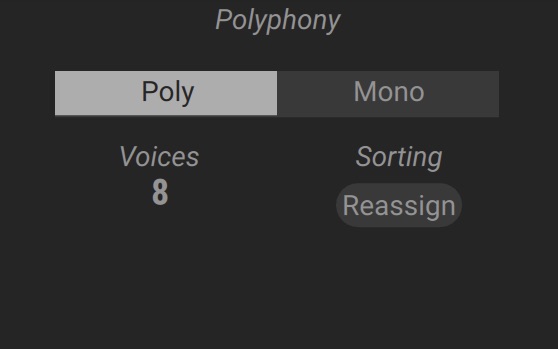 |
Voices: Sets the maximum number of voices that can be played at the same time before voices are reallocated to the most recent notes you play.
Sorting: Activates Reassign mode, which detects notes with identical pitch and allocates the same voice to them. When deactivated, each note is distributed to a new voice. In this case, two notes with identical pitch could play at the same time, which is not possible on acoustic instruments like the piano.
Mono mode
Mono mode lets you play one note at a time, just like a classic monophonic synthesizer. Mono mode offers constant-rate glide, with additional glide options available upon selecting the mode. You can activate glide and change the global glide settings in the Pitch section.
Tip
You can activate Unison to stack additional voices in Mono mode and create massive monophonic sounds or even chords.
Polyphony contains the following additional options for Mono mode:
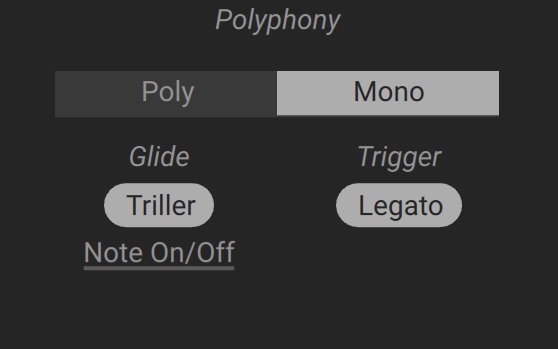 |
Glide Triller: Activates Triller mode, which mimics the glide behavior of classic monophonic synthesizers. If a secondary legato note is released, the pitch slides back to the original note that is being held. When deactivated, all notes end as soon as you release a secondary legato note.
Glide mode: Selects one of three modes for the monophonic glide behavior, Note On, Note On/Off, and Note Off. Note On applies glide only when notes are pressed. Note Off applies glide only when notes are released. Note On/Off triggers glide when notes are pressed and released.
Trigger Legato: Activates Legato mode for the envelopes and LFOs, preventing them from re-triggering when playing multiple notes at the same time in Mono mode. When deactivated, the envelopes and LFOs are triggered every time a note is played.
Global Reset
Global Reset lets you set how the polyphonic voices respond to MIDI notes in terms of the relative phases of their oscillators, filter, and Inserts. You can let them run freely to recreate analog behavior, or reset phases and buffers to make the notes you play sound more consistent.
Global Reset contains the following options:
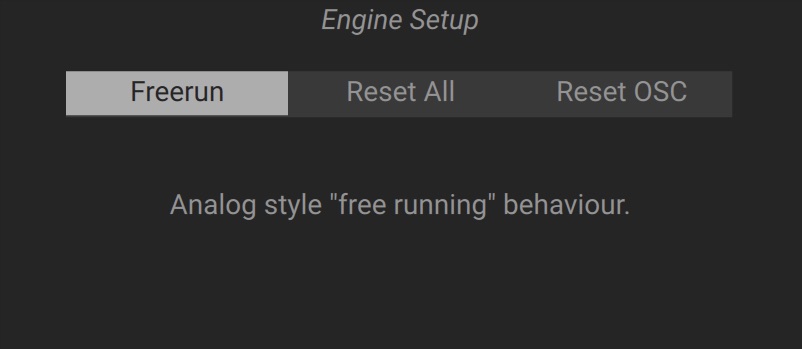 |
Global Reset: Switches between three types of reset behavior of the oscillator phases as well as the Filter and Insert delay buffers when MIDI notes are received, Freerun, Reset All, and Reset Oscs.
Freerun: Lets the oscillator phases as well as the Filter and Insert delays run freely, making them independent of MIDI notes. Freerun recreates analog behavior by allowing oscillator phases to beat against each other organically, and filter self-oscillation to build up across multiple notes.
Reset All: Resets the oscillator phases as well as the Filter and Insert delay buffers at the start of each MIDI note. Reset All produces consistent sound behavior for every note you play.
Reset Oscs: Resets the oscillator phases at the start of each MIDI note. Reset Oscs makes the oscillators cycle and beat consistently, while the Filter and Insert delays run freely.
Oscillator
Oscillator lets you set the initial phase of the Wavetable oscillators, and the initial phase spread of the unison voices. These settings are only available if Global Reset is set to Reset All or Reset Oscs.
Oscillator contains the following controls:
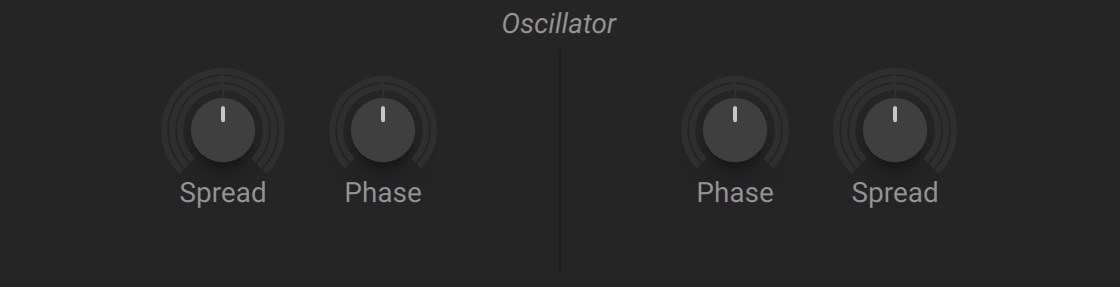 |
Phase: Adjusts the initial phase of the Wavetable oscillator when Global Reset is set to Reset All or Reset Oscs.
Spread: Adjusts the initial phase spreading of the Wavetable oscillator's unison voices when Global Reset is set to Reset All or Reset Oscs. Turning the control fully to the left aligns the phases of all unison voices at the start of each note.
Noise
Noise lets you set the Phase or Start position and the Playback mode of the noise sources in the Noise module. By default, noisetables play freely as a loop with adjustable Phase. In One Shot mode, the sample plays once when a note is received, with adjustable Start position and an automatic fade that prevents clicks.
Noise contains the following options and controls:
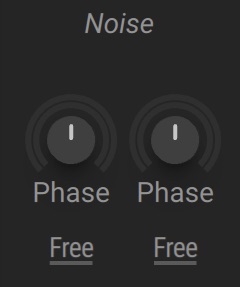 |
Phase/Start: Adjusts the phase or start position of the noise source in the Noise module, depending on the selected Playback mode. In Free and Restart mode, the control adjusts the Phase position of the sample playback from 0% to 100%. In One Shot mode, the control adjusts the Start position of the sample playback.
Playback mode: Selects from three modes for the noisetable playback, Free, Restart, or One Shot. Free loops the noisetable freely. Restart resets playback to the Phase position at the start of each note. One Shot plays the noisetable once for every note, with adjustable Start position. Switching modes preserves the values set for Phase and Start.
Tip
One Shot mode combines well with noisetables from the Transients category, letting you layer additional transients only onto the attack of your sound.
Unison
Unison lets you stack additional voices on top of each note you play. Unison voices can be detuned to recreate the beating effects known from analog synthesizers where multiple oscillators drift in and out of phase. By spreading the unison voices in the stereo image, you can create lively clouds of sound. Additionally, Harmonization let's play chords using the unison voices or lock the notes you are playing into a scale.
The additional unison voices are applied to all modules in the Polyphonic Area of the Routing page and are not limited to just the oscillators. For example, you can apply unison to physical modeling sounds using the Comb filter, or patches that rely on additional sound sources, distortion, or effects loaded in the Inserts module.
By adjusting the number of Voices, Spread, and Stereo Width you can create anything from subtle detuning to strong timbral shifts, making the sound bigger and thicker. Spread or Wide modes let you choose a suitable range for the detuning.
Activating Scale locks the notes you are playing into the scale selected in the Harmonization menu, and by turning Chord Morph to the right the unison voices will form chords that you can play with single MIDI notes.
Unison contains the following options and controls:
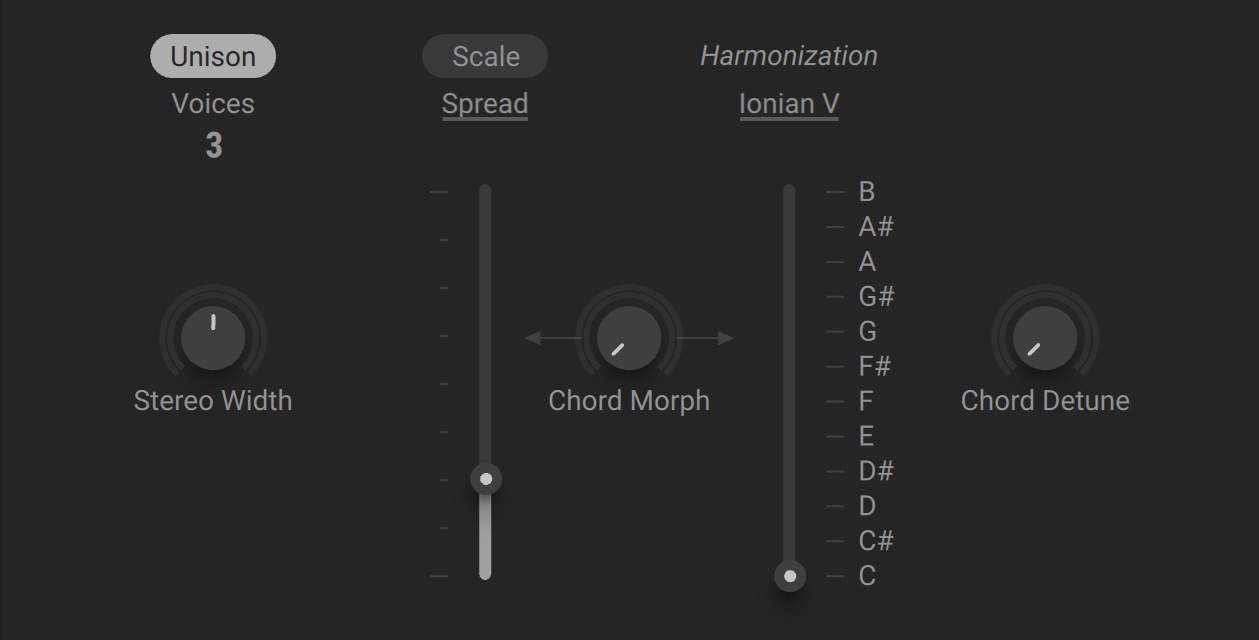 |
Unison: Activates Unison, which stacks additional voices on top of each note you play. Unison voices can be detuned for lively clouds of sound, spread across the stereo image, and harmonized to create chords.
Voices: Adjusts the number of unison voices that are added to each note from 1-6. When Voices is set to 1, there is no unison effect.
Stereo Width: Adjusts the stereo spread of the voices. When turned fully to the left, all voices are mono. Turning the control to the right spreads the voices in the stereo image.
Scale: Locks the notes you are playing into the scale selected in the Harmonization menu.
Spread mode: Switches between Spread and Wide mode for the detuning of the unison voices. Spread is suitable for micro-detuning, making sounds more alive in a subtle way. Results are best with 4, 5, or 6 voices selected. Wide detunes the unison voices by a maximum range of one octave. Equal distribution of the spreading produces pronounced beating effects.
Spread: Adjusts the amount of relative detuning applied to the unison voices, making the sound thicker. In Wide mode, the control is scaled in semitones. You can click the numbers next to the control to set exact semitone offsets.
Chord Morph: Blends between regular detuning and chord tuning for the unison voices. When turned fully to the left, regular detuning is applied. When turned fully to the right, the unison voices form a chord according to the scale selected in the Harmonization menu. Turning the control can create cinematic sound effects.
Harmonization menu: Opens the Harmonization menu that lets you load scales and chord sets for tuning the unison voices and the Scale function. When hovering the menu you can use the arrows to load the previous or next scale or chord set from the selected category. You can find more information in Harmonization menu.
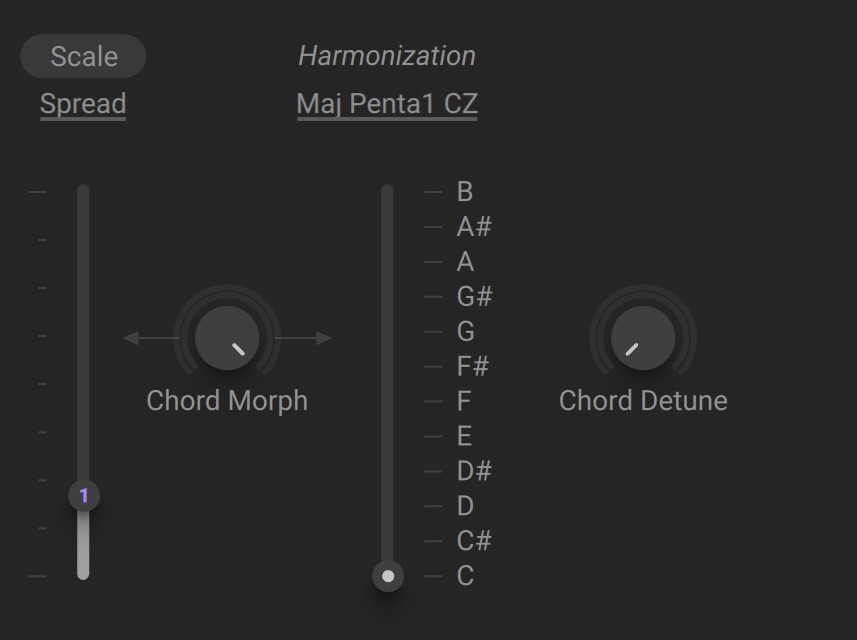
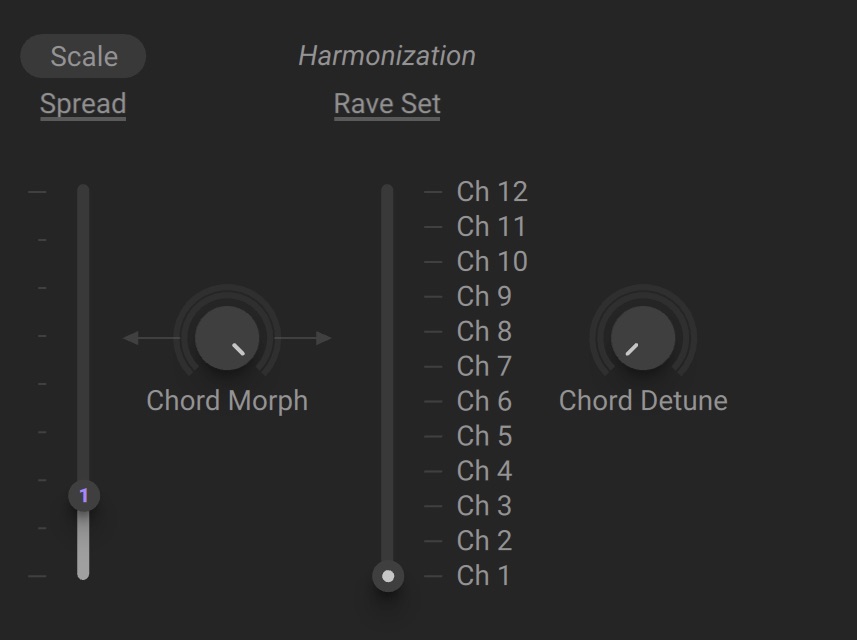
Harmonization: Sets the key when a scale is selected in the Harmonization menu, or switches between 12 chord variations when a chord set is selected.
Chord Detune: Detunes the voices forming a chord for a smoother, more lively sound.
Tip
You can use a Tracker to switch between chords and set the detuning according to the notes you play.
Harmonization menu
The Harmonization menu lets you load the scales and chord sets for tuning the unison voices and the Scale function. Clicking and dragging the header moves the menu to another position.
The Harmonization menu consists of the following elements:
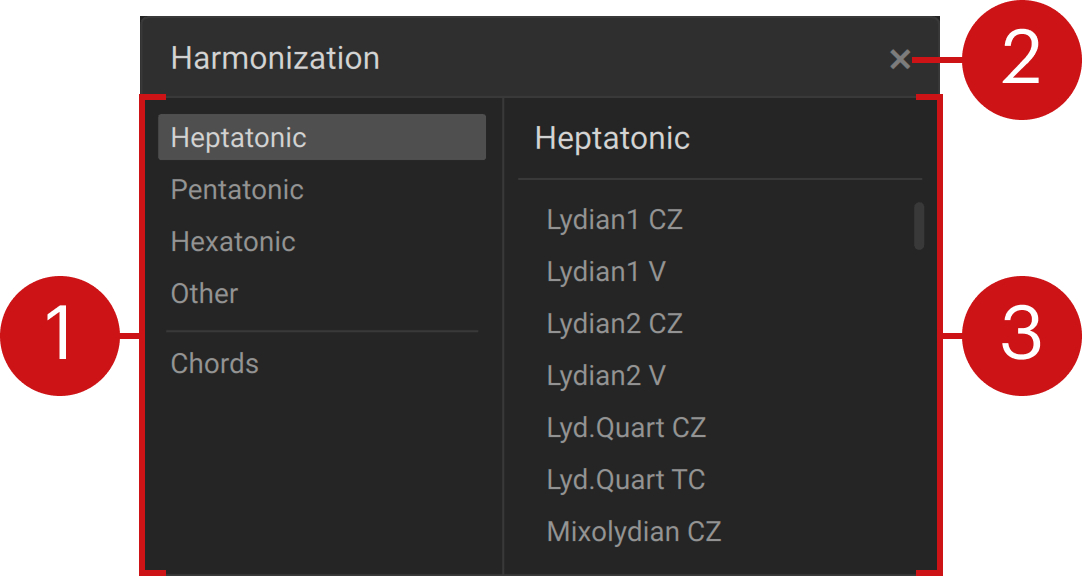 |
Category list: Selects the category of items to be shown in the list on the right side of the menu.
Close: Closes the menu.
Item list: Shows all items in the selected category. Clicking an entry loads the item but keeps the menu open. Double-clicking an entry loads the item and closes the menu.
You can select a scale to perform within a specific musical scale, or a chord set to build chord progressions. Selecting either scales or chord sets will change the functionality of the Harmonization control. When selecting a scale, the control sets the key of the musical scale. When selecting a chord set, the control switches between chord variations:
Scales
Scales are organized in four categories at the top of the Harmonization menu, Heptatonic, Pentatonic, Hexatonic, and Other, each containing many different scales to choose from.
Selecting a scale determines not only the chords that will be formed when Chord Morph is turned to the right, but also the way the Scale function locks the notes you are playing into the scale.
If you play notes outside of the selected scale, they will be shifted according to three different types of correction as noted next to each scale in the list:
CZ (Catch Zone): Corrects notes outside of the selected scale. In sharp scales, higher notes will be corrected and are shifted downwards. For example, in the Lydian scale, C# becomes C. In flat scales, lower notes will be corrected and are shifted upwards.
V (Variation): Rearranges the chord structure instead of correcting the chord.
TC (Transition): Uses transitional chords, which are extra chords that bridge between different keys.
Chord sets
Chord sets are available in the Chords category at the bottom of the Harmonization menu. They let you play a variety of chords with single MIDI notes when Chord Morph is turned to the right, providing parallel chords or transposition on top of the main pitch.
When a chord set is selected, you can switch between 12 chord variations using the Harmonization control. By modulating the control using a Performer, you can create chord progressions within each note you are playing. You can also use a Tracker to switch between chords variations according to the notes you play.