Modulators
Massive XL offers nine Modulators that can be assigned to almost any control, adding depth and movement to any sound.
Modulators are used to add movement to your sound by changing controls over time. Modulator 1 is a dedicated Amplifier envelope. Each of the other eight Modulators can be switched between Modulation Envelope, Exciter Envelope, Switcher LFO, and Random LFO.
Modulators can be used to apply LFOs or envelopes to shape the contour of a sound and create movement. By combining multiple Modulators and using the flexible modulation assignment, you can create highly dynamic sounds with intricate
You can access and assign the Modulators from the Navigation bar using the tabs labeled according to the Modulator's function and number. Envelopes are blue, and LFOs are green. You can find more information about assigning Modulators in Assigning modulation.
Tip
The Performers and Trackers are special Modulators that you can use in place of, or in combination with the envelopes and LFOs. Performers are based on sequenced modulation shapes, while Trackers facilitate advanced MIDI and keyboard tracking.
Note
Editing Modulators is not available in Massive XL Player.
Modulators overview
The Modulators consist of the following elements:
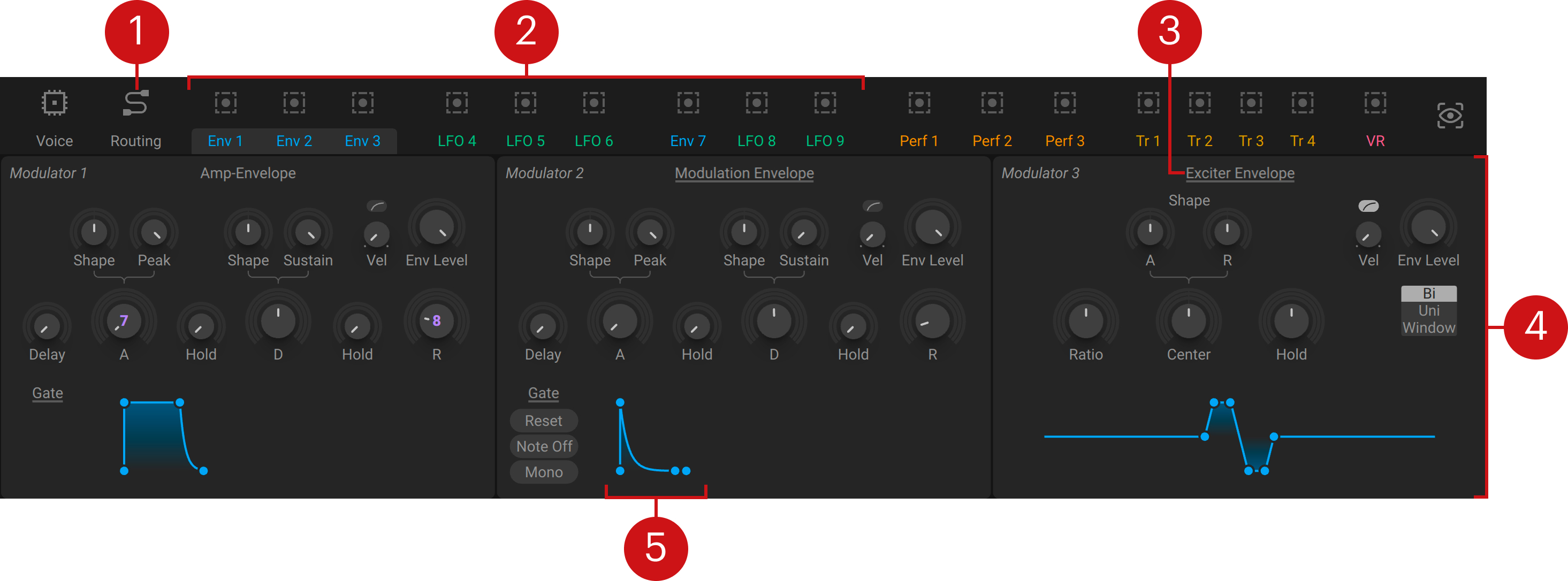
Routing: Two Modulation modules can be accessed via the Routing page, allowing you to use Modulators as generators in the signal path. You can find more information in Modulation modules.
Modulators: The type and name of each Modulator is displayed here. Envelopes are blue and LFOs are green. You can view and edit Modulators in groups of three by clicking on the names. Clicking the target icon above the Modulator lets you assign it to controls. You can find more information in Assigning modulation.
Modulator menu: Selects from four Modulators that you can load in any of the slots, including the Modulation Envelope, Exciter Envelope, Switcher LFO, and the Random LFO.
Editor: The Editor gives you access to all Modulator controls. You can view and edit Modulators in groups of three by clicking on the names in the Navigation bar.
Controls and displays: The lower section lets you view and edit Modulators in groups of three. You can use the controls to adjust the shape, rate, and behavior of the Modulators. The envelope displays visualize the envelope shape, and can be used to directly adjust envelope parameters.
Note
If a Modulator is assigned to a control in an active module, the modulation it produces is visualized using a miniature scope in the Navigation bar for as long as you play a note. The scope is a real-time display showing a representation of the modulation rate and shape.
Amp Envelope
The Amp Envelope controls the level of the Amplifier according to MIDI note events and therefore the overall volume contour of your sound. Shape controls as well as additional Delay and Hold stages let you fine-tune how your sound evolves over time. The three envelope modes change the envelope's response to note events and make it possible to create cycling envelopes.
Envelopes are fundamental to shaping the contour of your sound. Typical use cases include controlling the volume level, shaping tone and color by modulating the Filter, or changing the pitch. Envelopes can also be used creatively, for example by modulating wavetable controls, effects, or the rate and shape of other Modulators.
The Amp Envelope contains the following controls and options:
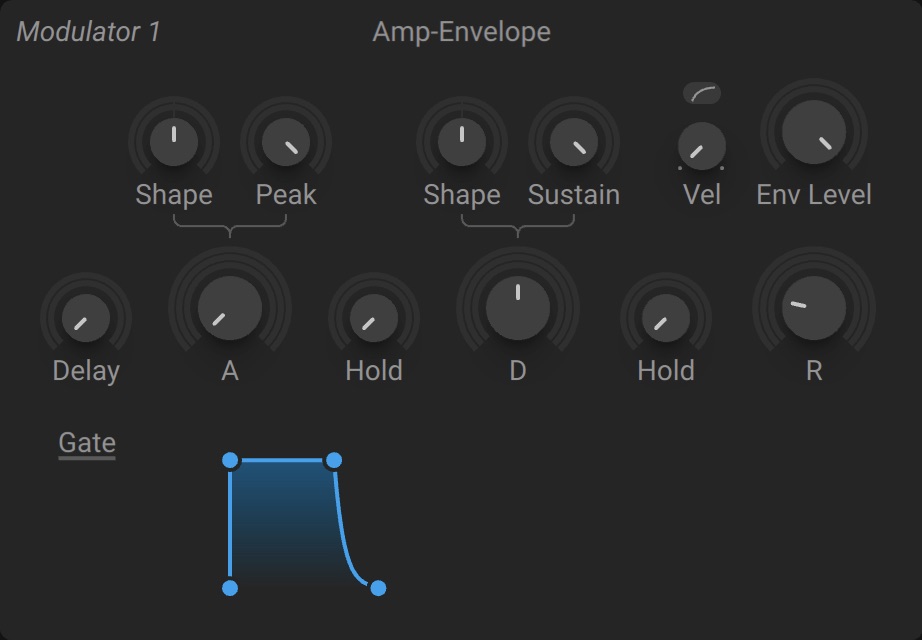 |
Delay: Adjusts the time it takes the envelope to start after a note is played by adding a delay before the attack stage. Adding a delay lets you offset multiple envelopes in time to create double-attack effects, for example.
Attack: Adjusts the time it takes the envelope to rise from zero to maximum level at the start of each note you play. When turned fully to the left, the envelope rises instantly, producing a sharp transient. Turning the control to the right smoothens the attack.
Attack Shape: Adjusts the curve of the attack stage from exponential to linear to logarithmic.
Attack Peak: Adjusts the maximum level reached once the attack stage is completed. The range of this control depends on the Velocity setting.
Hold 1: Adjusts the time the maximum level is held at the end of the attack stage and before the start of the decay stage.
Decay: Adjusts the time it takes the envelope to fall from the maximum level to the sustain level once the attack stage is completed. When turned fully to the left, the transition is instant. Turning the control to the right smoothens the transition.
Decay Shape: Adjusts the curve of the decay stage from exponential to linear to logarithmic.
Sustain: Adjusts the level the envelope stays on after the attack and decay phases are completed, and for as long as you hold a note (when Gate mode is selected).
Hold 2: Adjusts the time the sustain level is held at the end of the Sustain stage and before the start of the Release stage.
Release: Adjusts the time it takes the envelope to fall from the sustain level to zero at the end of each note you play. When turned fully to the left, the envelope falls instantly, cutting out abruptly. Turning the control to the right smoothens the release.
Velocity: Adjusts the velocity sensitivity of the envelope. Turning the control to the right will make the amplitude of the envelope follow MIDI note velocity. When turned fully to the right, the amplitude of the envelope is fully proportional to the velocity of the incoming notes.
Velocity shape: Switches the slope of the Velocity control between linear (Lin) and logarithmic (Log).
Env Level: Adjusts the overall level of the modulation produced by the envelope. The Amplifier level is always fully modulated by the Amp Envelope and independent from Env Level.
Mode: Defines the envelope's response to MIDI notes. Gate mode follows the envelope according to note duration. OneShot completes the envelope independently of note duration. LoopGate loops the Attack and Decay stages throughout note duration. LoopGate requires Sustain to be set to 0%.
Display: Visualizes the envelope shape and lets you adjust envelope controls by clicking and dragging the points and segments.
Modulation Envelope
The Modulation Envelope produces modulation according to MIDI note events and can be used to add movement to any control. Shape controls as well as additional Delay and Hold stages let you fine-tune how your sound evolves over time. The four envelope modes change the envelope's response to note events and make it possible to create cycling envelopes.
Envelopes are fundamental to shaping the contour of your sound. Typical use cases include controlling the volume level, shaping tone and color by modulating the Filter, or changing the pitch. Envelopes can also be used creatively, for example by modulating wavetable controls, effects, or the rate and shape of other Modulators.
The Modulation Envelope contains the following controls and options:
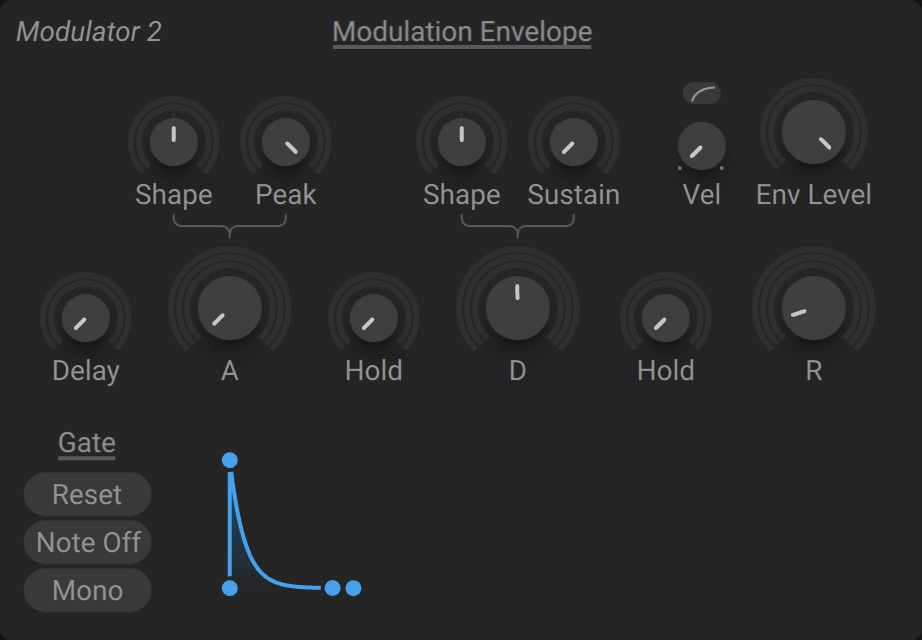 |
Delay: Adjusts the time it takes the envelope to start after a note is played by adding a delay before the attack stage. Adding a delay lets you offset multiple envelopes in time to create double-attack effects, for example.
Attack: Adjusts the time it takes the envelope to rise from zero to maximum level at the start of each note you play. When turned fully to the left, the envelope rises instantly, producing a sharp transient. Turning the control to the right smoothens the attack.
Attack Shape: Adjusts the curve of the attack stage from exponential to linear to logarithmic.
Attack Peak: Adjusts the maximum level reached once the attack stage is completed. The range of this control depends on the Velocity setting.
Hold 1: Adjusts the time the maximum level is held at the end of the attack stage and before the start of the decay stage.
Decay: Adjusts the time it takes the envelope to fall from the maximum level to the sustain level once the attack stage is completed. When turned fully to the left, the transition is instant. Turning the control to the right smoothens the transition.
Decay Shape: Adjusts the curve of the decay stage from exponential to linear to logarithmic.
Sustain: Adjusts the level the envelope stays on after the attack and decay phases are completed, and for as long as you hold a note (when Gate mode is selected).
Hold 2: Adjusts the time the sustain level is held at the end of the Sustain stage and before the start of the Release stage.
Release: Adjusts the time it takes the envelope to fall from the sustain level to zero at the end of each note you play. When turned fully to the left, the envelope falls instantly, cutting out abruptly. Turning the control to the right smoothens the release.
Velocity: Adjusts the velocity sensitivity of the envelope. Turning the control to the right will make the amplitude of the envelope follow MIDI note velocity. When turned fully to the right, the amplitude of the envelope is fully proportional to the velocity of the incoming notes.
Velocity shape: Switches the slope of the Velocity control between linear (Lin) and logarithmic (Log).
Env Level: Adjusts the overall level of the modulation produced by the envelope.
Mode: Defines the envelope's response to MIDI notes. Gate mode follows the envelope according to note duration. OneShot completes the envelope independently of note duration. LoopGate loops the attack and decay stages throughout note duration. Loop continuously loops the attack and decay stages. Loop modes require Sustain to be set to 0%.
Reset: Forces the envelope to restart each time a note is played.
Note Off: Starts the envelope at the end of the notes you play (MIDI note off event), for example when a key is released.
Mono: Switches the envelope to monophonic behavior, applying only a single instance of the envelope to all active voices.
Display: Visualizes the envelope shape and lets you adjust envelope controls by clicking and dragging the points and segments.
Exciter Envelope
The Exciter envelope is a particularly fast envelope that has been designed to trigger the Comb filter as a resonator in physical modeling. It is also effective for creating percussive sounds with short attack and release times.
Unlike a standard ADSR envelope generator, the Exciter envelope is a single-cycle Attack-Release envelope with a defined center point and a Hold stage that maintains the peak level from Attack to Release. The envelope times are tracking the pitch of the notes you play, ensuring consistent behavior across pitches in physical modeling configurations.
To use this envelope as an exciter for the Comb filter, it must be assigned to one of the Modulation modules on the Routing page, routed to the Comb filter and then the filter routed to the output. This enables you to set the Comb filter into oscillation and create tones from the Feedback. A low Ratio setting produces the short envelope burst needed to create sound from the filter. You can find more information in Comb.
Tip
You can also use the Exciter envelope to briefly trigger self-oscillation of resonant filters at high Res settings. This so-called filter pinging produces a damped sine wave that can be played via MIDI by using key tracking (KTR). The SVF filter types are especially suitable for this purpose.
The Exciter Envelope contains the following controls and options:
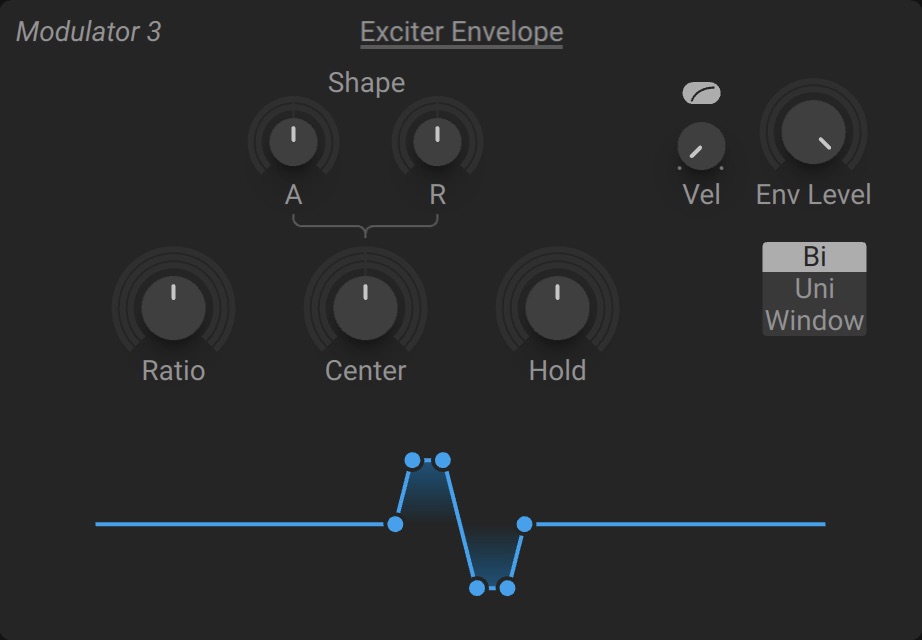 |
Ratio: Controls the length of the envelope. Turning the knob right, increases the value, resulting in a longer envelope. The envelope times track the pitch of the notes you play.
Center: Tilts the envelope towards the Attack stage when turned left, or towards the Release stage when turned right.
Attack Shape: Changes the curve of the attack (A) stage of the envelope from parabolic to logarithmic.
Release Shape: Changes the curve of the release (R) stage of the envelope from parabolic to logarithmic.
Hold: Increases the width of the peak stage of the envelope, determining how long the level of this stage will be held.
Velocity: Adjusts the velocity sensitivity of the envelope. Turning the control to the right will make the amplitude of the envelope follow MIDI note velocity. When turned fully to the right, the amplitude of the envelope is fully proportional to the velocity of the incoming notes.
Velocity shape: Switches the slope of the Velocity control between linear (Lin) and logarithmic (Log).
Env Level: Adjusts the overall level of the envelope.
Polarity: Switches the envelope between Bi (bipolar), Uni (unipolar), and Window output. Bi has an output range of -100% to +100%. Uni has a range of 0 to 100%. Window has a range of 0 to 100% with mirrored attack and release stages and only one set of controls.
Display: Visualizes the envelope shape and lets you adjust envelope controls by clicking and dragging the points and segments.
Switcher LFO
The Switcher LFO is a flexible low-frequency oscillator that produces cycling modulation, with controls for the shape and speed of the modulation. Shape offers 16 different waveforms, and the Rate can be synchronized to the tempo of your DAW. The Play modes let the LFO play continuously or one cycle only, and set the LFO's response to the notes you play.
LFOs (low frequency oscillators) produce cycling, rhythmic modulation with variable waveforms, adding a sense of motion and depth to a sound. Common use cases include modulating pitch to create vibrato, or modulating the volume level to create tremolo. LFOs can also be used creatively, for example by modulating wavetable controls, effects, or the rate and shape of other Modulators.
Tip
Setting Time mode to Osc and assigning the LFO to a Modulation module on the Routing page turns the Switcher LFO into an extra sound source that tracks the pitch of the Wavetable oscillators.
The Switcher LFO contains the following controls and options:
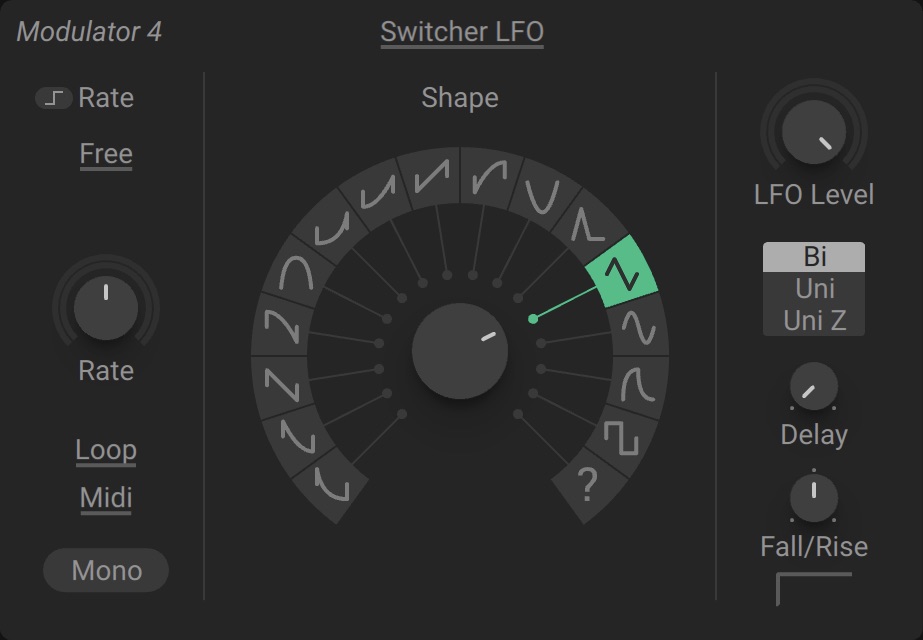 |
Latch Rate: Captures the Rate value at the start of each note and holds it until the next note is played, so changes from direct control or modulation are only applied once per MIDI note.
Time mode: Selects one of three modes for setting the LFO rate. Sync lets you switch between time signatures relative to the tempo of your DAW using the Tempo slider. Free allows for continuous adjustment using the Rate control. Osc switches the LFO to audio rate and tracks MIDI pitch, with Rate controlling a negative pitch offset.
Rate: Adjusts the frequency of the LFO in Hz. The Rate control is available if Time mode is set to Free or Osc. In Osc mode, a rate of 100% will track MIDI pitch, and a rate of 0% will add a pitch offset of -96 semitones.
Tempo slider: Switches between five time signatures (Sync 1-5) that synchronize the LFO rate to the tempo of your DAW. The Tempo slider is available if Time mode is set to Sync.
Sync 1-5: Lets you define the time signatures used by the Tempo slider when Time mode is set to Sync. You can change the values by clicking and dragging up or down.
Shape: Selects one of sixteen waveforms for the LFO. The new shape is updated with each cycle, producing seamless transitions and interesting shapes when modulated.
Latch Shape: Captures the Shape value at the start of each note and holds it until the next note is played, so the LFO waveform will not change for as long as you play a note even when modulated. Latch Shape is not available if Play mode is set to Loop.
LFO Level: Adjusts the overall level of the modulation produced by the LFO.
Polarity: Switches the LFO between Bi (bipolar) and Uni (unipolar) output. Bi has an output range of -100% to +100% and the waveform starts at 0%. Uni has a range of 0 to 100% and the waveform starts at 50%. Uni Z has a range of 0 to 100% and the waveform starts at 0%, changing the LFO's reset behavior.
Delay: Applies a delay to the onset of the LFO. When turned fully left, no delay time is applied and the LFO starts immediately. Turning the knob right increases the delay time.
Fall/Rise: Fades the LFO in or out at the start of each note. At center position, the LFO is always on. Turning the control to the right creates a fade-in at the start of each note. Turning the control to the left creates a fade-out at the start of each note.
Mono: When deactivated, the LFO is polyphonic. Each incoming note receives its own LFO. When activated, the LFO is monophonic and all incoming notes receive the same LFO, regardless of pitch.
Trigger mode: Switches between Midi and Remote modes for resetting and latching the LFOs. Midi resets and latches when receiving MIDI notes. Remote resets and latches when you change key switches in the Remote Octave.
Play mode: Selects from six modes that change the basic behavior of the LFO, Loop, Loop RST, Loop GTE, Loop REL, 1shot, 1shot REL.
Loop cycles through the waveform infinitely, regardless of whether MIDI notes are received or not.
Loop RST (Loop Restart) cycles through the waveform infinitely but resets the waveform cycle when a MIDI note is received.
Loop GTE (Loop Gate) cycles through the waveform infinitely but resets the waveform cycle when a MIDI note is received, and stops the LFO as soon as the note is released.
Loop REL (Loop Release) cycles through the waveform infinitely but stops the LFO as soon as a MIDI note is received. When the note is released, the LFO resets and starts cycling again. This mode requires long envelope release times.
1shot (One Shot) plays a single cycle of the waveform when a MIDI note is received. 1shot mode will always restart the LFO and go to zero after the cycle, regardless of the LFO settings, ensuring predictable results with any LFO waveform.
1shot REL (One Shot Release) plays a single cycle of the waveform when a MIDI note is released. 1shot mode will always restart the LFO and go to zero after the cycle, regardless of the LFO settings, ensuring predictable results with any LFO waveform. This mode requires long envelope release times.
Tip
When in Sync mode, try modulating the Rate with another Switcher LFO. While sweeping through the positions on the slide, experiment in programming subtle variations in time divisions.
Random LFO
The Random LFO is a specialized low-frequency oscillator that produces random modulation, with controls for the amount and rate of randomness. Amp Jitter and Freq Jitter fine-tune the random fluctuations, and the Rate can be synchronized to the tempo of your DAW. The Play modes let you reset the LFO and repeat the same random waveform every time you play a note.
LFOs (low frequency oscillators) produce cycling, rhythmic modulation with variable waveforms, adding a sense of motion and depth to a sound. Common use cases include modulating pitch to create vibrato, or modulating the volume level to create tremolo. LFOs can also be used creatively, for example by modulating wavetable controls, effects, or the rate and shape of other Modulators.
Tip
Activating Audio Noise and assigning the LFO to a Modulation module on the Routing page turns the Random LFO into an extra noise source.
The Random LFO contains the following controls and options:
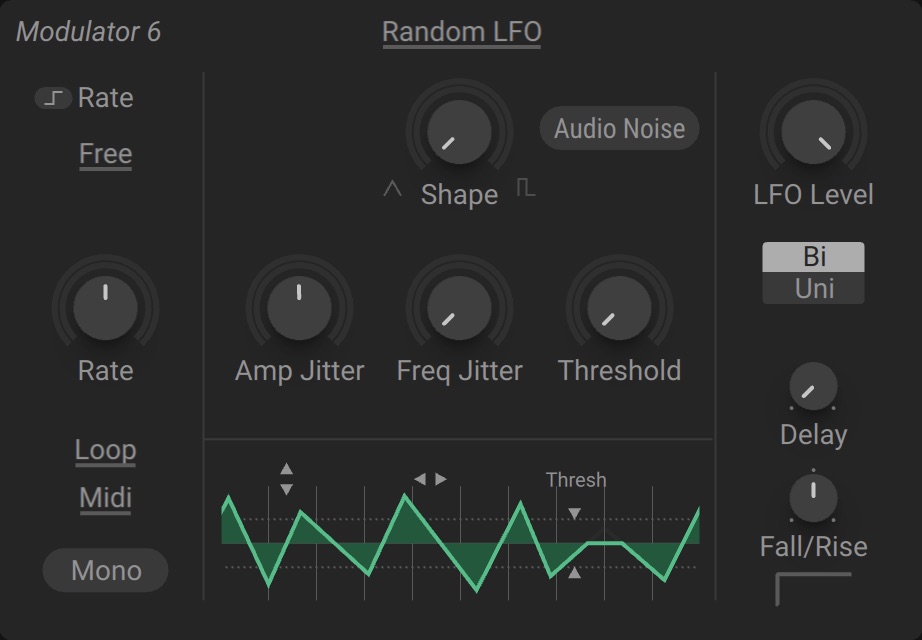 |
Time mode: Selects one of three modes for setting the LFO rate. Sync lets you switch between time signatures relative to the tempo of your DAW using the Tempo slider. Free allows for continuous adjustment using the Rate control. Osc switches the LFO to audio rate and tracks MIDI pitch, with Rate controlling a negative pitch offset.
Rate: Adjusts the frequency of the LFO in Hz. The Rate control is available if Time mode is set to Free or Osc. In Osc mode, a rate of 100% will track MIDI pitch, and a rate of 0% will add a pitch offset of -96 semitones.
Tempo slider: Switches between five time signatures (Sync 1-5) that synchronize the LFO rate to the tempo of your DAW. The Tempo slider is available if Time mode is set to Sync.
Sync 1-5: Lets you define the time signatures used by the Tempo slider when Time mode is set to Sync. You can change the values by clicking and dragging up or down.
Latch Rate: Captures the Rate value at the start of each note and holds it until the next note is played, so changes from direct control or modulation are only applied once per MIDI note.
Amp Jitter: Adjusts the amount of random modulation applied to the amplitude of the signal. Turned fully left, the basic waveform of the LFO is unaltered. Turning the knob right increases the amount of unpredictable values. When turned fully right, a completely random value is produced with each cycle.
Freq Jitter: Adjusts the amount of random modulation applied to the frequency of the signal. Turned fully left, the basic waveform of the LFO is unaltered. Turning the knob right increases the random frequency fluctuation. This can produce results similar to white noise, if Amp Jitter is set to a low value. Freq Jitter is only available in Free and Osc modes.
Threshold: Forces random values below the Threshold to zero, which can be used to thin out the noise. Only has an effect if the Amp Jitter is turned up.
Seed: Changes the seed that feeds the randomization introduced by Amp Jitter and Freq Jitter. This control is only available in the play modes Loop RST, Loop GTE, and Loop REL. Adjusting Seed produces a new random waveform, starting with the next reset event. You can use this to explore different random waveforms and repeat them with every new note.
Shape: Adjusts the shape and smoothness of the ties between values. Technically speaking, it's applying a linear interpolation to the values. When turned fully left, a smooth interpolation is produced and when turned right, hard steps are created.
Audio Noises: Turns the LFO into an audio rate noise generator. You can use it as an additional sound source by assigning it to the Modulation modules in the Routing.
LFO Level: Amplifies the output of the LFO. Turning the knob right increases the amplification level.
Polarity: Switches the LFO between Bi (bipolar) and Uni (unipolar). Bi has an output range of -100% to +100% and the waveform starts at 0%. Uni has a range of 0 to 100% and the waveform starts at 50%.
Delay: Applies a delay to the onset of the LFO. When turned fully left, no delay time is applied and the LFO starts immediately. Turning the knob right increases the delay time.
Fall/Rise: Fades the LFO in or out at the start of each note. At center position, the LFO is always on. Turning the control to the right creates a fade-in at the start of each note. Turning the control to the left creates a fade-out at the start of each note.
Mono: When deactivated, the LFO is polyphonic. Each incoming note receives its own LFO. When activated, the LFO is monophonic and all incoming notes receive the same LFO, regardless of pitch.
Trigger mode: Switches between Midi and Remote modes for resetting and latching the LFOs. Midi resets and latches when receiving MIDI notes. Remote resets and latches when you change key switches in the Remote Octave.
Play mode: Selects from six modes that change the basic behavior of the LFO, Loop, Loop RST, Loop GTE, Loop REL, 1shot, 1shot REL.
Loop cycles through the waveform infinitely, regardless of whether MIDI notes are received or not. Turning Amp Jitter and Freq Jitter to the right will randomize the waveform.
Loop RST (Loop Restart) cycles through the waveform infinitely but resets the waveform cycle when a MIDI note is received. Turning Amp Jitter and Freq Jitter to the right will randomize the waveform, but the cycle will start with the same random waveform again.
Loop GTE (Loop Gate) cycles through the waveform infinitely but resets the waveform cycle when a MIDI note is received, and stops as soon as the note is released. Turning Amp Jitter and Freq Jitter to the right will introduce random changes to the waveform, but it will start with the same random waveform again when a note is received.
Loop REL (Loop Release) cycles through the waveform infinitely but stops the LFO as soon as a MIDI note is received. When the note is released, the LFO resets and starts cycling again. This mode requires long envelope release times. Turning Amp Jitter and Freq Jitter to the right will randomize the waveform, but the cycle will start with the same random waveform again.
1shot (One Shot) plays a single cycle of the waveform when a MIDI note is received. 1shot mode will always restart the LFO and go to zero after the cycle, regardless of the LFO settings, ensuring predictable results with any LFO waveform.
1shot REL (One Shot Release) plays a single cycle of the waveform when a MIDI note is released. 1shot mode will always restart the LFO and go to zero after the cycle, regardless of the LFO settings, ensuring predictable results with any LFO waveform. This mode requires long envelope release times.
Tip
To get started, try applying the Random LFO to the Pitch of an oscillator, or the wavetable position. Turn the Shape control toward the square shape to create rhythmic variations in pitch and timbre. Experiment with all the settings to hear the range of noises and random voltages you can create.