Inserts
The Inserts in Massive XL are flexible processors and generators, from effects to additional oscillators.
Inserts are key elements in Massive XL's polyphonic voice structure, just like the Filter module. You can use them to enhance the sound of subtractive and phase modulation patches, or as the central sound generators and processors in physical modeling and experimental patches.
The Insert module has three slots A, B, and C, which each load one Insert type independently. They can be chained together or inserted separately on any sound source. Where you choose to place the Inserts in the signal path will have significant impact on their sound and behavior.
Tip
The Insert modules can be freely placed in the signal flow on the Routing page. You can find more information in Generators and processors.
Note
Editing the Insert modules is not available in Massive XL Player.
Inserts module overview
The Inserts module consists of the following elements:
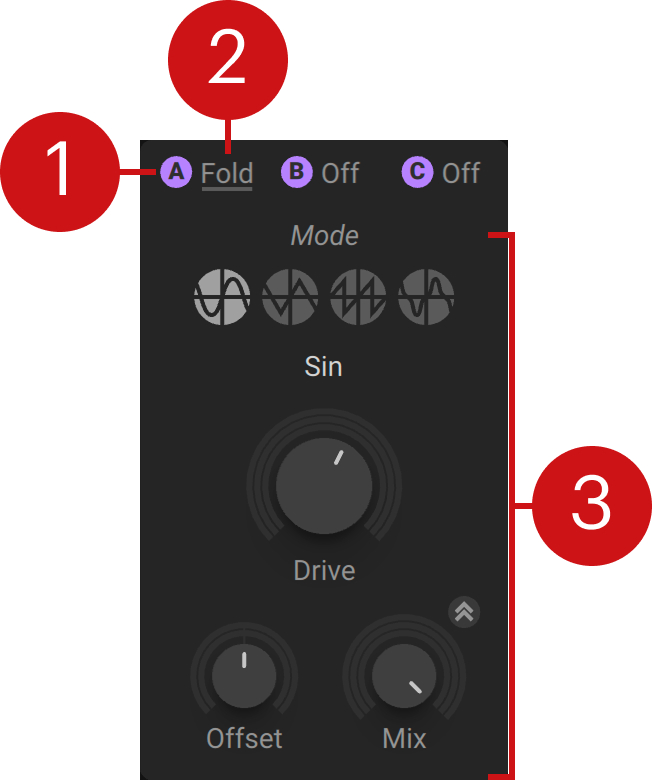 |
Insert on/off: Switches the Insert module on or off, bypassing its processing. The icons can also be found in the Insert modules on the Routing page.
Insert menu: Selects the Insert type for the visible slot and lets you access sub-presets. Clicking the other menus shows the respective slot in the module.
Insert controls: Each Insert type has a different set of controls specific to its character and features. You can show the controls for each slot by clicking on the respective Insert menu.
Anima
Anima is an experimental take on comb filters and flangers, using a combination of delay lines, audio rate modulation, and feedback. Its sound ranges from subtle colorization to harmonic transformations achieved by adding sidebands in the frequency spectrum. Similar to tuned comb filters, Anima tracks MIDI pitch, so you can tune it relative to the pitch of the oscillators.
Anima contains the following controls and options:
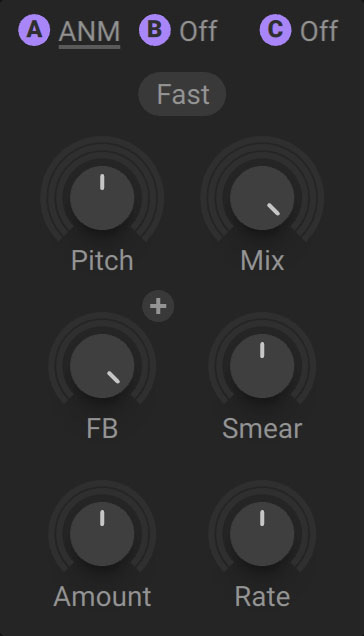 |
Fast: Activates Fast mode, making the internal modulation run at audio rate relative to MIDI pitch. Fast mode produces new sidebands in the frequency spectrum, similar to FM. When deactivated, the internal modulation runs at LFO rates, producing sounds reminiscent of a comb filter combined with vibrato.
Pitch: Adjusts the center frequency of the tuned delay lines in Anima's internal structure.
Mix: Blends between the input signal and the effect signal. Turn the control fully left to bypass the effect, or right to mix in the effect. Anima is commonly used with high to maximum Mix settings.
Route: Selects one of two routing modes, + (positive polarity) and - (negative polarity). Each of the two modes features a unique set of signal polarities within Anima's internal structure. This parameter has a strong influence on the overall sound character of the effect.
FB: Adjusts the amount of feedback in Anima's internal structure. Anima is commonly used with high to maximum FB settings.
Smear: Adjusts the distribution of tuned delay lines around the center frequency as set with Pitch.
Amount: Adjusts the amount of internal modulation applied to the tuned delay lines.
Rate: Sets the rate of the internal modulation oscillator.
Bass Enhancer
Bass Enhancer is a specialized effect that brings presence and drive to low frequency content. The X-Freq control adjusts the cutoff frequency of the crossover filter, splitting the signal into high and low bands, letting you apply saturation and compression only to the low band but not the high band.
The Bass Enhancer contains the following controls and options:
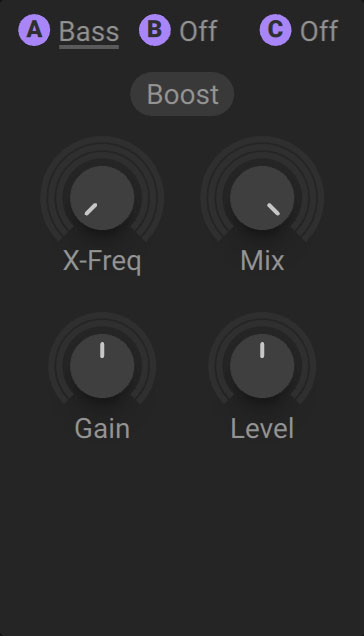 |
X-Freq: Adjusts the cutoff frequency in a range of 40 Hz to 200 Hz. Frequency content below the cutoff frequency is amplified.
Mix: Blends between the input signal and the effect signal. Turning the control from left to right mixes in the effect signal.
Gain: Adjusts the input level in a range of -15 dB to +15 dB.
Level: Adjusts the output level in a range of -6 dB to +6 dB.
Boost: Activates the internal saturation stage, adding harmonics to the signal.
Bit Crusher
Bit Crusher degrades a signal by reducing the bit depth of the digital audio signal. A high bit depth results in an accurate representation of a signal, while a low bit depth adds noise and distortion. This can be used for lo-fi effects ranging from subtle noise textures to extreme distortion that turns any signal into clicks and pulses.
The Bit Crusher contains the following controls and options:
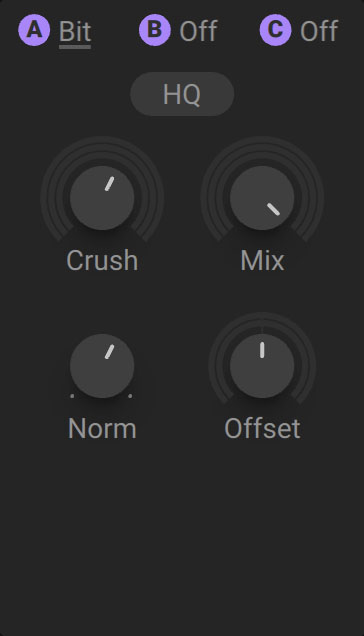 |
HQ: Activates high quality anti-aliasing. By default, HQ is deactivated. Press the HQ button for less harsh, smooth lo-fi results.
Crush: Adjusts the bit depth and therefore the strength of the bit reduction effect. By turning the control fully left, the lowest number of bits is used, resulting in the strongest effect. By turning the control fully right, the highest number of bits is used, closely resembling the input signal.
Mix: Blends between the input signal and the effect signal. Turn the control fully left to bypass the Bit Crusher, or turn right to mix in the effect. Turning the control fully right results in a wet only signal.
Norm: Subtracts the input signal from the effect signal, making the bit reduction effect more pronounced.
Offset: Adds an offset to the input signal, making it asymmetric. This can be used to create variations of the basic bit reduction effect.
Distortion
Distortion offers nonlinear functions that are especially useful for polyphonic sound design. Applying a nonlinear function means that the output is not exactly proportional to the input, generating harmonics. You can choose from five nonlinear functions, and use the Mix and Drive controls to adjust the sound.
Distortion contains the following options and controls:
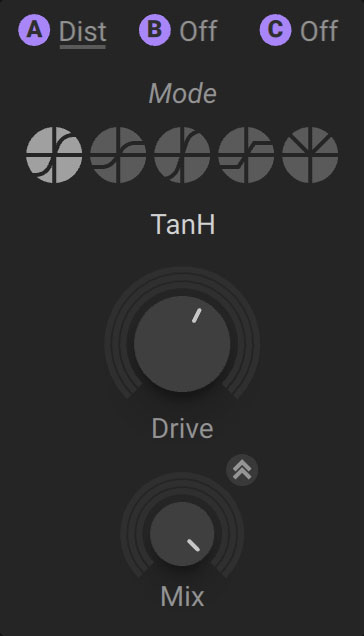 |
Mode: Selects one of five nonlinear functions for the distortion effect, tanH, hypB, SinC, Hardclip, and Rectify.
Drive: Controls how hard the saturation stages are driven from subtle to extreme.
High quality: Activates anti-aliasing to improve the audio quality of the effect. It introduces 0.5 samples latency, which can cause phase artifacts when mixed with the input signal or when used in feedback configurations.
Mix: Blends between the input signal and the distortion signal, enabling you to mix in the harmonics produced by the effect.
Folder
The Folder is a non-linear distortion effect that folds, or copies, the waveform of the input signal back into itself as gain is increased. The sound varies drastically depending on the input signal and the Mode, Drive, and Offset settings. The four modes, Sin, Tri, Wrap, Spiky, determine the character of the folding by applying different non-linear functions from smooth to distinctly rough.
The Folder contains the following controls and options:
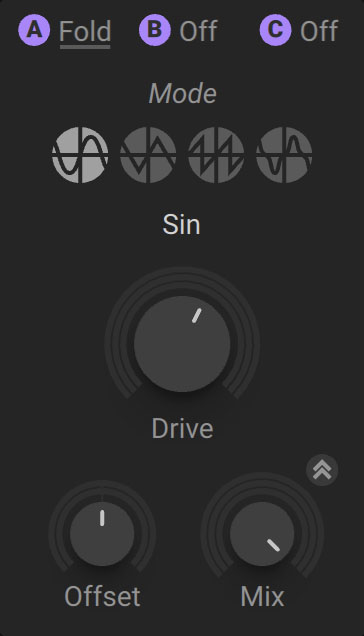 |
Mode: Selects one of four different types of wavefolding, Sin, Tri, Wrap, Spiky. Each mode is using a different non-linear transfer function as indicated in the icons.
Drive: Pre-amplifies the signal before it reaches the folding algorithm.
Offset: Shifts the operating point of the algorithm.
High quality: Activates high quality anti-aliasing. By default, HQ is deactivated. Press the HQ button to turn on anti-aliasing.
Mix: Blends between the input signal and the effect signal. Turn the control fully left to bypass the effect, or turn right to mix in the effect.
Frequency Shifter
The Frequency Shifter shifts the frequency of the incoming signal. Unlike a pitch shifter, the Frequency Shifter is able to create inharmonic partials from a sound comprised of harmonic partials, adding a metallic character to your sound. A Shepard phaser effect can be achieved when slow modulation and feedback is applied, with the Mix control set to 50%.
The Frequency Shifter contains the following controls and options:
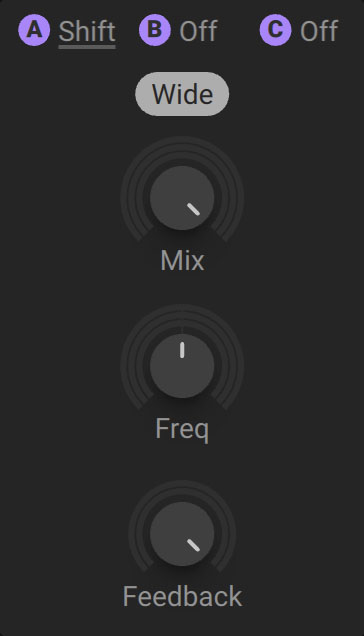 |
Wide: Extends the frequency range of the Freq control, which is useful for achieving wild and animated sounds. When deactivated, the range is suitable for more nuanced frequency shifting.
Mix: Blends between the input signal and the effect signal. Turn the control fully left to bypass the effect, or right to mix in the effect.
Freq: Shifts the partial tones of a signal. Turning the control to the right shifts the partial tones upwards, while turning it to the left shifts them downwards. Partial tones can be reflected upwards again if the downshifted partials are exceeding zero hertz.
Feedback: Adjusts the amount of feedback. When this control is turned up, the output of the Frequency Shifter is reflected back into the input, creating a Shepard flanger effect.
Insert Oscillator
The Insert oscillator (OSC) is an independent source for three classic synth waveforms, sine, sawtooth, and pulse, which can be used in addition to the main Wavetable oscillators. The Insert oscillator can also be locked to the phase of either Wavetable oscillator, creating a classic sub oscillator.
The Insert oscillator contains the following controls and options:
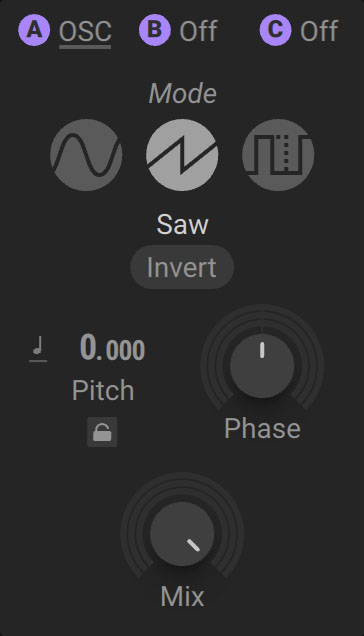 |
Mode: Selects the waveform of the oscillator (Sine, Saw, Pulse). Sine and Saw modes offer a phase shift control while Pulse mode offers control over PW (pulse width).
Invert: Inverts the polarity of the waveform, effectively flipping it upside-down.
Pitch mode: Selects one of three pitch tracking modes, Key Track, Fix, Ratio. Key Track locks the pitch to MIDI. Fix sets an independent, fixed pitch in MIDI note numbers, defaulting to 60 (middle C). Ratio multiplies or divides MIDI pitch. For example, a ratio of 3 multiplies the pitch by 3, producing the 3rd harmonic.
Pitch: Adjusts the tuning of the oscillator in semitones and cents. The Pitch can be modulated by routing a Modulator to either of the two modulation slots below, allowing you to produce vibrato and arpeggio effects.
Lock: Lets you lock the pitch to either of the Wavetable oscillators. When activated, you can adjust the pitch ratio relative to the selected Wavetable oscillator.
Ratio: Sets the pitch ratio relative to the selected Wavetable oscillator.
Pitch source: Selects either Wavetable oscillator 1 or 2 as the source for the Lock function.
Phase/PW: The label and functionality of this control changes according to the selected mode. Sine and Sawtooth modes offer a Phase control, allowing you to phase shift the oscillator. Pulse mode offers a PW control, allowing you to adjust the pulse width.
PW: Adjusts the width of the Pulse wave. When set to the center value, a square wave is produced. Adjusting the PW control makes the Pulse wave asymmetric, introducing even harmonics that create a thinner sound. Known as PWM (pulse width modulation), this classic technique is used to add movement to the sound, producing an ensemble-like quality.
Phase: Shifts the phase of the oscillator, setting the phase relationship between oscillators when locked to the Wavetable oscillators, or if Global Reset is set to Reset All or Reset Oscs on the Voice page.
Mix: Blends between the input signal and the independently delivered waveform. Turn the control fully left to bypass the effect, or turn right to mix in the waveform. The Mix control has the same functionality across all modes.
PM Oscillator
The Phase Modulation oscillator (PM OSC) features a sine wave oscillator that can be phase-modulated by the Insert's input signal. Combining three Inserts set to PM OSC with the Wavetable and their dedicated PM oscillators, you can create an FM synth with seven operators.
Complex Wavetable oscillators can be used to modulate the operators, or the operators can be used to phase-modulate the Wavetable oscillators via the Aux bus. With Massive XL's flexible routing, you can achieve cross-feeding of operators and feedback modulation.
The PM Oscillator contains the following controls and options:
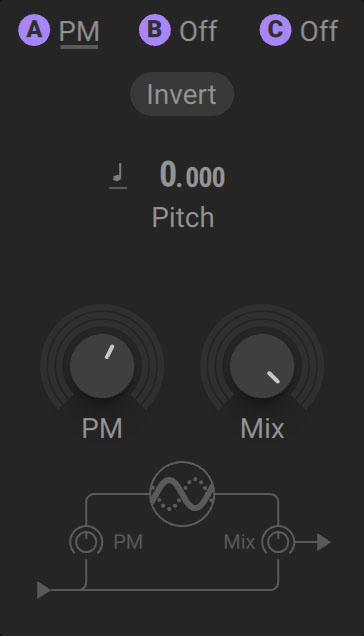 |
Invert: Inverts the polarity of the waveform, effectively flipping it upside-down.
Pitch mode: Selects one of three pitch tracking modes, Key Track, Fix, Ratio. Key Track locks the pitch to MIDI. Fix sets an independent, fixed pitch in MIDI note numbers, defaulting to 60 (middle C). Ratio multiplies or divides MIDI pitch. For example, a ratio of 3 multiplies the pitch by 3, producing the 3rd harmonic.
Pitch: Adjusts the tuning of the oscillator in semitones and cents. The Pitch can be modulated by routing a Modulator to either of the two modulation slots below, allowing you to produce vibrato and arpeggio effects.
PM: Adjusts the Phase Modulation amount. This works as an amplifier for the incoming signal added to the sine oscillator’s phase.
Mix: Blends between the input signal and the sine operator signal. Turn the control fully left to bypass the effect, or turn right to mix in the waveform.
Ring Modulator
The Ring Modulator multiplies the input signal with its internal sine wave oscillator, producing the sum and difference of the frequencies present in each. Ring modulation can be used to create metallic and bell-like sounds from basic oscillator signals, or as an interesting distortion effect for any signal.
The Ring Modulator contains the following controls and options:
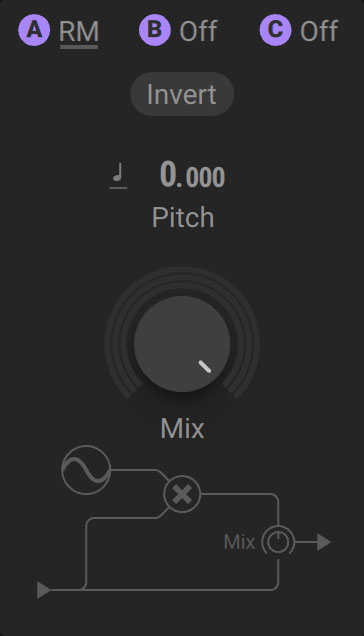 |
Invert: Inverts the polarity of the waveform, effectively flipping it upside-down.
Pitch mode: Selects one of three pitch tracking modes, Key Track, Fix, Ratio. Key Track locks the pitch to MIDI. Fix sets an independent, fixed pitch in MIDI note numbers, defaulting to 60 (middle C). Ratio multiplies or divides MIDI pitch. For example, a ratio of 3 multiplies the pitch by 3, producing the 3rd harmonic.
Pitch: Adjusts the tuning of the internal oscillator in semitones and cents. By assigning modulation you can create vibrato and arpeggio effects.
Mix: Blends between the input signal and the ring-modulated signal.
Sample and Hold
Sample and Hold samples the signal at the rate of its internal oscillator, resulting in a quantized audio signal. It can be used to create a variety of distortion effects, and recreate the sound of old digital synths. Without key tracking you can achieve classic sample rate reduction effects.
The Sample and Hold module contains the following controls and options:
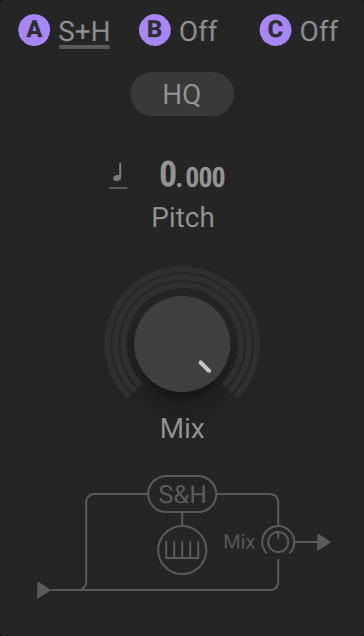 |
HQ: Activates a high quality algorithm applied to the steps in the waveform caused by the downsampling, producing an analog sound.
Pitch mode: Selects one of three pitch tracking modes, Key Track, Fix, Ratio. Key Track locks the pitch to MIDI. Fix sets an independent, fixed pitch in MIDI note numbers, defaulting to 60 (middle C). Ratio multiplies or divides MIDI pitch. For example, a ratio of 3 multiplies the pitch by 3, producing the 3rd harmonic.
Pitch: Adjusts the tuning of the oscillator in semitones and cents. The Pitch can be modulated by routing a Modulator to either of the two modulation slots below, allowing you to produce vibrato and arpeggio effects.
Mix: Blends between the input signal and the delayed signal. Turn the control fully left to bypass the effect, or turn right to mix in the delayed signal.
Track Delay
Track Delay is a specialized delay for audio-rate applications. In Key Track mode, the delay time follows MIDI pitch. It stays in sync with the oscillators, introducing constant phase shifts. You can use this to mimic PWM for any waveform. Fix mode can be used to create the effect of moving a pickup on a virtual string, or as a polyphonic chorus.
The Track Delay contains the following controls and options:
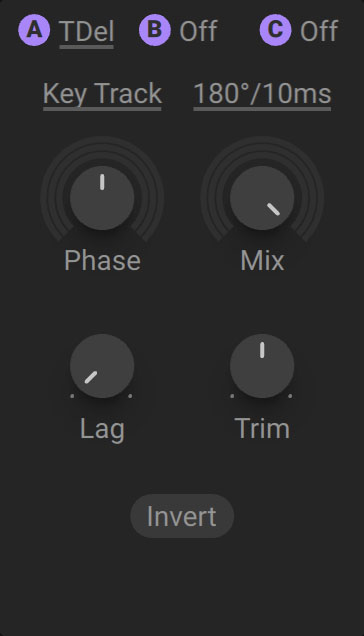 |
Pitch mode: Selects one of two pitch tracking modes, Key Track and Fix. Key Track locks the pitch to MIDI. Fix lets you adjust the delay time independently in ms. The delay time range is determined by the Range menu.
Range: Sets the range of the delay time in phase degree/milliseconds (180°/10msec, 360°/50msec, 720°/150msec).
Phase: Adjusts the Phase when Key Track mode is selected. In Fix mode, it determines the delay time.
Mix: Blends between the input signal and the delayed signal. Turn the control fully left to bypass the effect, or right to mix in the delay signal. Center position is recommended. At this position, the Trim encoder can be used to control the center level.
Lag: Adjusts the smoothing of delay time changes.
Trim: When the Mix encoder is set to center position, the Trim knob controls the center level.
Invert: Switches the polarity of the delay signal between positive and negative (inverted). Inverted polarity is recommended in most applications.
Utility
Utility lets you balance your sound with neutral sounding filters and a VCA (voltage-controlled amplifier). It is a perfect companion for the Tracker, enabling you to adjust the tonal balance and level in relation to MIDI pitch or velocity to ensure a balanced sound over the whole keyboard range, or create special behavior mimicking acoustic instruments.
The Utility contains the following controls and options:
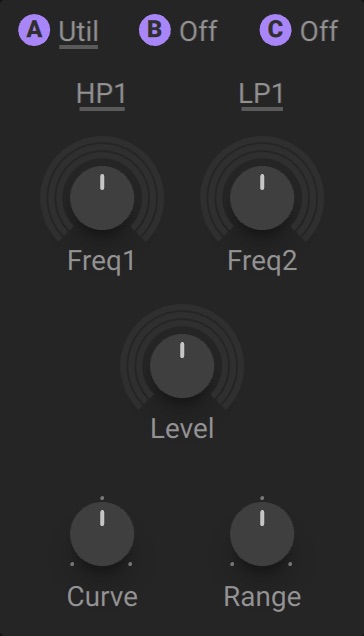 |
Filter Type 1/2: Selects from four filter types, 1-pole high-pass (HP1), 2-pole high-pass (HP2), 1-pole low-pass (LP1), and 2-pole low-pass (LP2). Using two LP2 filters with the same settings produces a 4-pole filter characteristic.
Freq 1/2: Adjusts the cutoff frequency of the filter.
Level: Adjusts the gain of the VCA (voltage controlled amplifier).
Curve: Adjusts the VCA behavior from exponential to logarithmic, changing its response to modulation from snappy to sustained. At center position, the VCA responds linearly.
Range: Adjusts the maximum gain range of the VCA from 1% to 500%. At center position, the gain range is 100%.