Noise
The Noise module in Massive XL contains two noise sources that let you add textures and atmospheric content to your sound.
The Noise module in Massive XL contains two noise sources based on noisetables that not only give you traditional noise colors, but also recordings from machines, animals, and atmospheres, as well as transient samples that are particularly suited for percussive sounds. Importing your own custom noise samples into Massive XL is possible, too. You can find more information in User noisetables.
Noise as a building block in synthesizers can be used in practical or creative applications. You can mix it with oscillators as an additional layer of sound, adding depth and color, or use it to recreate the character and texture of environmental sounds. Noise is an ideal source for producing percussive sounds, like cymbals, snares and hi-hats.
In addition to the controls in Noise module you can set the Phase or Start position and the Playback mode of the noise sources on the Voice page: by default, noisetables play freely as a loop. When selecting One Shot mode, noisetables are played as one-shot samples when a note is received.
Tip
The noise sources can be freely placed in the signal flow on the Routing page. You can find more information in Generators and processors.
Note
Editing the Noise module is not available in Massive XL Player.
Noise module overview
The Noise module contains the following options and controls:
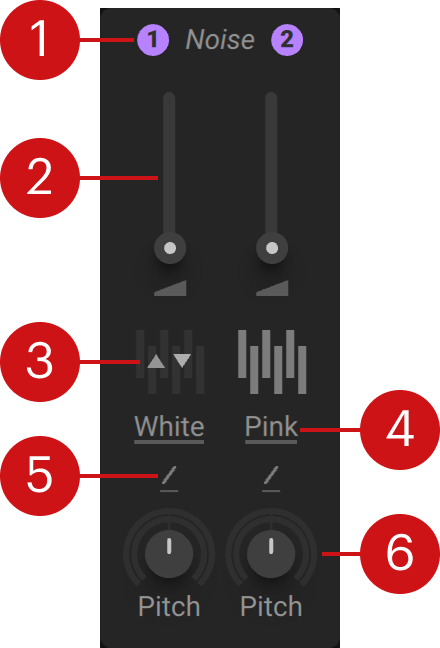 |
Noise on/off: Switches the Noise module on or off.
Noise level: Adjusts the output level of the noise source.
Category icon: Shows a visual representation of the selected noisetable category. When hovering the icon you can use the arrows to load the previous or next noisetable from the selected category.
Noisetable menu: Opens the Noisetable menu that lets you load a noisetable into the noise source, and add folders with user noisetables. You can find more information in Noisetable menu.
Pitch mode: Selects one of two modes (Key Track, Fix) that determine the response of the noise source in relation to incoming MIDI pitch. In Key Track mode, the pitch is locked to the main MIDI pitch. Fix mode sets the fixed tuning of the noise source, disregarding the incoming MIDI pitch. At center position (0), the default is set to C3.
Pitch: Adjusts the base pitch of the noise source. At center position, the noisetable plays back at its original pitch. Turning Pitch to the left slows down playback, while turning the control to the right speeds it up.
Noisetable menu
The Noisetable menu lets you load a noisetable into the noise source. You can also add a folder containing audio files and use them as user noisetables. Clicking and dragging the header moves the menu to another position.
Seven categories are available, each containing noisetables sharing the same basic character: Static, Friction, Processed, Environment, Machines, Beings, Transients.
The Noisetable menu consists of the following elements:
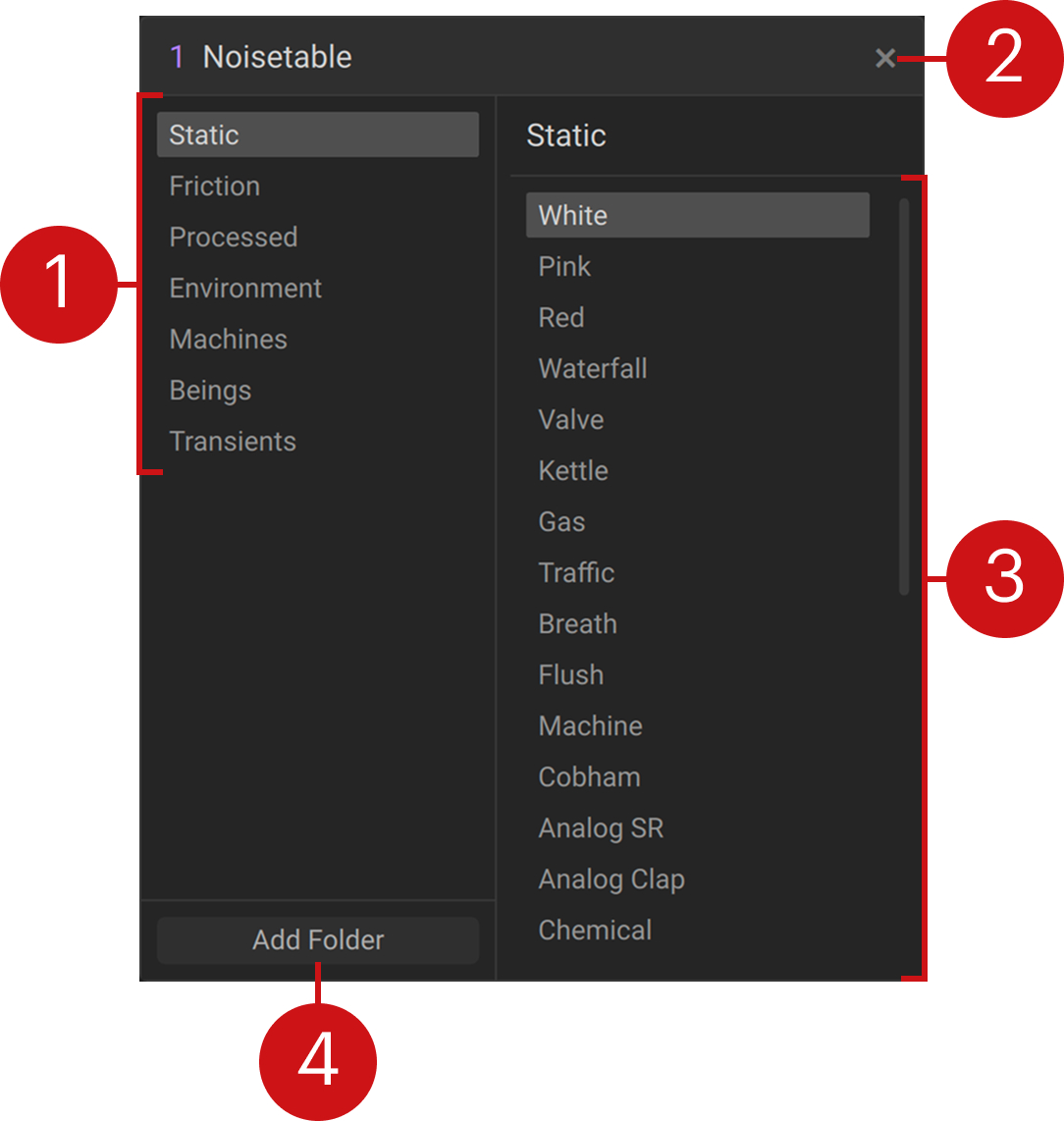 |
Category list: Selects the category of items to be shown in the list on the right side of the menu.
Close: Closes the menu.
Item list: Shows all items in the selected category. Clicking an entry loads the item but keeps the menu open. Double-clicking an entry loads the item and closes the menu.
Add Folder: Opens a file dialog that you can use to import a folder containing audio files. All compatible audio files will be processed and imported as user noisetables. You can find more information in User noisetables.
User noisetables
In addition to the factory noisetables, you can also import audio files into Massive XL and use them as user noisetables.
The supported file formats are WAV, AIFF, MP3, FLAC, OGG and M4A. The audio file length must be between 10 ms and 1 minute. Noisetables are always processed at 88.2 kHz. If your audio file has a different sample rate, it will be automatically converted upon import. Stereo audio files will be converted to mono.
Audio files can be loaded individually using drag and drop. You can also import them to your library by adding custom folders in the Noisetable menu, or by adding audio files to the User Content folder on your computer. If you save a preset that has a user noisetable loaded, it will be embedded in the preset file.
Loading audio files using drag and drop
You can drag and drop an audio file onto the noise sources to immediately load them as a noisetable. It will appear under Temporary Content in the Noisetable menu and not be added to your library.
To load an audio file using drag and drop:
Locate the audio file on your computer.
Drag and drop the audio file onto the noise source (left or right half of the Noise module).
The audio file is loaded as user noisetable.
Adding a folder
You can add folders from your computer to show them as custom categories in the Noisetable menu. All compatible audio files contained in the folders you have added will be available as noisetables.
To add a folder:
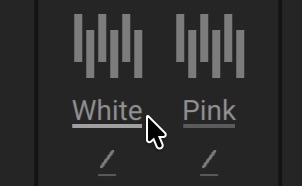
Open the Noisetable menu.
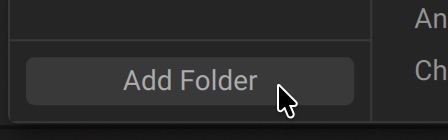
Click Add Folder.
Locate the folder containing the audio files you want to import and click Open.
The selected folder is added as a new category in the Noisetable menu.
Managing noisetables in the User Content folder
You can add, remove, or rename audio files in the user Noisetables folder to make changes to the User category in the Noisetable menu. Any changes will only be reflected in the Noisetable menu after performing a rescan of your content.
To view, add, or edit noisetables in the User category:
Open the Settings menu by clicking the three dots icon next to the Massive XL logo in the Header.
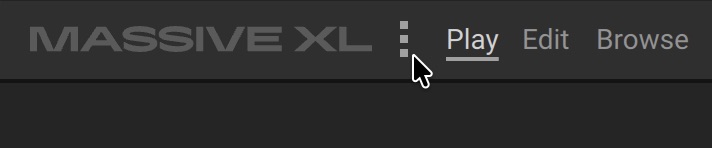
Select Show User Content Folder to open the User Content folder in your computer's file manager.
Open the Noisetables folder in the file manager window.
Add, remove, or rename the audio files in the Noisetables folder.
Go back to Massive XL and open the Settings menu.
Select Rescan Content.
The changes you have made in the User Content folder will be reflected in the User category of the Noisetable menu. If you have added audio files, they will be imported as user noisetables.