Effects
The Effects in Massive XL are advanced processors at the final stage before the output of the instrument.
Effects are the final processing modules that the signal passes through before the output of the instrument. Choose from modulation effects, true-stereo delay and reverb, an over-the-top multi-band compressor, as well as versatile distortion, saturation and overdrive effects.
Effects are loaded into three slots X, Y, and Z, which you can access in the Effects section. Selecting a slot lets you view and edit the controls of the loaded Effect. All slots are active at the same time unless you have switched them off using the Effect On/Off buttons in the section header.
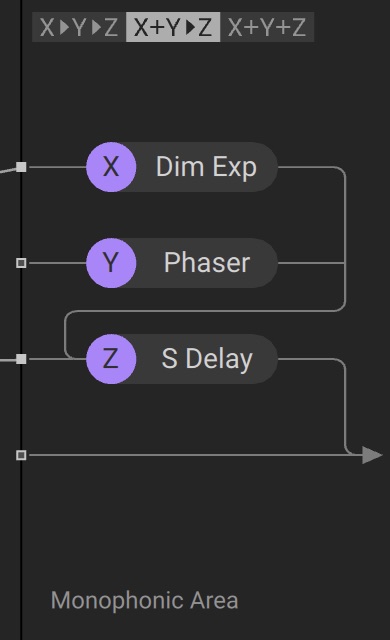
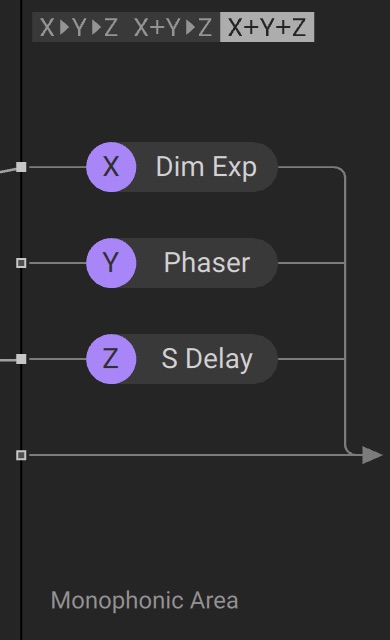
You can choose between different ways for the effects to be chained and mixed on the Routing page:
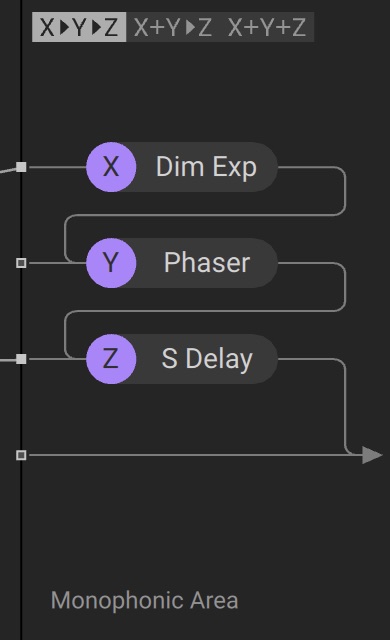
X > Y > Z chains the three effects
X + Y > Z sends the sum of the X and Y effects to the Z effect
X + Y + Z sums all three effects
Note
Editing Effects modules is not available in Massive XL Player.
Effects module overview
The Effects module consists of the following elements:
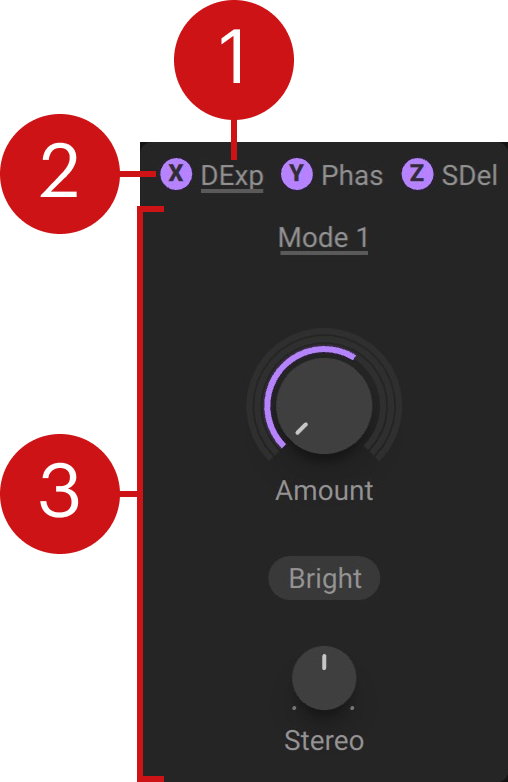 |
Effect selector: Shows the name of the selected effect, or Off if the slot is empty. The selected slot is highlighted with an underline and its effect controls appear in the panel below. You can click this underlined name to open a menu and load another effect into this slot, or switch to another slot by clicking on its name.
Effect On/Off: Switches the Effect on or off. You can use this to bypass the effect for A/B comparison. This icon can also be found on the Stereo module on the Routing page.
Effect panel: Shows the parameters of the Effect in the highlighted slot (its name is underlined above). Each Effect has a distinct set of parameters.
Dimension Expander
Dimension Expander is a wide stereo chorus known from the original Massive that can produce subtle stereo expansion or a shimmering, expansive sound.
The Dimension Expander contains the following controls and options:
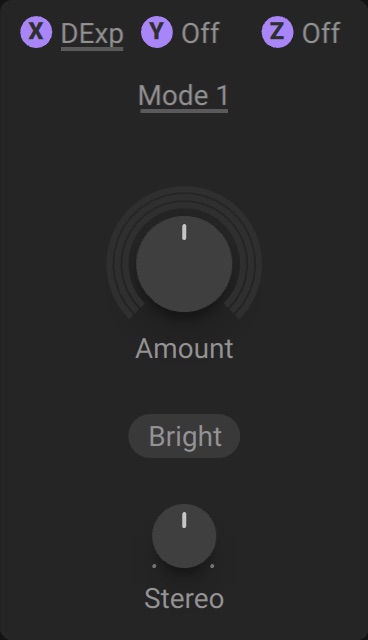 |
Mode: Selects one of four modes that range from subtle (Mode 1) to strong (Mode 4) chorusing.
Amount: Adjusts the strength of the effect.
Bright: Switches the sound character of the chorus from neutral to bright by introducing subtle filtering.
Stereo: Morphs the output of the device from mono to stereo. When turned fully to the right the chorus is operating as a stereo effect.
Equalizer
The Equalizer is used to balance and shape the frequency content of a sound. Internal algorithms make this equalizer sound particularly musical.
The Equalizer contains the following controls and options:
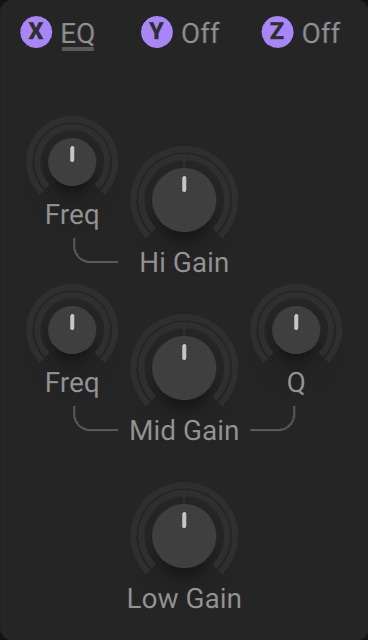 |
Freq: Adjusts the frequency of the high shelf filter from 1.2 kHz to 23.6 kHz.
Hi Gain: Adjusts the gain of the high shelf filter from -24 dB to +24 dB.
Freq: Adjusts the frequency of the mid-frequency peak filter from 90 Hz to 14 kHz.
Mid Gain: Adjusts the gain of the mid-frequency peak filter from -24 dB to +24 dB.
Q: Adjusts the Q factor of the mid-frequency peak filter from 0.35 to 2.18, effectively changing the filter band from wide and smooth to narrow and sharp.
Low Gain: Adjusts the gain of the low shelf filter from -36 dB to +18 dB. The frequency dynamically changes between 120 Hz and 260 Hz along with the gain.
Flanger
The Flanger is a sonically diverse module, featuring seven different play modes, ranging from classic stompbox-style to wild and complex flange effects. The delay range of a typical flanger is expanded, allowing you to also create unusual and unique effects. To achieve a classic flanger sound, the range must be chosen carefully.
The Flanger contains the following controls and options:
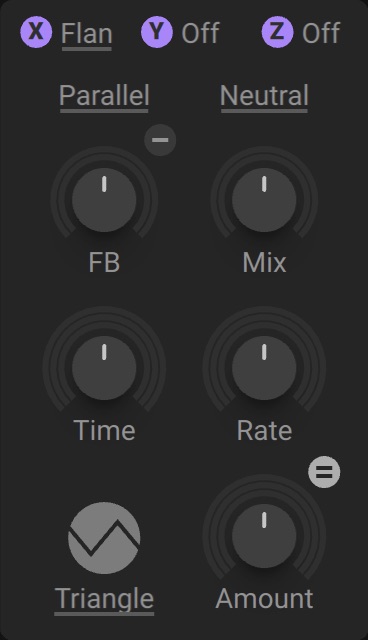 |
Modes: Selects one of seven modes that determine the type of modulation and the internal routing of the flanger. The available parameters vary depending on the chosen mode.
Parallel: The LFO modulation is identical for the left and right channels while the audio inputs are still true stereo. This mode is best suited for the classic stompbox flanger sound.
Wide: The LFO modulation of the left and right channel is slightly offset, resulting in a wider, stereophonic sound.
Inverse: The LFO modulation is shifted by 180 degrees (inverse modulation) on one side, resulting in an even wider stereophonic sound.
Difference: The internal signals are mixed so that the output stages show the sum and the differences of this operation. This results in a sound with a metallic character, that is most clearly heard when the Time control is set to a short delay time. The Triangle LFO Shape is recommended for this mode.
Cross: The LFO uses inverse modulation. The internal signals are mixed and the output stages show the sum and the differences of this operation. As Cross mode relies on a specific, internal modulation to achieve its result, the LFO Shape is predefined and can not be changed. While it shares similarities to Difference mode, it creates stable frequency sidebands resulting in less movement and sonic wobble.
Cross Astral: A variation of Cross and Difference modes, using more complex internal modulation. The LFO Shape is fixed and the shape menu is removed. This mode can be particularly effective for raw pads or pure waveforms.
Manual: In Manual Mode, independent Time control for the left and right channels is available and the internal LFO modulation is removed. Applying different modulations to the left and right sides can produce dramatic results.
Character: Selects from five different flavors that change the sound character of the effect, Neutral, Controlled, Silky, Bass, and Guitar.
Mix: Blends between the input signal and the effect signal, determining how much phasing is applied. Turn the control fully left to bypass the effect. At the center position, the largest frequency gaps are created. Turning the control fully right creates a pure flanger effect.
FB: Sets the amount of signal that will feed back from the delays output into the input of the delay. The more feedback, the more the frequency peaks and gaps are modeled out of the sound spectrum.
FB +/-: Switches the polarity of the feedback signal between positive and negative (inverted) feedback. Positive feedback produces even and odd harmonics. Negative feedback produces only odd harmonics. FB +/- is not available in Cross and Cross Astral modes.
Time: Sets the delay time or fundamental frequency of the flanger. The LFO modulation is applied around this center frequency. In Manual mode, independent Time control of the left and right channels is available.
Rate: Sets the Modulation Rate of the LFO.
LFO Shape: Selects one of three modulation shapes (Triangle, Logarithmic, Sine). The LFO shapes are tweaked to be musical rather than mathematically perfect shapes. Besides the standard Triangle and Sine shapes, a Logarithmic shape is an option to recreate classic flanger sounds.
Amount: Sets the amount of Time modulation by the LFO. Classic flange sounds can be achieved with lower Amount settings.
Constant Amount Button: Fixes the amount of detuning regardless of the modulation rate, creating interesting pitch-shifting effects when using internal triangle modulation with high Feedback. When deactivated, faster modulation rates apply stronger detuning to the comb filter.
Nonlinear Lab
The Nonlinear Lab offers a multitude of overdrive and distortion characteristics. Several optional speaker cabinet simulations further expand the sonic flexibility of the Nonlinear Lab. The available parameters and controls are dependent on the chosen Drive type and Cabinet.
The Nonlinear Lab contains the following controls and options:
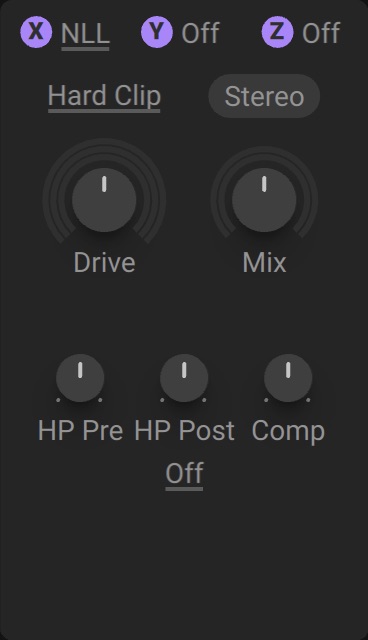 |
Drive type: Selects one of three different HQ saturator/distortion models (Hard Clip, Soft Clip, Overdrive).
Hard Clip: A standard tanH (=hyperbolic tangent) saturator. This model offers great standard distortion that works particularly well for acidic sounds.
Soft Clip: The most gentle distortion mode of the Nonlinear Lab. It works well for a wide number of signals like bass, guitar, and drum sounds. This mode offers three different models of different sonic flavors.
Overdrive: An extreme, intense distortion effect, that produces exaggerated sonic results.
Stereo: Selects between Mono and Stereo. In Mono, the left and right sides are mixed together and sent to the monophonic saturator and cabinet stages. The dry path remains stereo. In Stereo mode, the device operates in true stereo.
Drive: Controls how hard the saturation stages are driven, from subtle to extreme.
Mix: Blends between the unaltered input signal and the affected output of the Lab.
HP Pre: Adjusts the frequency of the high-pass filter, applied to the input signal before the saturator. Use this control to avoid overloading the saturator stage with excessive bass.
Type controls: Each Drive type features an extra control to adjusts its character. Hard Clip has HP Post, Soft Clip has a Models switch, and Overdrive has the Inertia control.
HP Post: Adjusts the frequency of the high-pass filter after the saturator, letting you control the bass output of the saturator.
Models: Selects one of three soft clipping models, Glue, Warm, or Hot. Glue compresses with relatively subtle distortion. Warm compresses with medium distortion, and Hot compresses with strong distortion.
Inertia: Determines how fast the loading of the stage occurs, depending on the frequency. Turn the control fully right for the fastest response.
Comp: Adjusts the output level compensation for the Drive amount. The output level of different Drive amounts is highly dependent on the input signal. The Comp control helps to keep the output level under guard.
Cabinet Stage: Selects one of six different guitar cabinet simulations (California, West Coast, Classy, Hi Gain, Crank, British). The cabinets drastically shape the overall color of the output. Bypass the cabinet stage by selecting Off. Without a cabinet selected, the distortions may sound raw and are particularly suitable for raw synth sounds.
Bass: Adjusts the bass response and boominess of the cabinet model.
Vari: Selects one of three sub-models of the cabinet (A, B, C).
Multi Compressor
The Multi Compressor is a multi-band compressor providing both downward and upward compression. This effect lets you reduce the dynamic range of your sound by selectively raising soft signals and attenuating loud signals on each of the three frequency bands. The Multi Compressor is a great tool for adding punch to your sound while retaining its details.
Multi Compressor contains the following controls and options:
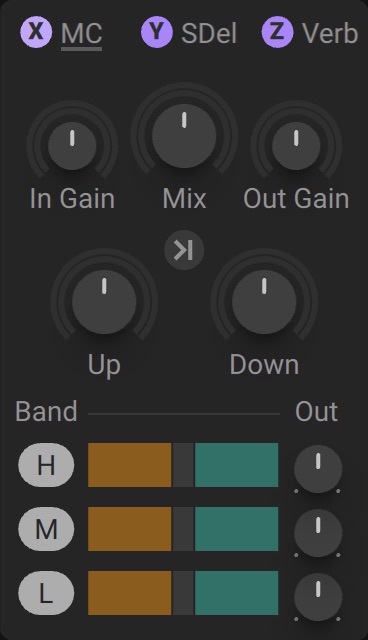 |
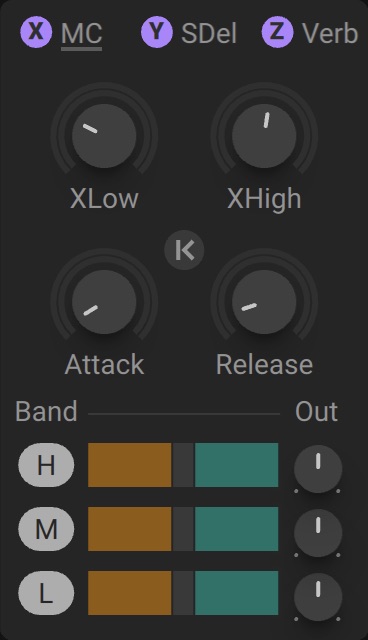 |
The top part of the Multi Compressor contains global parameters that affect all three frequency bands together. You can toggle between two sets of controls using the Page button:
Page: Toggles the view between two sets of controls. The second page has controls for the crossover frequencies as well as the attack and release times.
In Gain: Adjusts the input level going into the effect, from -24 dB to +24 dB (0 dB by default).
Mix: Adjusts the mix between the dry, unprocessed signal and the signal processed by the effect. At full left (0 %), you hear only the unprocessed signal. At full right (100 %), you hear only the processed signal.
Out Gain: Adjusts the level of the signal after it has been processed by the effect, from -24 dB to +24 dB (0 dB by default).
Up: Adjusts the amount of upward compression applied to all frequency bands, from 0 to 200 % (100 % by default).
Down: Adjusts the amount of downward compression applied to all frequency bands, from 0 to 200 % (100 % by default).
XLow: Adjusts the crossover frequency between the low and mid bands. Lower values will set a narrower low-frequency band and a wider mid-frequency band, and inversely.
XHigh: Adjusts the crossover frequency between the mid and high bands. Higher values will set a narrower high-frequency band and a wider mid-frequency band, and inversely.
Attack: Adjusts how quickly the compression is applied once a signal exceeds the threshold. For example, you can use higher attack values to retain more transients of percussive sounds.
Release: Adjusts how quickly the compressor gets back to its standby state once the signal returns below the threshold (for the downward compression) or above the threshold (for the upward compression).
The bottom part of the Multi Compressor lets you adjust the compression applied to the high, mid, and low frequency bands. For each band a row of controls contains, from left to right:
Mute band: Mutes or unmutes the frequency band. When a frequency band is muted, its audio is off and its controls are grayed out.
Brown segment: Represents the signal level range that is raised by the upward compression, from the minimum level to the threshold. You can click the segment to turn the frequency band's upward compression on or off. When the compression is off, the segment is darker and audio at these levels will stay untouched.
Gray handle: Represents the thresholds for both the upward compression (brown bar) and the downward compression (green bar). Dragging horizontally adjusts both thresholds. For example, dragging to the left decreases the thresholds so the upward compression will raise less of the soft signal, while the downward compression will attenuate more of the loud signal.
Green segment: Represents the signal level range that is attenuated by the downward compression, from the threshold to the maximum level of 0 dB. You can click the segment to turn the frequency band's downward compression on or off. When the compression is off, the segment is darker and audio at these levels will stay untouched.
Out: Adjusts the output level of the frequency band.
Phaser
The Phaser is a modulation effect that uses a series of all-pass filters to change the phase at a given frequency. Applying modulation creates characteristic sweeping sounds. Mixing the effect signal with the input creates peaks and troughs in the frequency spectrum. Stages sets the number of notches and peaks, and Feedback makes them more pronounced.
For classic stomp-box style phaser effects, relatively low feedback settings should be used, with positive feedback polarity. More complex sounds can be achieved with a higher number of all-pass stages. You can choose between different sound colors typically found in phaser effects.
The Phaser contains the following controls and options:
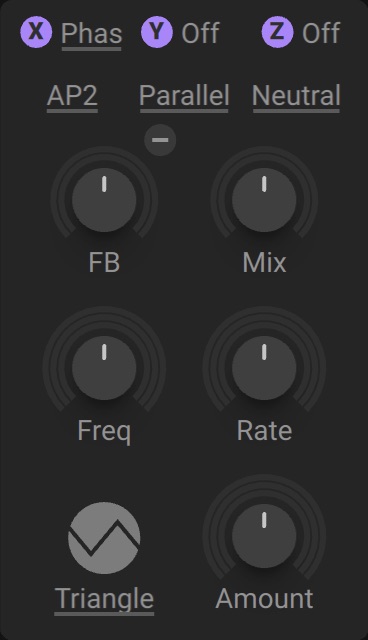 |
Stages: Selects the number of all-pass (AP) filter stages (2, 4, 5, 6, 8). Additionally, there are two modes that offer Barber Pole phasing. In these modes, the traditional LFO modulation controls are replaced by a Freq control that is used to create infinite upwards-downwards motion through the frequency spectrum. The AR mode features audio-rate modulation.
Mode: Selects one of five modes that determine the type of modulation and the internal routing of the phaser. The available controls vary depending on the selected mode.
Parallel: The LFO modulation is identical for the left and right channels while the audio inputs are still true stereo. This mode is best suited for the classic stompbox phaser sound.
Wide: The LFO modulating the flanger is identical for the left and right side, but one side is slightly offset, resulting in a wider, stereophonic sound. The modulation itself remains monophonic.
90°: The LFO phase is shifted by 90 degrees on one side, producing a bigger difference between the left and right channels. This results in a wider, more stereophonic sound.
180°: The LFO modulating the flanger is shifted by 180 degrees (inverse modulation) on one side, resulting in an even wider stereophonic sound. In Barber mode the movement is inversed between both sides.
Manual:In Manual mode, the internal LFOs are switched off and you have individual control over the frequency parameter of both channels. Applying different modulations to the left and right sides produces dramatic effects.
Color: Switches between different settings for the sound color of the phaser. Stomp produces classic stomp-box tones. Narrow focuses its tone on the peaks and troughs produced by the phaser, making it suitable for darker, bass-heavy sounds. Neutral has a clean tone.
Mix: Blends between the input signal and the effect signal, effectively adjusting the amount of phasing. Turning the control fully to the left bypasses the effect. The center position produces the strongest notches. The results highly depend on the number of stages and the feedback polarity, with typical sweet spots around center position or when turned fully to the right.
FB: Controls how much feedback is applied to the signal. The more feedback the stronger the all-pass filters will resonate. This is similar to your typical low-pass resonance filter. The more resonance, the more the frequency peaks, and gaps are modeled out of the sound spectrum. For a classic phaser sound, set the range between 30%-70%.
FB +/-: Switches the polarity of the feedback signal between positive and negative (inverted) feedback. Positive feedback produces round, bass-heavy sounds. Negative feedback produces funky, formant-style sounds. Combine with 2 and 4 all-pass (AP) filter stages for a more pronounced effect.
Freq: Adjusts the center frequency of the Phaser. The modulation of the Phaser's internal LFO is applied around this center frequency. In Barber mode, Freq controls the rate of the upwards/downwards movement through the frequency spectrum.
Rate: Adjusts the rate of the Phaser's internal LFO. In Barber mode, the LFO rate changes according to the Freq control.
LFO Shape: Select one of four modulation shapes (Triangle, Round, Ramp Up, Ramp Down).
Amount: Sets the range of how much the LFO is animating the all-pass filters. This control is only available when an LFO is active.
Quad Chorus
Choruses are used to enrich sounds by adding spatial movement and giving them an ensemble-like quality. The Chorus is true stereo.
The Quad Chorus contains the following controls and options:
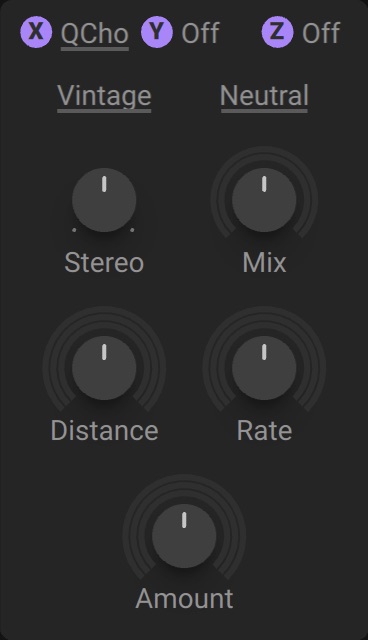 |
Mode: Selects one of five modes that determine how the four delay lines are internally routed and modulated. The modes are based on classic chorus effects.
TriVintage: Modeled after a famous device, this mode use only three of the available four delays. It can reproduce the classic sound of a triphase chorus, but also offers additional controls, expanded ranges, and stereo possibilities.
Quadron: Follows the same principles as TriVintage mode, but is optimized for a stereo signal. It can be used for subtle to over the top chorusing.
Random: This mode uses random walk generators instead of the internal LFOs. This avoids audible modulation patterns, making it ideal for subtle chorusing.
Even: Offers a special combination of two synced LFO's, spread and applied to four delay lines.
Manual: Gives you direct access to the delays at the core of the chorus. You can use this to achieve subtle spatialization or modulate the delay times for more dramatic effects.
Flavor: Selects one from five different settings (Neutral, Light, Controlled, Warm, Dark) that determine the coloring of the chorus. Which flavor fits best is highly dependent on what you want to achieve, but their names suggest the general character of each setting.
Mix: Blends between the input signal and the effect signal, effectively adjusting the amount of chorusing. Turning the control fully to the left bypasses the effect. The sweet spot often lies around the center position.
Stereo: Adjusts the width of the stereo field. Turn left for a narrow stereo field, and turn right to widen the stereo field of the chorused signal.
Distance: The time distance of the modulated delay lines to the original sound. Turn the control right for longer settings that will result in a recognizable delay effect. It can also produce interesting results for auxiliary modulation when the internal LFOs are not used. The Distance control is not available in Manual mode.
Rate: Sets the Modulation Rate of the internal LFOs. The LFO shapes cannot be chosen, as they are an integral part of the models. The Rate control is not available in Manual mode.
Amount: Sets the range of how much the LFO is animating the delay lines. The Amount control is not available in Manual mode.
Time L1, R1, L2, R2: Adjusts the delay times of the four delays at the core of the chorus. The Time controls are only available in Manual mode.
Reverb
The Reverb offers a range of modes that mimic different room types and spaces, designed for various kinds of applications.
The Reverb contains the following controls and options:
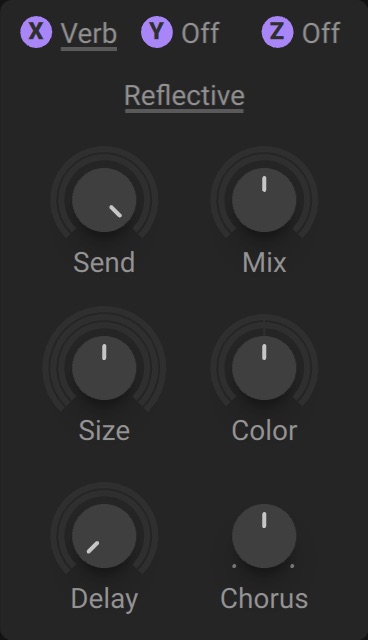 |
Modes: Selects from 17 different reverb algorithms that determine the sound character and behavior of the effect.
Send: Determines the amount of input signal that will be routed into the reverb engine.
Mix: Blends between the input signal and the effect signal, determining how much of the reverb effect is mixed with the dry signal. Turn the control fully left to bypass the effect, or turn right to mix in the reverb.
Size: Adjusts the size of the simulated room, or reverb effect. This control affects the duration of the reverb tail.
Color: Adjusts the coloration of the reverb using an internal filter to subtly change the sound from dull to bright.
Delay: Determines the pre-delay of the reverb effect. No delay is added when the control is turned fully left.
Chorus: Applies a chorusing effect to the reverb. This can add movement and depth to the sound, producing a lively reverb that evolves over time.
Stereo Delay
The Stereo Delay offers individual time control over the left and right channels, making it an extremely powerful and versatile stereo delay effect.
The Stereo Delay contains the following controls and options:
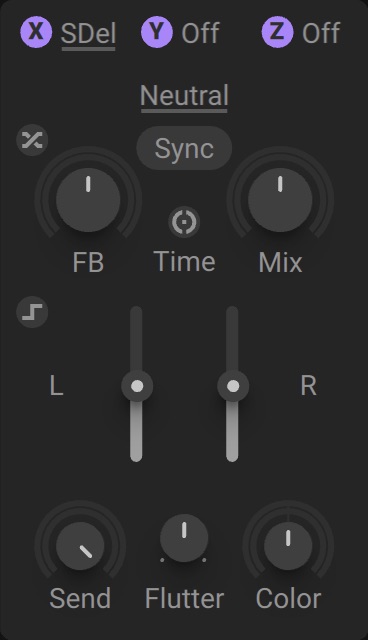 |
Route: Switches the routing of the internal feedback. When Parallel is selected, the left and right delays are each fed back into their own inputs, so they do not interact. When Cross is selected, the left delay is fed back into the right delay, and vice versa. This creates different reflection patterns that are typically longer and more complex.
Color: Selects from three sound characters, Neutral, Warm, and Hot. Neutral has a clean sound with minimal resonances and distortion. Warm has a warmer sound with mild resonances. Hot has strong resonances and distortion.
FB: Adjusts the level of the delay feedback, effectively controlling the number of echo repetitions, each gradually fading out as new ones are produced. Shorter delay times typically cause repetitions to fade out faster than longer delay times. Stereo Delay rescales the levels of the repetitions so that the decay is time independent.
Mix: Blends between the input signal and the effect signal. Turn the control fully left to bypass the effect, and right to mix in the delay.
Sync: Switches between two delay modes, Sync and Free. In Sync mode, the delay time control is quantized and scans through five synchronized delay times. You can change individual delay times by clicking and dragging up or down. The delay time smoothly follows tempo changes and can be modulated without artifacts. In Free mode, the delay time is not synchronized.
Mono: Switches the delay time to a single control for both channels, while the effects will still operate in stereo.
Latch: This button enables you to recall the delay times with note-on messages received from the synth engine. This means you will only hear the change of delay times when a new note is pressed. This enables you to synchronize the delay changes to actual notes playing and is available in both Sync and Free modes.
Time: Adjusts the delay time. Depending on the selected Sync mode, the delay time is either synchronized to the tempo of the DAW and set in note divisions, or freely adjusted in milliseconds.
Send: Determines the amount of input signal that will be routed into the delay engine.
Flutter: Moves the delay time slightly, creating a more lively effect and avoiding fixed phase relationships to the input signal. This control can be likened to a subtle chorusing.
Color: Adjusts the internal filters of the delay circuitry. Turn the control left for a strong low-pass effect that becomes weaker towards the center position. At the center position the color is neutral. Turn the control right to increase the high-pass filtering.
Stereo Expander
Stereo Expander builds on the Dimension Expander effect from the original Massive. It is cleaner, more versatile, and more efficient. It can be used to create room-style spatial effects and has a clear, diffused sound character.
The Stereo Expander contains the following controls and options:
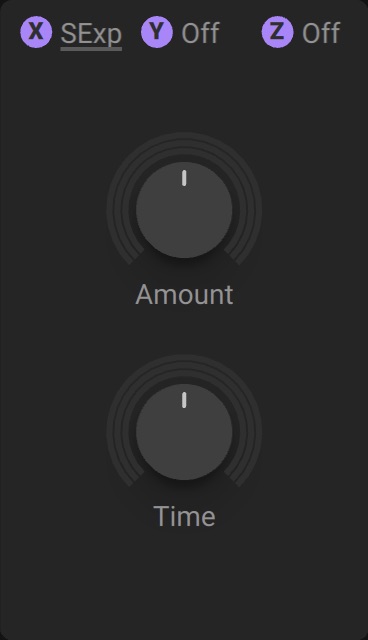 |
Amount: Adjusts the strength of the effect.
Time: Adjusts the delay time of the effect. Turning the control right increases the delay time, making the sound appear more distant.
Raum
Raum offers three reverb algorithms covering a vast range of sounds, from tight ambiences to otherworldly soundscapes. It expands on the traditional notion of a reverb by adding predelay feedback and unusual modulation capabilities.
Raum contains the following controls and options:
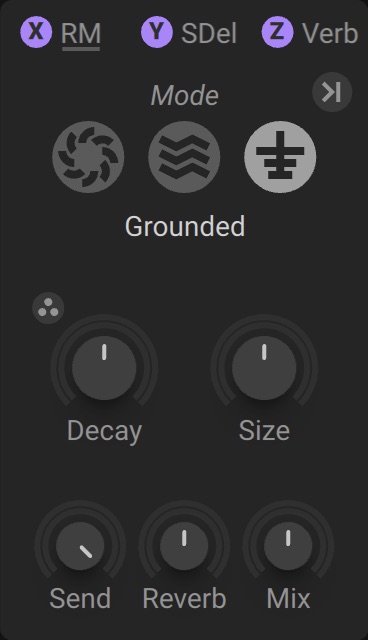 |
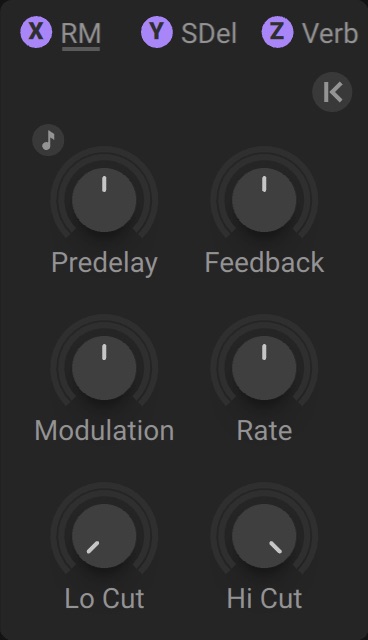 |
Page: Toggles the view between two sets of controls. The second page has controls for predelay, modulation, and filtering.
Mode: Selects one of three reverb algorithms (Grounded, Airy, Cosmic), ranging from tight, natural ambiences to otherworldly soundscapes.
Density: Switches between two density modes for the reflection pattern of the reverb. Dense produces a uniform reverb tail, while Sparse produces dispersed and clearly discernible reflections.
Decay: Adjusts the length of the reverb tail. Turning the control to the right changes the reverb time from short to long. Only available in Grounded and Airy mode.
Size: Adjusts the swell and reflection pattern of the reverb, creating the impression of differently sized spaces. Turning the control to the right changes the size from small to large.
Reverb: Adjusts the amount of reverb added to the effect signal, allowing you to balance the reverb against the predelay repetitions.
Send: Determines the amount of input signal that will be routed into the Raum engine.
Mix: Blends between the input signal and the effect signal by means of an equal-power crossfade.
Predelay: Adjusts the duration of the predelay, which is the time it takes for the reverb to set in. Increasing the predelay adds separation between the input signal and the reverb signal.
Sync: Synchronizes the predelay to the host tempo and replaces the Predelay control with the Numerator, Denominator, and Sync Mode controls.
Numerator: Sets the number of notes of the tempo-synced predelay time. Only available when Sync is activated.
Denominator: Sets the note value of the tempo-synced predelay time. Only available when Sync is activated.
Sync Mode: Sets the subdivision applied to the tempo-synced predelay time (Straight, Dotted, Triplet, Quintuplet, Septuplet). Only available when Sync is activated.
Feedback: Adjusts the level of the signal fed back from the output of the predelay to its input, increasing the number of delay repetitions. Turning the control to the right creates echo effects that are then processed by the selected reverb algorithm. A built-in limiter controls the level when high feedback settings are used with loud input signals.
Modulation: Adjusts the amount of movement added to the reverb by changing internal parameters of the reverb over time. Turning the control to the right takes the reverb from lush to strongly detuned sounds.
Rate: Sets the speed of the movement added by the Modulation control, from slow drifting to fast warbling.
Diffusion: Adjusts the texture of the reverb reflections. Turning the control to the right softens the early reflections and produces a smooth onset of the reverb.
Lo Cut: Attenuates the low-frequency content of the reverb and the predelay's feedback signal. Turning the control to the right increases the attenuation, and turning it fully left switches the filter off.
Damp: Adjusts the tonal quality of the reverb from bright to dark. Turning the control to the right attenuates the high-frequency content of the reverb.
Hi Cut: Attenuates the high-frequency content of the reverb and the predelay's feedback signal. Turning the control to the left increases the attenuation, and turning it fully right switches the filter off.
Replika Shimmer
Replika Shimmer combines delay, pitch shifting, and reverb to create classic shimmer effects and beyond. Pitch shifting can be applied either to the output of the delay for echoes with constant harmonization, or in the delay's feedback loop for echoes with cascading pitches. Diffusion adds a reverb-like quality to the delay repetitions.
Replika Shimmer contains the following controls and options:
 |
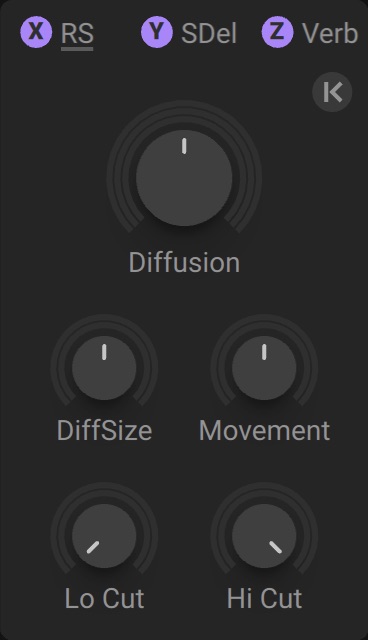 |
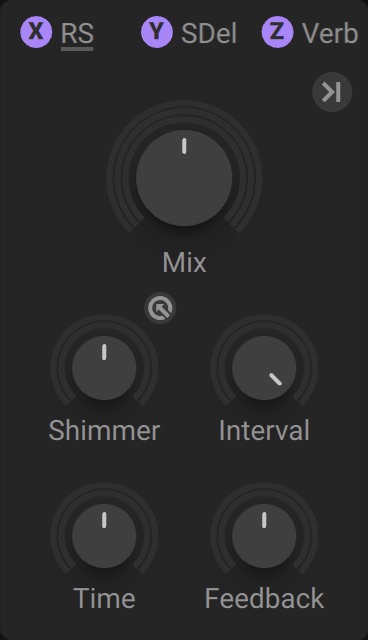
Page: Toggles the view between two sets of controls. The second page has controls for diffusion and filtering of the echoes.
Mix: Blends between the input signal and the effect signal.
Shimmer: Blends between the unprocessed and the pitch-shifted delay signal, setting the intensity of the pitch shifting applied to the delay. Depending on the Shimmer Feedback setting, the pitch shifting is applied either to the output of the delay or in its feedback path.
Shimmer Feedback: Switches the routing of the pitch shifting. When off, pitch shifting is applied to the output of the delay, resulting in harmonized echoes with a constant pitch. When on, pitch shifting is applied in the delay's feedback loop, resulting in echo cascades that progressively shift the pitch of each repetition.
Interval: Sets the amount of pitch shifting applied to the delay, in the range of -12 to +12 semitones.
Time: Adjusts the delay time in milliseconds.
Feedback: Adjusts the level of the signal that is fed back to the delay's input. Increasing the feedback level creates more delay repeats that decay over time.
Diffusion: Adjusts the amount of diffusion applied to the delay signal, resulting in a reverb effect. High settings make the delay appear out of sync, so low settings are recommended if the rhythmic timing of the delay is essential.
DiffSize: Adjusts the swell, reflection pattern, and decay of the diffusion, giving the impression of differently sized spaces.
Movement: Adjusts the depth and speed of the modulation applied to the diffusion, shifting the timing and pitch of the reflections for a wide reverb effect.
Lo Cut: Attenuates the low-frequency content in the feedback path of the delay. Turned fully left the filter is off, and turning it to the right results in a brighter tone of the delay repeats.
Hi Cut: Attenuates the high-frequency content in the feedback path of the delay. Turned fully right the filter is off, and turning it to the left results in a darker tone of the delay repeats.
Tape Wobble
Tape Wobble emulates the sound of analog tape machines, characterized by wow and flutter, saturation, noise, and a limited high-frequency response. Use it to apply classic lo-fi effects, particularly on sustained notes, pads, and melodies.
Tape Wobble contains the following controls and options:
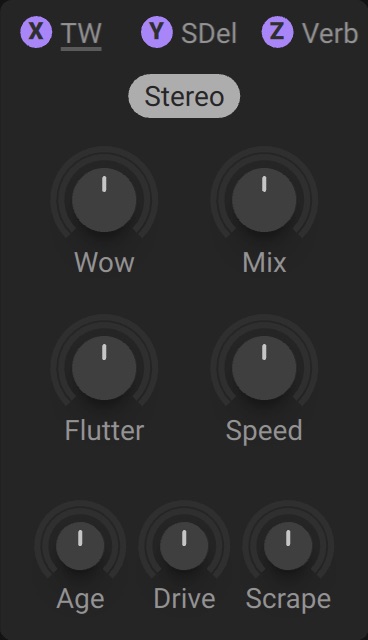 |
Stereo: Switches the Wow and Flutter modulation between Mono and Stereo. In Stereo, a phase offset is applied to the modulation of the left and right channels, widening the effect.
Wow: Adjusts the amount of wow, a slow fluctuation in pitch caused by sticky tape and a worn-out tape transport.
Mix: Blends between the input signal and the effect signal by means of an equal-power crossfade.
Flutter: Adjusts the amount of flutter, a fast fluctuation in pitch caused by bent capstans and faulty motor parts.
Speed: Adjusts the rate of the Wow and Flutter modulation.
Age: Enhances the characteristics of an aging tape by reducing high-frequency content and introducing tape hiss.
Drive: Adjusts the amount of tape saturation, from a clean sound to overdrive.
Scrape: Adjusts the amount of high-frequency scraping, which occurs when the tape vibrates as it passes over the playback head.