Macros
Massive XL lets you customize how to interact with your sound using its flexible Macro system.
Macros are flexible global controls that you can use to interact with your sound. Depending on their assignments, the 16 Macros, Pitch Bend, the Modulation wheel, and Aftertouch let you adjust one single control in your patch, or multiple controls a once. You can also use a MIDI controller to play them, or automate them in your DAW.
You can tweak Macros 1-8 and morph between their settings in Play view. All Macros can be modified and named in the Macro bar, which you can place either at the top, center, or bottom of Edit view using the option in the Settings menu.
Macros as well as Pitch Bend (PB), the Modulation wheel (M), and Aftertouch (AT) can be assigned to any number of controls using drag and drop, and the assignments are visualized directly in the user interface.
Note
In Massive XL Player, Macros 1-8 are available in Play view, and Macros 1-16 are available in the Macro bar at the top of Browse view. Editing Macro assignments and names is not available in Massive XL Player.
Macro bar overview
The Macro bar contains the following elements and controls:

PB (Pitch Bend): A standard MIDI control found on any keyboard controller, often in the form of a spring-loaded wheel.
M (Modulation): A standard MIDI control found on most keyboard controllers, often in the form of a freely adjustable wheel.
AT (Aftertouch): A special MIDI expression found on many keyboard controllers, transmitting the amount of pressure applied to the pressed keys. Massive XL supports both regular and polyphonic aftertouch. You can find more information in Polyphonic aftertouch.
Animator on/off: Activates or deactivates the Animator. It mirrors the state of the button in Play view.
Animator Lock: Keeps the current Animator settings when you load another preset. It mirrors the state of the button in Play view.
Macro: Adjusts a single control in your patch, or multiple controls at once, depending on the Macro assignment. You can also use a MIDI controller to play the Macro, or automate it in your DAW.
Macro Assign: Lets you assign Macros as well as Pitch Bend (PB), the Modulation wheel (M), and Aftertouch (AT) to controls using drag and drop, or by first clicking the Macro icon and then the control or modulation slot. Hovering the target icon shows all Macro assignments from the respective Macro. You can find more information in Assigning Macros to single parameters and Assigning Macros to multiple parameters.
Assigning Macros to single parameters
Macros can exclusively take over the full range of a single control, called a 1:1 assignment.
Note
You can assign the Pitch Bend (PB), Modulation wheel (M), and Aftertouch (AT) in the same way as Macros.
Drag and drop the Macro number onto the control you want to assign it to.
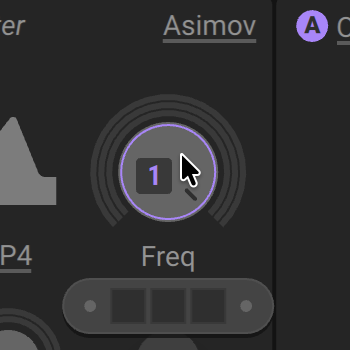
The Macro is assigned to the control.
Tip
You can find more information about removing Macro assignments in Removing and muting Macros.
Assigning Macros to multiple parameters
Macros can be used to adjust multiple parameters at the same time, and to a varying degree.
Note
You can assign the Pitch Bend (PB), Modulation wheel (M), and Aftertouch (AT) in the same way as Macros.
Drag and drop the Macro number onto a modulation slot. Modulation slots appear when hovering a control. Alternatively, first click the Macro number and then the modulation slot to make the assignment.
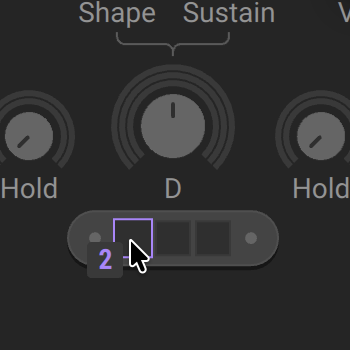
Click and drag the modulation slot up or down to increase Macro's the control range. Dragging up applies positive (non-inverted) control, and dragging down applies negative (inverted) control.
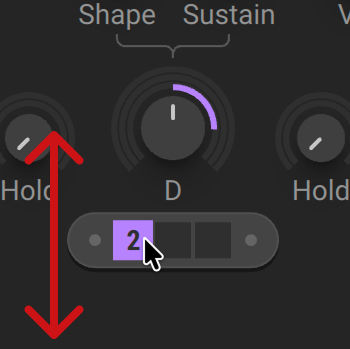
Repeat steps 1 and 2 to assign the Macro to additional controls.
The Macro is assigned to the controls.
Tip
You can find more information about removing or muting Macro assignments in Removing and muting Macros.
Replacing Macros
In some scenarios, you might want to remove a 1:1 assignment and instead assign the Macro to a modulation slot of the same control, or vice versa. When using a 1:1 assignment, the Macro exclusively takes over the full range of single control, while you can use modulation slots to adjust multiple parameters at the same time, and to a varying degree.
Note
You can replace Pitch Bend (PB), Modulation wheel (M), and Aftertouch (AT) assignments in the same way as Macro assignments.
To replace a 1:1 assignment for a control with a modulation slot assignment:
Drag and drop the Macro number onto a modulation slot of the control it is already assigned to using a 1:1 assignment.
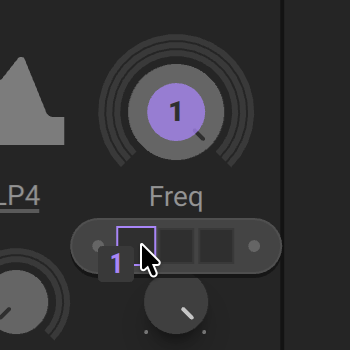
In the dialog, click OK to remove the 1:1 assignment and replace it with a modulation slot assignment.
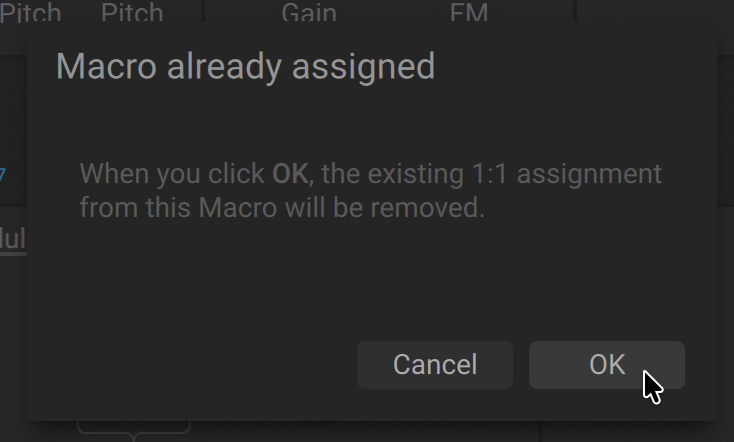
To replace a modulation slot assignment for a control with a 1:1 assignment:
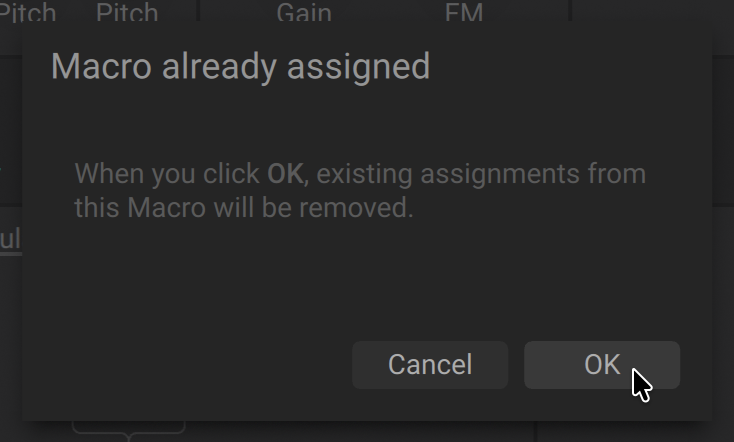
Drag and drop the Macro number onto the control it is already assigned to using a modulation slot.
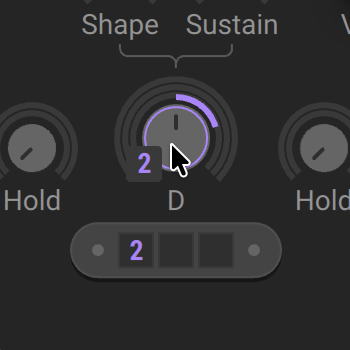
In the dialog, click OK to remove the Macro's modulation slot assignment, and replace it with a 1:1 assignment.
Removing and muting Macros
You can remove or mute Macro assignments by right-clicking the Macro number and using the context menu.
Note
You can remove and mute Pitch Bend (PB), Modulation wheel (M), and Aftertouch (AT) assignments in the same way as Macro assignments.
Removing 1:1 assignments
To remove a 1:1 assignment applied to a single control:
Right-click the Macro number.
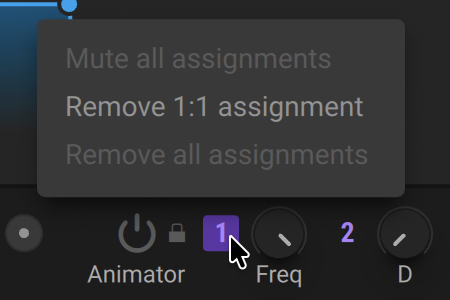
Select Remove 1:1 assignment.
Removing multiple assignments
To remove all assignments at once when a Macro is assigned to multiple controls:
Right-click the Macro number.
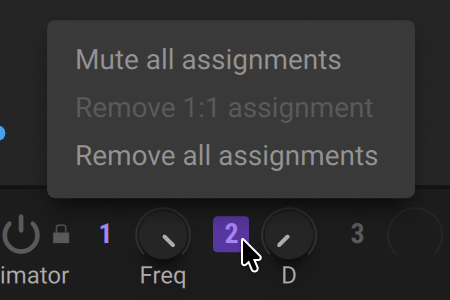
Select Remove all assignments.
Muting assignments
To mute all Macro assignments:
Right-click the Macro number.
Select Mute all assignments.
The Macro assignments are muted. You can unmute by using the same context menu.
Renaming Macros
Macros are automatically named when they are assigned to a control. When the same Macro is assigned to multiple controls, you may want to rename it according to its specific function in your patch.
Note
You can rename Pitch Bend (PB), Modulation wheel (M), and Aftertouch (AT) assignments in the same way as Macro assignments.
To rename a Macro:
Double-click the label under the Macro to highlight the text field.
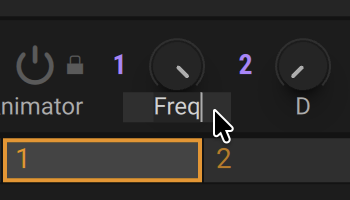
Type the new Macro name in the text field and press [Enter] to confirm.
The Macro is named according to the text you have typed in.