Massive XL overview
Learn how to navigate Massive XL using its main views.
When you first open Massive XL you will see Play view along with a set of global controls in the Header at the top, the Side pane to the right, and the Info pane at the bottom.
You can navigate the instrument from the Header by switching between Play, Edit, and Browse view, as well as showing or hiding the Side and Info pane.
Massive XL consists of the following main areas:
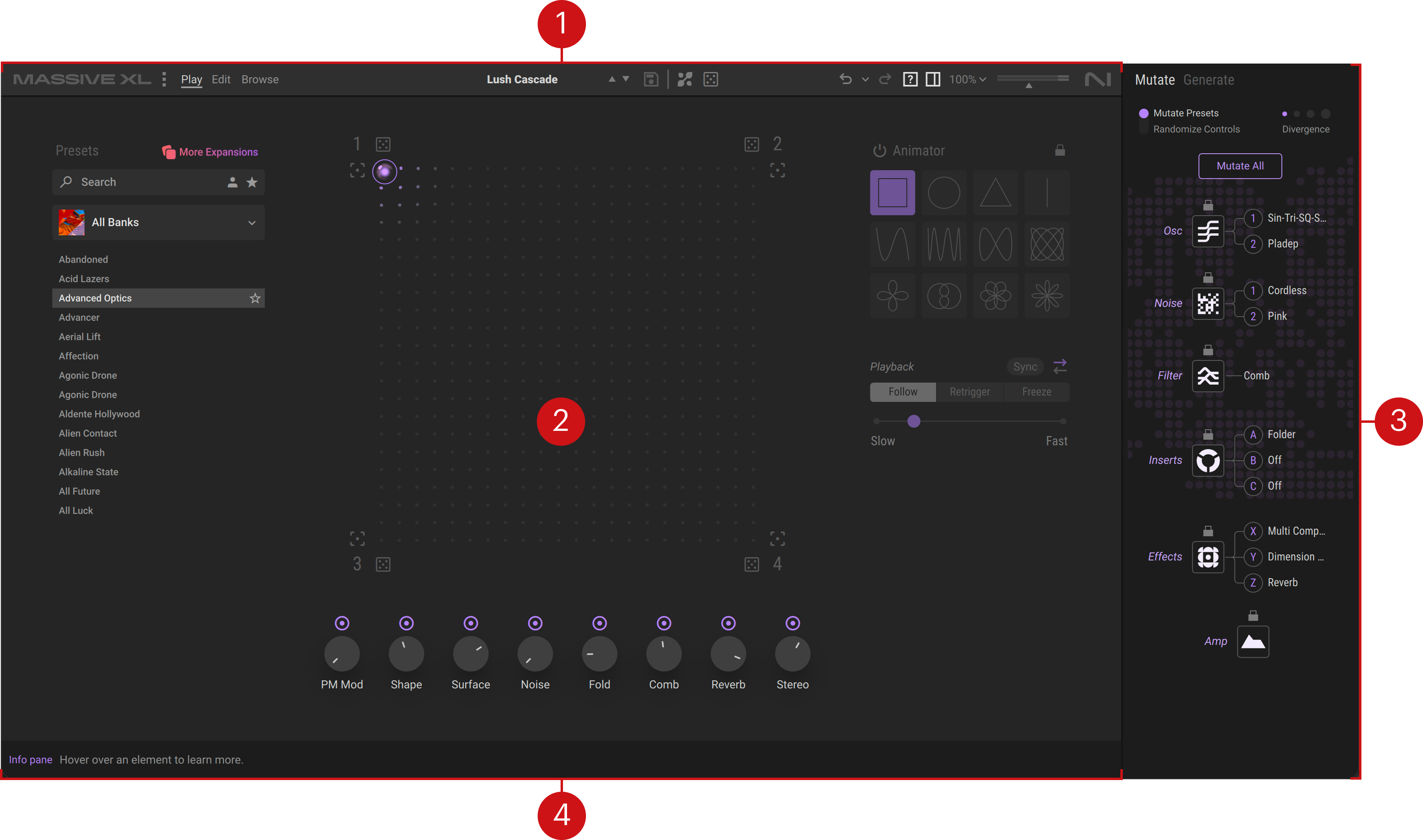
Header: Lets you switch views, browse presets, and access settings and options. You can find more information in Header.
Instrument views: In the main area of the instruments you can play presets, edit sounds, or browse your library depending on the view you have selected in the Header:
Play view gives you intuitive and inspiring tools to play and tweak presets. You can find more information in Play view.
Edit view (not available in Massive XL Player) lets you dive into sound design with full access to all of Massive XLs modules and modulation. You can find more information in Edit view.
Browse view lets you quickly find and load presets from your library and Expansions. You can find more information in Browse view and presets.
Side pane (not available in Massive XL Player): Features the Mutate and Generate views for transforming and generating presets. You can find more information in Side pane.
Info pane: Gives you a brief description for each control upon mouse hover.
Header
The Header at the top of the plugin provides direct access to a number of important options and functions such as browsing and presets, different views, undo/redo, and the main volume.
The Header consists of the following elements:

Logo: Opens the About dialog with information about the version number, license, and credits of the instrument.
Settings menu: Provides options for managing user presets, adjusting the instrument's appearance, and other settings. You can find more information in Settings menu.
View: These buttons let you switch between the instrument views.
Play: Opens the Play view, which lets you quickly load a preset, use the Macros to adjust the sound, and play with the Morpher, an intuitive tool for blending between Macro settings. You can find more information in Play view.
Edit: Opens the Edit view, which lets you adjust every detail of your preset and explore sounds by creating new combinations of modules and modulators. You can find more information in Edit view.
Browse: Opens Browse view, which lets you access the Massive XL preset library, Expansions, and user presets. You can filter sounds by tags, text search, and Favorites, helping you to quickly and intuitively find the right sound. You can find more information in Browse view and presets.
Preset selector: Shows the name of the current preset. Clicking the preset name opens Browse view. If you modify a preset, a star icon next to its name indicates that it has not been saved.
Previous/next preset: Loads the previous or next preset in the preset list.
Save Preset: Saves your sound as a user preset. You can find more information in Saving user presets and banks.
Mutate: Mutates all modules in the current preset at once, excluding modules that are locked in Mutate view.
Randomize: Randomizes all modules in the current preset at once, excluding modules that are locked in Mutate view.
Undo/Redo: Moves back and forth in your history of changes applied to the current preset. Clicking the left arrow undoes, while clicking the right arrow redoes. The drop-down menu in the middle shows the complete history so you can jump to specific changes.
Info pane: Shows or hides the help text area at the bottom of the plugin, giving you a brief description for each control upon mouse hover.
Side pane: Shows or hides the Side pane where you can find the Mutate and Generate views. You can find more information in Side pane.
View size: Opens a drop-down menu that lets you set the size of the plugin window. Fit to Screen sets the maximum size without completely covering your DAW window.
Main volume: Adjusts the output level of the plugin. The meter shows the current level of the output signal.
Settings menu
The Settings menu in the Header provides options for managing user content, adjusting the visual appearance of the interface, setting the control sensitivity, and adjusting the Morpher automation. You can also access learning resources, discover Massive XL Expansions, and set usage data tracking.
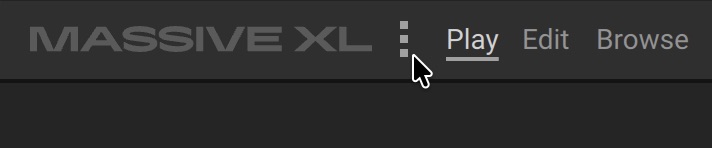
To open the Settings menu, click the three dots icon next to the Massive XL logo in the Header.
The Settings menu contains the following entries:
Load Init Preset: Loads a standard template preset with basic settings, allowing you to start designing a new sound from scratch.
Undo: Moves back in your history of changes applied to the current preset.
Redo: Moves forth in your history of changes applied to the current preset.
Show User Content Folder: Opens the folder on the hard drive containing your user content. You can find more information in Managing user presets.
Discover Massive XL Expansions…: Opens the Massive XL Expansions page on the Native Instruments website.
Learn more about Massive XL…: Opens the Massive XL product page on the Native Instruments website.
Online Massive XL Documentation…: Opens the Massive XL user guide online.
Watch the walkthrough...: Opens the walkthrough video on YouTube.
Show Welcome Screen: Sets whether the Welcome screen is shown when opening the plugin.
Sync to Monitor Refresh Rate: Synchronizes the interface rendering to the monitor's refresh rate to prevent flickering of animations.
Control Sensitivity: Provides nine settings for the sensitivity response of knob and slider controls.
Theme: Switches the interface between the Light and the Dark theme.
Flat Mode: Removes shading from the interface to make the appearance completely flat.
Default to Edit View (not available in Massive XL Player): When this option is active, any new instance of Massive XL opens in Edit view instead of Play view.
Morpher Automation: Lets you choose which control changes are exposed to your DAW when you use the Morpher. You can find more information in Using the Morpher with MIDI or host automation.
Morpher X/Y Inversion: Inverts the Morpher's response to automation data for the X, Y, or both axes. You can find more information in Using the Morpher with MIDI or host automation.
Macros Bar Position: Moves the Macro bar to the Top, Center, or Bottom of the interface.
Usage Data Tracking: Offers more information about usage data tracking, and the option to activate or deactivate the feature.
Update Notifications: Sets whether you are notified about free updates using a button in the Header.
Rescan Content: Updates your library contents to reflect all changes made to the User Content folder. You can find more information in Managing user presets.