Modulation
Massive XL puts a strong focus on modulation with its flexible architecture and sophisticated Modulators.
Modulation adds movement to your sound by changing controls over time. This movement defines the character and expression of a sound as you play it, from the contour of its amplitude, or volume level, to its timbral qualities. When you apply modulation to controls in your patch, the controls change their value according to the shape of the modulation signal.
Massive XL puts focus on the concept of modulation by combining flexible Modulators with an intuitive system for modulation assignment: Modulators can be assigned to any number of controls using drag and drop, and the modulation assignments are visualized directly in the user interface. Color-coded rings or lines next to controls show not only which type of Modulator is used, but also the amount of modulation applied to the control.
Note
Editing modulation is not available in Massive XL Player.
Modulation overview
The following elements and controls are used for modulation in Massive XL:
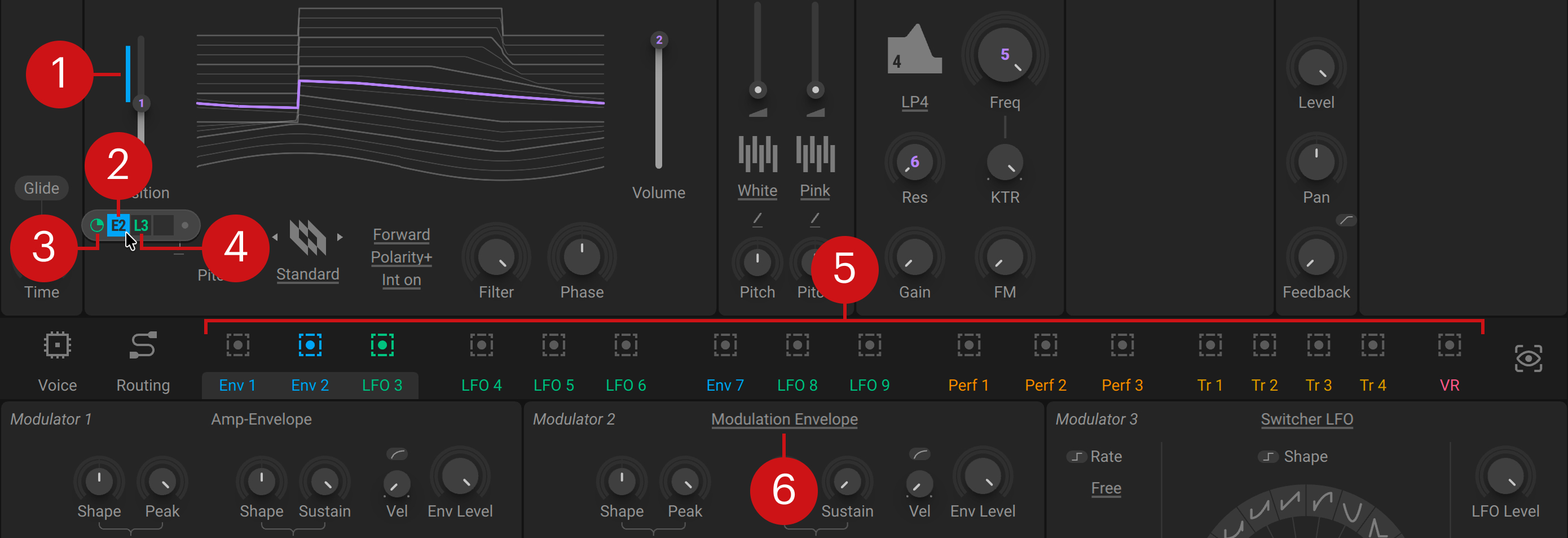
Modulation Amount: Adjusts the amount of modulation applied to the parameter from the Modulator. The modulation amount is represented by a color-coded ring or line next to the control. Active modulation is shown in real time as a gray ring or line inside of the control. You can find more information in Assigning modulation.
Modulation Slot: Lets you assign a Modulator to the control, and adjust the modulation amount by clicking and dragging the modulation slot up and down. Modulation slots appear when hovering a control. Right-clicking opens a context menu that lets you delete the modulation assignment. You can find more information in Assigning modulation.
Sidechain Modulation Amount: Adjusts the amount of sidechain modulation applied to the corresponding modulation slot from the sidechain modulation slot. Modulation slots appear when hovering a control. You can find more information in Sidechain modulation.
Sidechain Modulation Slot: Lets you assign a Modulator for sidechain modulation. Sidechain modulation changes the intensity of modulation applied to the other modulation slots. The sidechain modulation slot can also be used like a regular modulation slot. You can find more information in Sidechain modulation.
Navigation bar: Lets you access and assign all Modulators. You can view and edit Modulators in the Editor by clicking on their labels, and view all modulation assignments at a glance by using the Modulation Overview. Right-clicking opens a context menu that lets you mute or delete all assignments for a Modulator. You can find more information in Modulators in the Navigation bar.
Modulator Menu: Selects from four available Modulator types, the Modulation Envelope, Exciter Envelope, Switcher LFO, and the Random LFO. You can find more information in Modulators.
Tip
You can view modulation assignments individually, per Modulator, or all of them at once by hovering controls, the Modulator target icons, or the Modulation Overview. You can find more information in Viewing modulation assignments.
Modulators in the Navigation bar
Massive XL provides a comprehensive set of Modulators that can be used to add movement to your sound.
All Modulators can be assigned and accessed from the Navigation bar:

Modulation Assign: Lets you assign Modulators to controls using drag and drop, or by first clicking the target icon and then the control or modulation slot. Hovering the target icon shows all modulation assignments from the respective Modulator. You can find more information in Assigning modulation.
Modulators: Modulators include the Modulation Envelope, the Exciter Envelope for physical modeling, the Switcher LFO for cycling modulation, and the Random LFO for random modulation. Env 1 controls the Amplifier level, all other Modulators are freely configurable. You can find more information in Modulators.
Performers: Performers are specialized sequencers for modulation. They provide a flexible way to apply complex, rhythmical movement to controls. You can find more information in Performers.
Trackers: Trackers facilitate advanced keyboard tracking. They map MIDI note data to modulation that you can assign to any control, letting you define how your sound responds to incoming MIDI. You can find more information in Trackers.
Voice Randomization: Voice Randomization lets you add pseudo-random variation to your sound, from subtle differences in tuning to dramatic changes across voices. You can find more information in Voice Randomization.
Modulation Overview: Hovering the Modulation Overview icon shows all modulation assignments from every Modulator at once. You can find more information in Viewing modulation assignments.
Modulator animation
You can view the modulation each Modulator produces using miniature scopes in the Navigation bar. The scopes are shown for every Modulator that is assigned to a control in an active module, and for as long as you play a note. The scopes are real-time displays showing a representation of the modulation rate and shape.

Assigning modulation
Before the effect of the envelope or LFO can be heard, it must be assigned to a modulation slot of the control you want to modulate. Modulators can be assigned to multiple controls at once. You can find more information about managing existing modulation assignments in Replacing, removing, and muting modulation.
To assign a Modulator to a control:
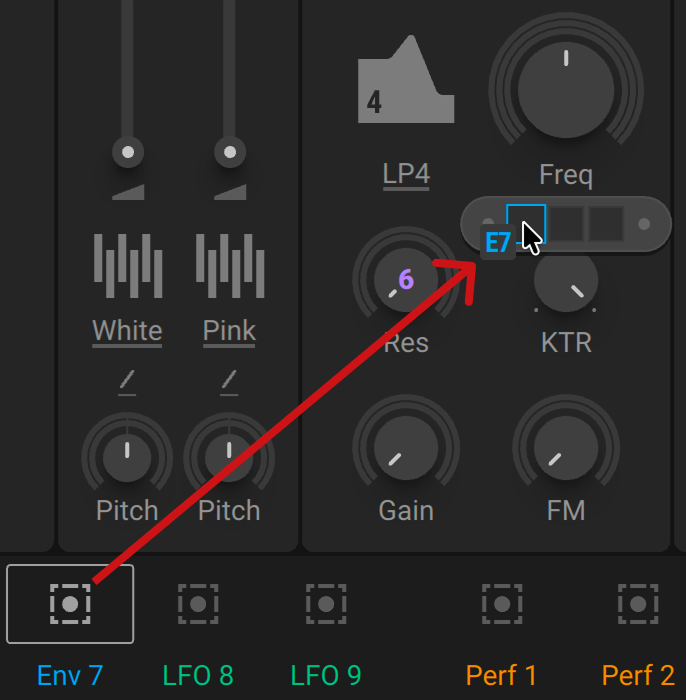
Drag and drop the target icon of a Modulator onto a modulation slot. Modulation slots appear when hovering a control. Alternatively, first click the target icon and then the modulation slot to make the assignment. You can also use the control as the target, which will assign the Modulator to the next available modulation slot.
Click and drag the modulation slot up or down to increase the modulation amount applied to the control. Dragging up applies positive (non-inverted) modulation, and dragging down applies negative (inverted) modulation.
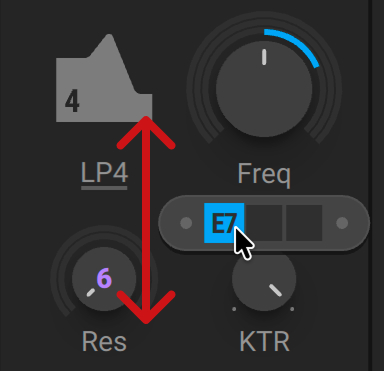
The Modulator is assigned and modulates the control.
Tip
You can double-click the modulation slot to set the maximum modulation amount or reset the amount to zero.
Viewing modulation assignments
You can view modulation assignments including individually, per Modulator, or all of them at once. Any modulation assignment is always represented by a color-coded ring or line next to the control. Active modulation is shown in real time as a gray ring or line inside of the control.
To view existing modulation assignments applied to a single control, including the abbreviated Modulator names as well as the sidechain modulation amounts:
Hover the control to show the modulation slots.
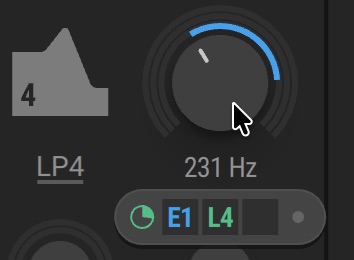
To show an overview of all modulation assignments from a specific Modulator:
Hover the target icon of the Modulator in the Navigation bar.
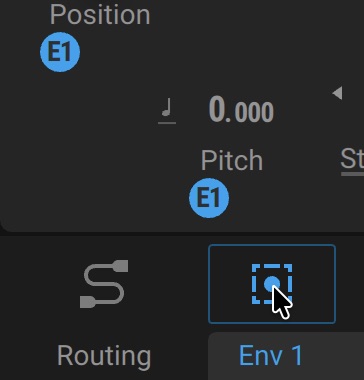
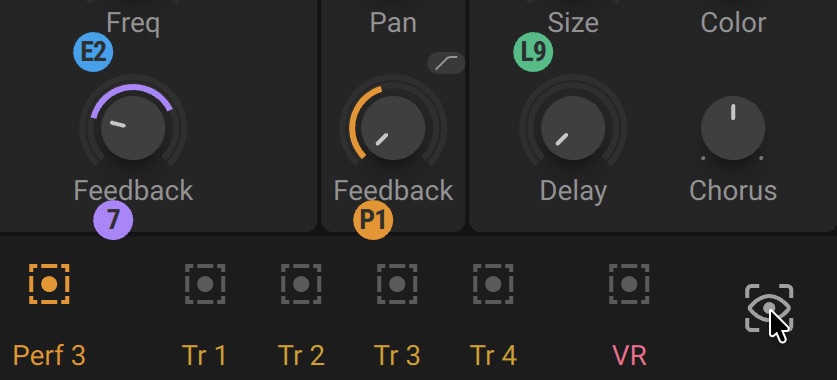
To show an overview of all modulation assignments from every Modulator at once:
Hover the Modulation Overview icon in the Navigation bar.
Note
If a Modulator is assigned to a control in an active module, the modulation it produces is visualized using a miniature scope in the Navigation bar for as long as you play a note. The scope is a real-time display showing a representation of the modulation rate and shape.
Replacing, removing, and muting modulation
You can replace or remove modulation assignments individually, and remove or mute them in groups per Modulator. When replacing or removing modulation assignments, the original modulation amount is retained. Muting assignments is useful to make a quick comparison with and without modulation.
Replacing modulation assignments
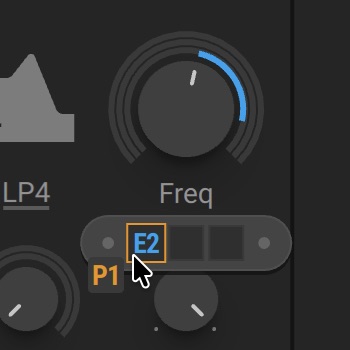
To replace a modulation assignment with another Modulator:
Drag and drop the new Modulator onto the already assigned modulation slot. Modulation slots appear when hovering a control. Alternatively, you can first click the Modulator's target icon and then the modulation slot.
Removing modulation assignments individually
To remove a modulation assignment:
Hover the control to show the modulation slots.
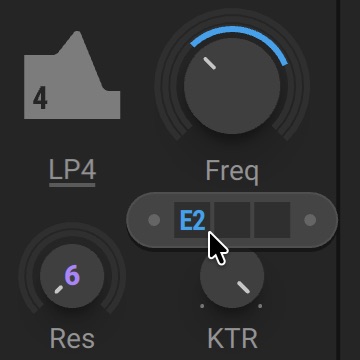
Right-click the modulation slot.
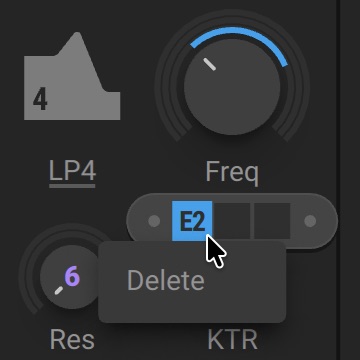
Select Delete.
Removing multiple modulation assignments
To remove all modulation assignments from a Modulator:
Right-click the Modulator name in the Navigation bar.
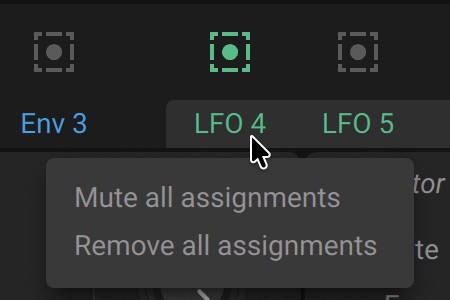
Select Remove all assignments.
Muting modulation assignments
To mute all modulation assignments from a Modulator:
Right-click the Modulator name in the Navigation bar.
Select Mute all assignments.
The modulation assignments are muted. You can unmute by using the same context menu.
Sidechain modulation
Sidechain modulation lets you add movement to the modulation amount, or strength, of other modulation assignments. Instead of modulating the control itself, it changes the intensity of modulation applied to the control.
Sidechain modulation can be configured using special modulation slots and amount controls:
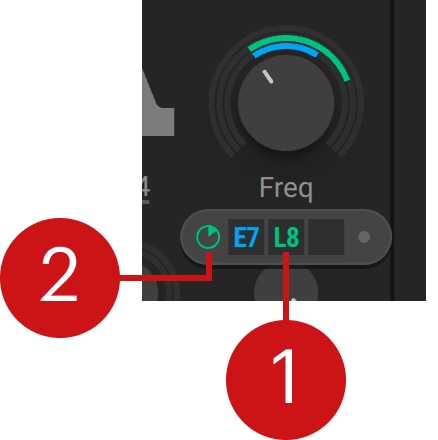 |
Sidechain Modulation Slot: Lets you assign a Modulator for sidechain modulation, which can be applied to the modulation slots to the left and to the right. It can also be used to apply modulation directly to the control like a regular modulation slot. Modulation slots appear when hovering a control.
Sidechain Modulation Amount: Adjusta the amount of sidechain modulation applied from the sidechain modulation slot to the corresponding modulation slot. Modulation slots appear when hovering a control.
Tip
In technical terms, the signal produced by the Modulator assigned to a modulation slot is multiplied by the signal produced by the Modulator assigned to the corresponding sidechain modulation slot, by a factor set with the sidechain modulation amount control.