Performers
The Performers in Massive XL are special Modulators based on sequenced modulation shapes. They generate complex, rhythmical movement and musical gestures.
The three Performers are special Modulators based on sequenced modulation shapes. They generate complex, rhythmical movement and musical gestures that you can apply to any control.
Basic and Custom grids as well as flexible drawing tools let you quickly draw modulation shapes in the editor. Basic grids can lead to fast results, while the Custom and Overlay grids enable complex rhythms and shapes.
You can access and assign the Performers from the Navigation bar using the orange tabs labeled Perf 1 – Perf 3. You can find more information about assigning Modulators in Assigning modulation.
The Performers can be controlled by the Remote Octave, which lets you switch between up to 12 patterns using key switches from your keyboard or in the Remote Octave Bar. You can find more information in Remote Octave.
Note
Editing the Performers is not available in Massive XL Player.
Performers overview
The Performers contain the following elements and controls:
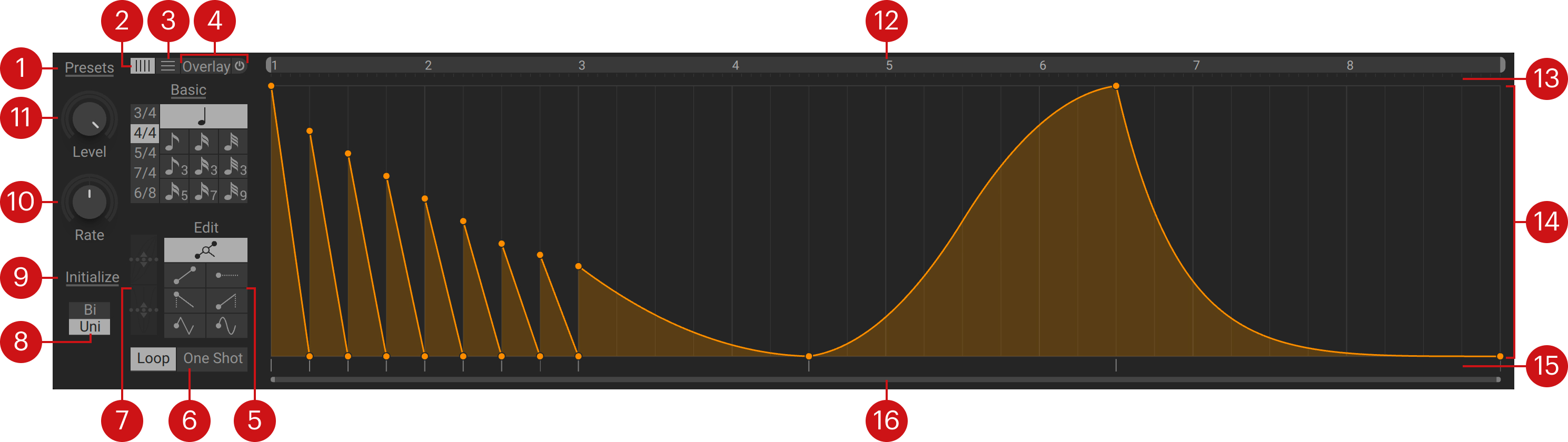
Shapes: Opens the Performer menu that lets you load factory shapes, or save your own user shapes.
Grid (X-axis): Displays options for setting the rhythmic grid for drawing modulation shapes using Basic or Custom grids.
Basic/Custom grid: Switches between the Basic and the Custom grid. You can find more information in Grid.
Resolution (Y-axis): Displays options for setting the resolution of the modulation from -24 to +24 steps (Range set to Bi) or 0 to +24 (Range set to Uni).
Snap to Grid: Forces all values to the steps even when making fine-adjustments using right-click and drag.
Overlay: Displays options for setting up the Overlay grid that lets you draw modulation with wide grid segments and odd divisions. You can adjust its placement and width using the handles in the Select zone. The Overlay on/off switch needs to be activated for the options to become available.
Overlay on/off: Switches the Overlay grid on or off.
Overlay Divisions: Sets the number of grid divisions.
Overlay stretch controls: Speed up or slow down the grid by clicking and dragging up or down.
Drawing tools: Let you draw different modulation shapes in the editor. You can find more information Drawing tools.
Play mode: Switches the playback between Loop and One Shot. Loop cycles continuously through the active section in the editor. One Shot plays the active section once after a note or remote octave key switch is received (depending on the Launch setting in the Remote Octave).
Stretch tools: Stretches or compresses the modulation shape across three or more selected points by clicking and dragging up or down. The upper tool stretches or compresses from left to right. The lower tool stretches or compresses inwards or outwards.
Polarity: Switches the Performer between Bi (bipolar) and Uni (unipolar) output. Bi has an output range of -100% to +100%. Uni has a range of 0 to 100%.
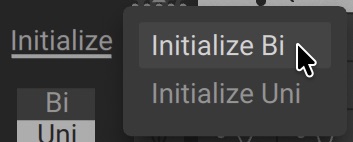
Initialize: Clears the modulation shape and resets the Performer's polarity to bipolar (Initialize Bi) or unipolar (Initialize Uni).
Rate: Adjusts the speed of the Performer relative to the tempo of your DAW. At center position, the Performer plays at the same tempo as your DAW. Turning the control to the left divides the tempo, turning it to the right multiplies it.
Level: Adjusts the overall level of the modulation produced by the Performer.
Active section: Sets the section of the modulation shape in the editor that will be played back by the Performer. You can click and drag the handles to set the start and end points, or click and drag the whole section to move it. Double-clicking sets the active section to the entire visible area of the editor.
Tip
You can loop the active section or play it back only once by changing the Performer's Play mode. Playback can be reset or started either when a note or a remote octave key switch is received (depending on the Launch setting in the Remote Octave).
Select zone: Lets you select multiple points in the modulation shape by clicking and dragging left or right across the editor. You can find more information in Editing modulation shapes.
Editor: Lets you draw modulation shapes directly onto the flexible grid using the drawing tools.
Segment Edit zone: Lets you adjust single or multiple segments in the modulation shape. Right-click and drag to fine-adjust segments. Double-click a segment or multi-selection to delete it.
Zoom bar: Zooms in and out of the editor by clicking and dragging the handles. Double-clicking zooms into the first bar in the editor.
Grid
The grid (X-axis) defines the time divisions and note values that make up the rhythmic grid for drawing modulation shapes in the editor. You can use the Basic or the Custom grid. The grid determines the length, while the drawing tools determine the shape of the elements you draw.
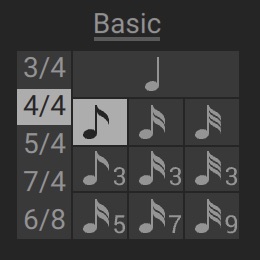
Basic grid: Sets the time signature and rhythmic resolution of the grid from quarter notes down to 32nd note divisions. The Basic grid is the default option for drawing modulation shapes in the editor.
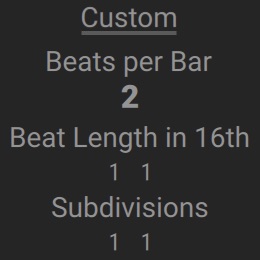
Custom grid: Sets complex time signatures in up to eight different sections, or Beats per Bar. Each section can have its own custom Beat Length and number of Subdivisions.
Note
You can safely switch between the Basic and Custom grid without losing your modulation pattern.
Drawing tools
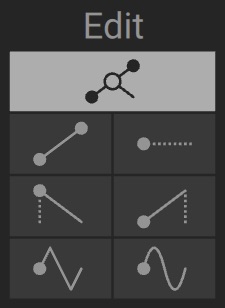
The drawing tools let you draw different modulation shapes in the editor. The drawing tools determine the shape, while the grid determines the lengths of elements you draw.
The drawing tools contain the following options:
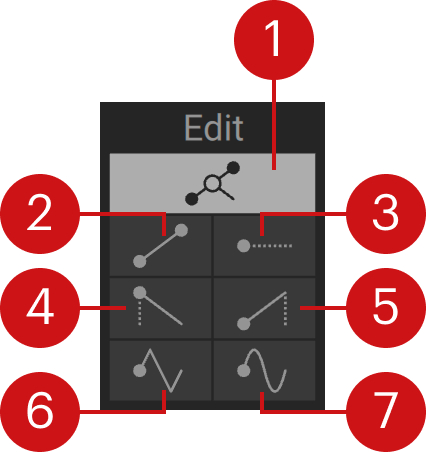 |
Edit: Adds modulation points when clicking anywhere in the editor. Adjacent points are connected by straight lines.
Line: Draws points connected by straight lines from the start to the end point of each grid segment.
Step: Draws points with static values that extend to the end of each grid segment.
Ramp A: Draws descending ramps according to the lengths of the grid segments.
Ramp B: Draws ascending ramps according to the lengths of the grid segments.
Triangle: Draws triangle shapes according to the lengths of the grid segments.
Sine: Draws sine shapes according to the lengths of the grid segments.
Drawing modulation shapes
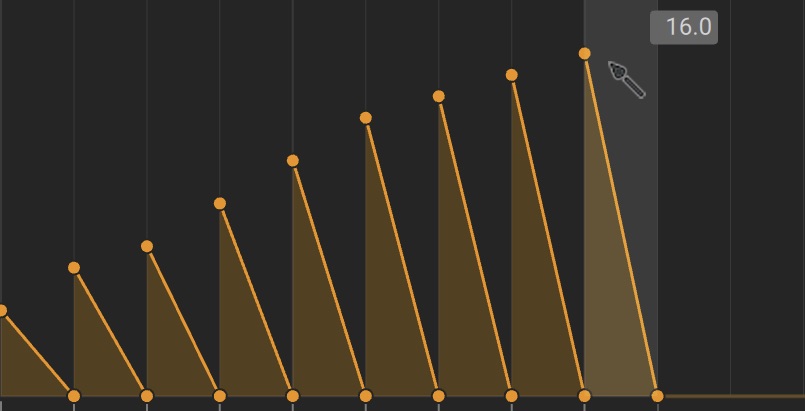
Select one of the drawing tools to start painting a modulation shape in the editor. As you draw shapes, they will snap to the selected time signature and note value of the grid.
To draw a modulation shape in the editor:
Select a time signature and grid note value.
Select a drawing tool.
Click and drag the mouse across the grid in the editor to draw a modulation shape. Dragging up and down adjusts the modulation values.
Note
The Performers only play when they are assigned to a an active control. You can find more information in Assigning modulation.
Editing modulation shapes
The editor in the Performers lets you select, delete, move, and bend modulation using click and drag workflows.
Selecting modulation points
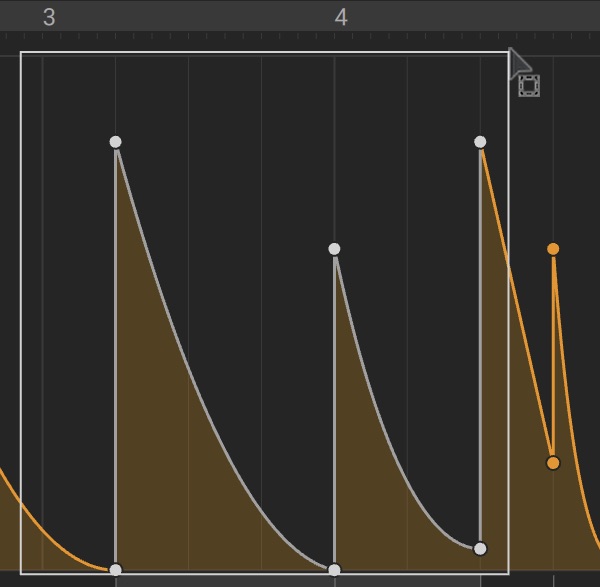
To select modulation points, click and drag across them in the Select zone at the top of the editor.
Deleting modulation points, segments, or shapes
You can delete single or multiple modulation points.
To delete a single modulation point, double-click the modulation point.
To delete multiple modulation points:
Select the points that you want to delete using the Select zone at the top of the editor.
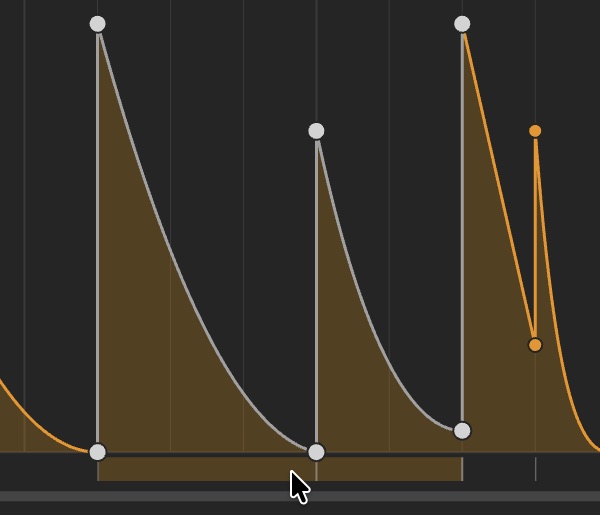
Double-click the segment for the selected points in the Segment Edit zone at the bottom of the editor.
Tip
Alternatively, you can click and drag a modulation point left or right and move across existing points to remove them.
To delete the entire modulation shape:
Click Initialize and select Initialize Bi or Initialize Uni.
Tip
Alternatively, you can double-click the pattern in the Remote Octave overview to delete the modulation shape. Double-clicking underneath each column deletes the modulation shapes in all three Performers.
Moving modulation segments
To move multiple modulation points as a segment:
Select the points that you want to move using the Select zone at the top of the editor.
Click and drag the segment for your selection in the Segment Edit zone at the bottom of the editor. Right-clicking and dragging lets you fine-adjust the position without snapping to the grid.
Bending modulation curves
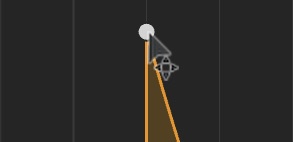
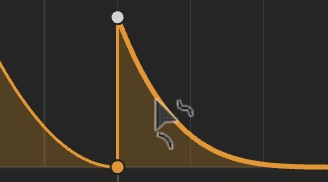
Click and drag a line in the modulation shape up or down to change its curve.
Remote Octave
The Remote Octave is a keyboard zone that lets you trigger up to 12 patterns with modulation shapes for the three Performers. You can switch between them using MIDI notes or by selecting one of the 12 key switches in the Remote Octave bar. You can use the Remote Octave to perform patterns on the fly, or for programming sequences in your DAW.
In the Remote Octave view, you can view, copy, swap, and delete the 12 patterns for all three Performers. You can also set up how the Performers are reset or restarted, and how the Remote Octave key switches are mapped to your keyboard.
The Remote Octave contains the following elements and controls:
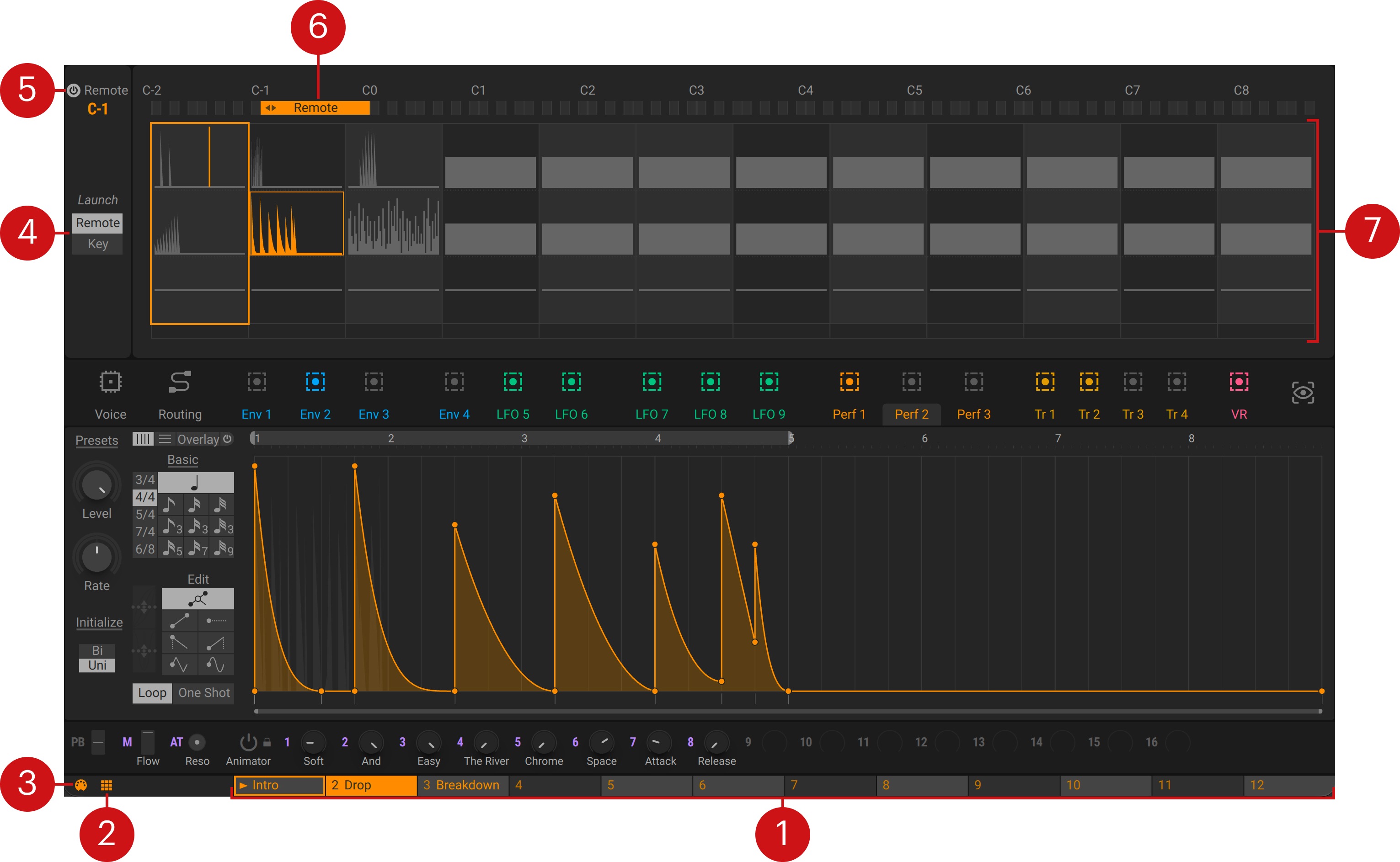
Remote Octave key switches: Plays the patterns for each key switch, and selects them for editing in the Performers. The 12 key switches correspond to the chromatic keys of the keyboard zone. The selected key switch is highlighted in orange. The currently playing key switch is highlighted with an orange outline. You can rename patterns by double-clicking and entering a name.
Remote Octave view: Opens the Remote Octave view that lets you manage patterns in an set playback options for the Performer.
MIDI on/off: Switches the MIDI input of the Remote Octave on or off, letting you edit modulation shapes in a Performer without the risk of remote switching from a keyboard or sequencer.
Launch: Resets or starts the playback of all Performers either when a Remote Octave key switch (Remote) or a note (Key) is received.
Keyboard zone on/off: Switches the Remote Octave keyboard zone on or off. When switched off, you can still play patterns by clicking the Remote Octave key switches in the Remote Octave bar.
Keyboard zone: Shifts the key range used for the Remote Octave in octaves across the keyboard by dragging the handle left or right.
Pattern overview: Shows an overview of all Performer patterns, and lets you select, copy, or swap patterns. The currently playing key switch is highlighted with an orange outline around its column of patterns. The pattern selected for editing is highlighted using a fine orange outline.
You can copy a pattern using drag and drop onto a different slot.
You can swap patterns using right-click drag and drop between two slots.