Routing page
As a semi-modular synthesizer Massive XL lets you to edit its internal signal path on the Routing page.
Massive XL is a semi-modular synthesizer with an open architecture, letting you freely arrange and connect its modules to implement different styles of synthesis including wavetable synthesis, phase modulation (also known as FM synthesis), subtractive synthesis, physical modeling, and various wave shaping techniques.
Modules are arranged and connected on the Routing page. Here you can combine all of Massive XL's sound generators and processors to create your sound.
Note
Editing the routing is not available in Massive XL Player.
Routing page overview
The Routing page is split into two main areas, the Polyphonic Area and the Monophonic Area. The Polyphonic Area is used to create the signal path that is processed independently for every single voice you play. The Monophonic Area contains three Effects that are globally applied to the sum of all polyphonic voices.
The Routing page consists of the following options and areas:
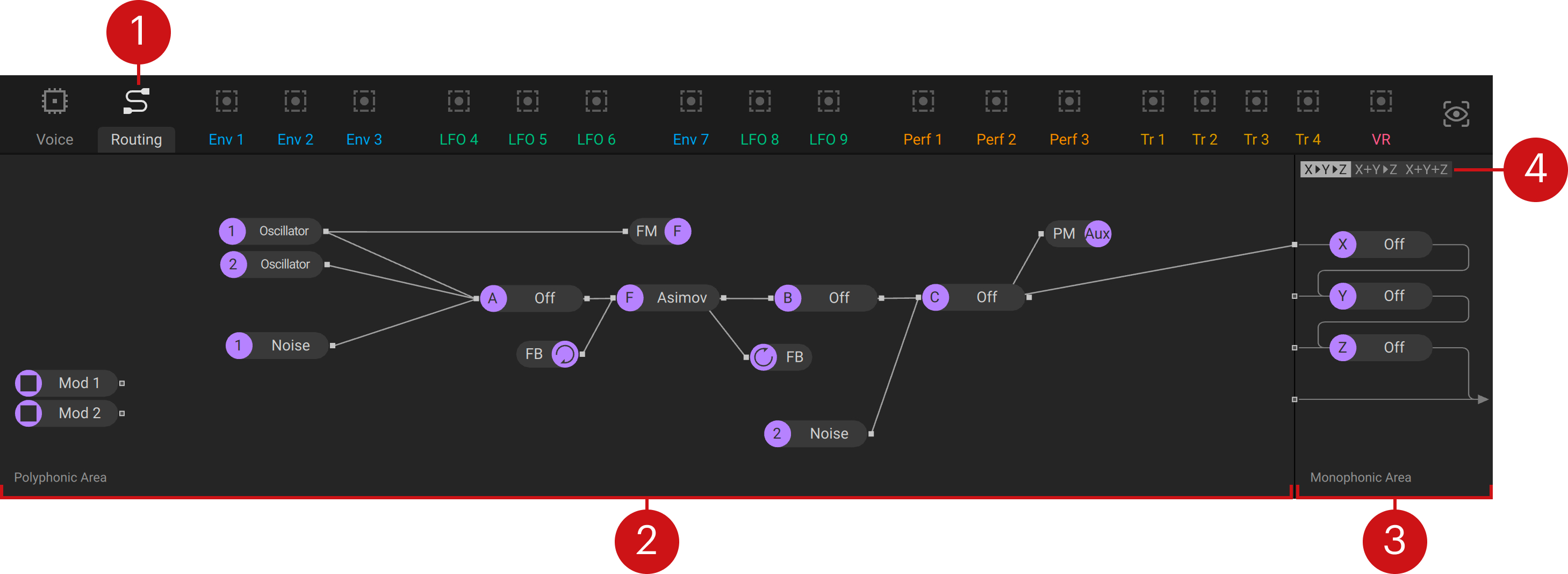
Routing page: Shows the Routing page in the Editor.
Polyphonic Area: Contains modules that you can use to create the signal path of the polyphonic voices. In order to complete the signal path, one or more module outputs need to be connected to the inputs of the Monophonic Area.
Generators and processors: Let you set up your basic signal path using Wavetable oscillators, Noise sources, the Filter, and the Inserts. The icons shown on the modules can also be found on the corresponding module panel. You can find more information in Generators and processors.
Aux bus: Lets you use any sound source for phase modulation of the Wavetable oscillators experiment with phase modulation based on noise, feedback, and inserts to achieve highly complex sounds. You can find more information in PM Aux bus.
Feedback loop: Lets you create a polyphonic feedback loop around modules to add chaotic and non-linear behavior. This feature is also useful for physical modeling sounds, especially when combined with the Comb filter. You can find more information in Feedback loop.
Modulation modules: Let you use the Modulators as generators in the signal path. Any Modulator can be assigned to the Modulation modules by dragging and dropping. For example, you can use the Switcher LFO in OSC mode as an additional oscillator, or the Exciter Envelope to turn the Comb filter into a sound source. You can find more information in Modulation modules.
Monophonic Area: Sums the polyphonic voices and applies the three Effects X, Y, and Z as the last stage before the output. The Monophonic Area provides a dedicated input for each Effect as well as a single input that is directly sent to the output. You can find more information in Effects.
Routing options: Arranges the three effects in the signal path. X > Y > Z chains the three effects, X + Y > Z sends the sum of the X and Y effects to the Z effect, and X + Y + Z sums all three effects.
Tip
You can load the preset Init - Massive XL from the Settings menu in the Header to use the routing shown above as the starting point for your new patch.
Using the Routing page
On the Routing page you can arrange and connect the individual modules that make up your patch. The inputs and outputs of the modules are connected using virtual wires.
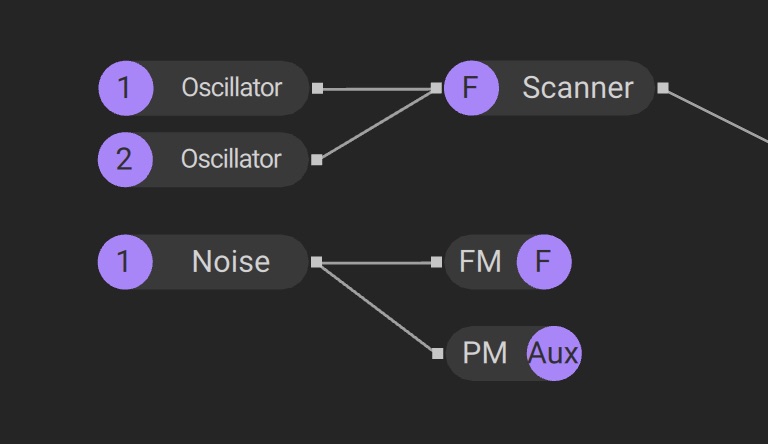
Outputs can be connected to any number of inputs and vice versa, so you can distribute signals to multiple destinations or mix multiple outputs into the same input:
 |
To make a connection between modules:
Click on an output to show all available inputs it can be connected to.
Click on the input you want to connect the output to.
Note
Alternatively, you can click and drag from an output to an input to connect them.
To remove a connection, double-click the virtual wire.
To remove all connections from a module, double-click the module.
To bypass a module without removing its connections, right-click the module.
Generators and processors
The generators and processors available in the Polyphonic Area of the Routing page are the basic components you can use to build your sound. They consist of the Oscillators, Noise sources, the Filter, and the Inserts.
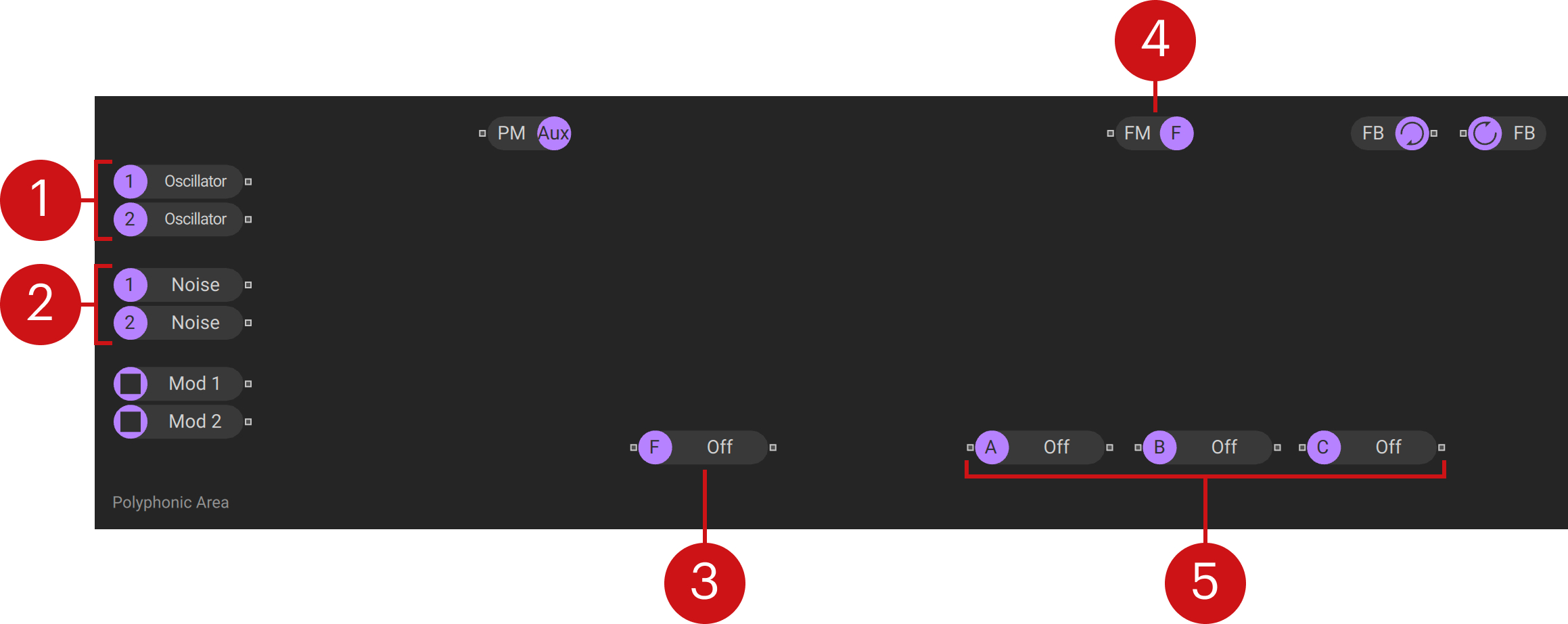
Oscillators: The Wavetable oscillators 1 and 2 are generators that each feature a single output. They can be connected to the processors and buses in the Polyphonic Area, or directly to an input of the Monophonic Area. You can find more information in Wavetable oscillators.
Noise sources: The Noise sources 1 and 2 are generators that each feature a single output. They can be connected to the processors and buses in the Polyphonic Area, or directly to an input of the Monophonic Area. You can find more information in Noise.
Filter: The Filter is a processor that features a single input and a single output. It can be connected to the generators, processors, and buses in the Polyphonic Area, or directly to an input of the Monophonic Area. You can find more information in Filter.
Filter FM: The Filter types Asimov, Blue Monark, Groian, Scanner feature an extra FM bus in the routing. You can connect any source in the signal path here to apply audio rate modulation to the filter frequency, also called filter FM (frequency modulation). Filter FM produces rich harmonics and distortion effects.
Inserts: The three Inserts (A, B, C) are processors that each feature a single input and a single output. They can be connected to the generators, processors, and buses in the Polyphonic Area, or directly to an input of the Monophonic Area. By selecting OSC or PM OSC for the Inserts, you can also use them as generators. You can find more information in Inserts.
PM Aux bus
The Aux bus offers an additional input for phase modulation that can be connected on the Routing page and assigned to either of the Wavetable oscillators, or both. It lets you use any sound source for phase modulation, including Modulators via the Mod modules.
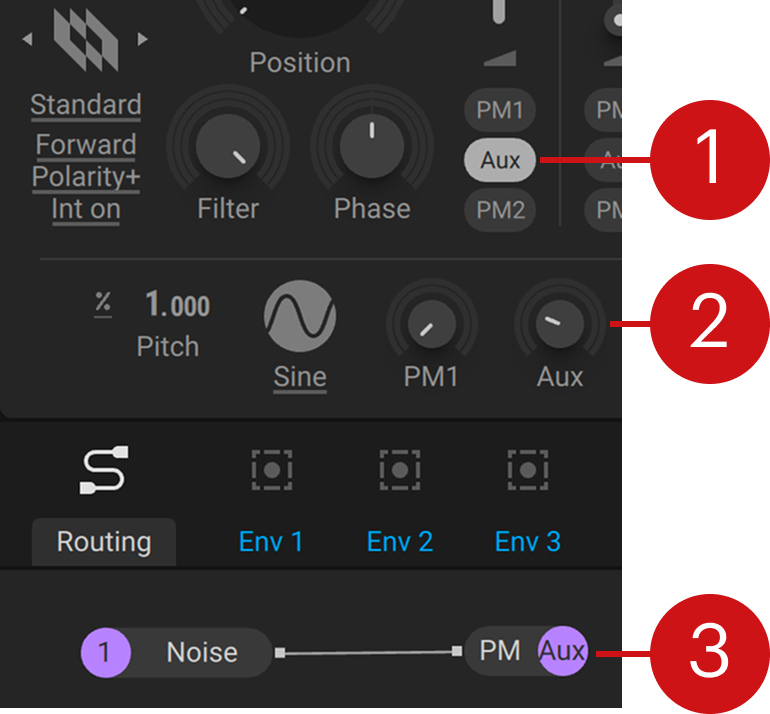 |
Aux assign: Routes the signal received by the PM Aux module on the Routing page to the phase modulation of the corresponding Wavetable oscillator.
Aux: Adjusts the amount of phase modulation applied from the Aux bus to the assigned Wavetable oscillators.
PM Aux: Sends the signal it receives to the Aux bus so it can be used to apply phase modulation to the Wavetable oscillators. It can be connected to the any of the generators and processors on the Routing page.
Tip
The flexible routing lets you experiment with phase modulation based on noise, feedback, and inserts to achieve highly complex sounds. Find Noise connected to the Aux bus in the presets Noise Sub and Crown Alloy. To check out feedback from the Inserts fed into the Aux bus, open the preset Woozle and turn up the Aux control.
Feedback loop
Feedback lets you connect a module's output to its input in the Routing tab. Multiple modules can be chained in the feedback loop. Feedback adds chaotic and non-linear behavior to the voice, creating organic and distorted sounds. When combined with the Comb filter, you can use feedback for physical modeling patches.
The feedback loop can be freely connected in the Polyphonic Area of the Routing page by using the two FB modules. Since it is processed independently for every single voice you play, you can play chords and overlapping notes with your feedback sounds.
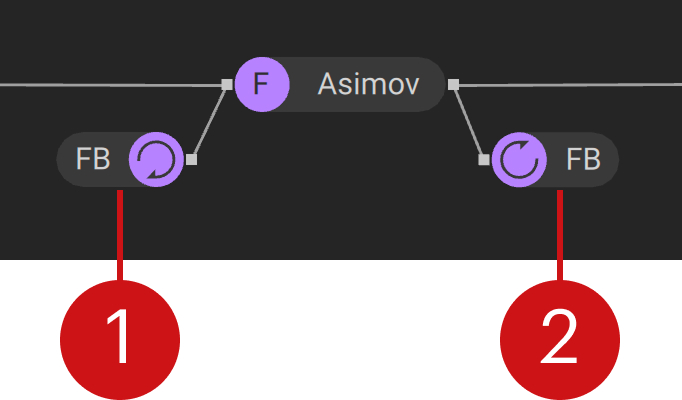 |
Feedback loop output: This bus features a single output that receives signals from the feedback loop input. It can be connected to the generators, processors, and buses in the Polyphonic Area.
Feedback loop input: This bus features a single input that sends signals to the feedback loop output. It can be connected to the generators and processors in the Polyphonic Area.
Tip
In the example shown above, the output of the Asimov filter is connected to the FB input, and the FB output is connected to the input of the Asimov filter. This creates a feedback loop around the filter, creating an overdriven sound with a chaotic quality.
Feedback control
The feedback amount is controlled from the Amp module. Use the Feedback control to adjust the feedback level and apply a high-pass filter to reduce bass overloading in the feedback loop.
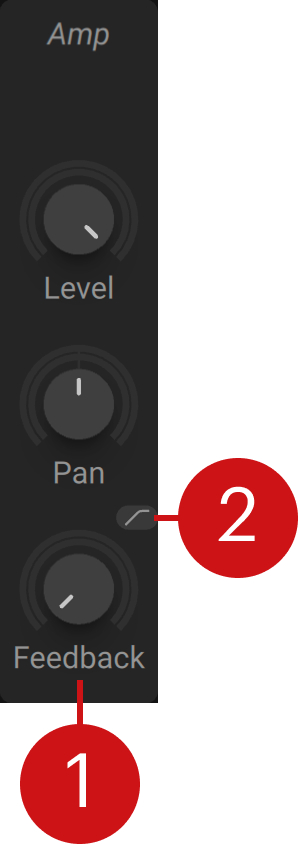 |
Feedback: Adjusts the level of the signal going into the feedback loop, controlling the chaotic behavior and distortion produced by the feedback. Feedback can result in extreme changes of the output volume, so making careful adjustments is key.
High-pass: Activates a high-pass filter that cuts low-frequency content in the feedback loop. You can use it to avoid overloading the feedback loop with excessive bass.
Modulation modules
The Modulation modules in the Polyphonic area of the Routing page make it possible to use any of Massive XL's Modulators as generators in the signal path. For example, you can use the Switcher LFO in OSC mode as an additional oscillator, or the Exciter Envelope as an exciter for the Comb filter.
To assign a Modulator to a Modulation module in the Polyphonic area:
Click the Modulator's arrow icon to select it.
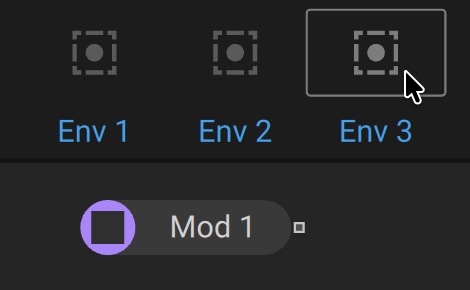
Click on the Modulation module slot in the Polyphonic area to assign it.
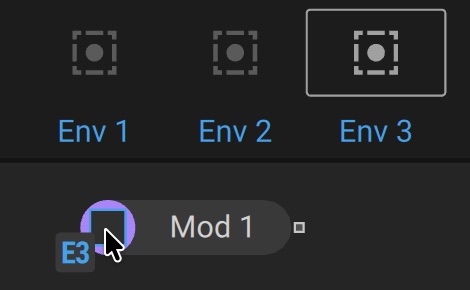
The signal produced by the modulation slot is now sent from the Modulation module's output and can be used anywhere in the signal path.