Trackers
The Trackers in Massive XL are special Modulators for advanced keyboard tracking. They map incoming MIDI data to modulation that you can apply to any parameter.
The four Trackers are special Modulators for advanced MIDI and keyboard tracking. They map incoming MIDI control data like pitch and velocity to modulation that you can apply to any parameter, making it possible to exactly define how your sound responds to your playing.
The Trackers let you draw shapes that represent the relationship between the MIDI input and the modulation output. The shapes can be made up of a continuous curve or discreet offset values. Each Tracker uses one of five available MIDI input sources: Note Pitch, Velocity On, Velocity Off, Gate, and Inverse Gate.
For example, you can use Note Pitch to define the response of your sound to the pitch values of incoming MIDI notes. Using a linear, rising ramp as the shape, the modulation will apply common keyboard tracking with low notes producing low values, high notes producing high values, and values increasing linearly across the keyboard range. By adjusting the curve or adding offsets, you can break up this relationship. For instance, inverting the curve would flip the relationship, or adding positive offsets to individual notes would produce higher modulation values only when playing the corresponding keys.
You can access and assign the Trackers from the Navigation bar using the yellow tabs labeled Tr 1 – Tr 4. You can find more information about assigning Modulators in Assigning modulation.
Note
Editing Trackers is not available in Massive XL Player.
Trackers overview
The Trackers contain the following elements and controls:
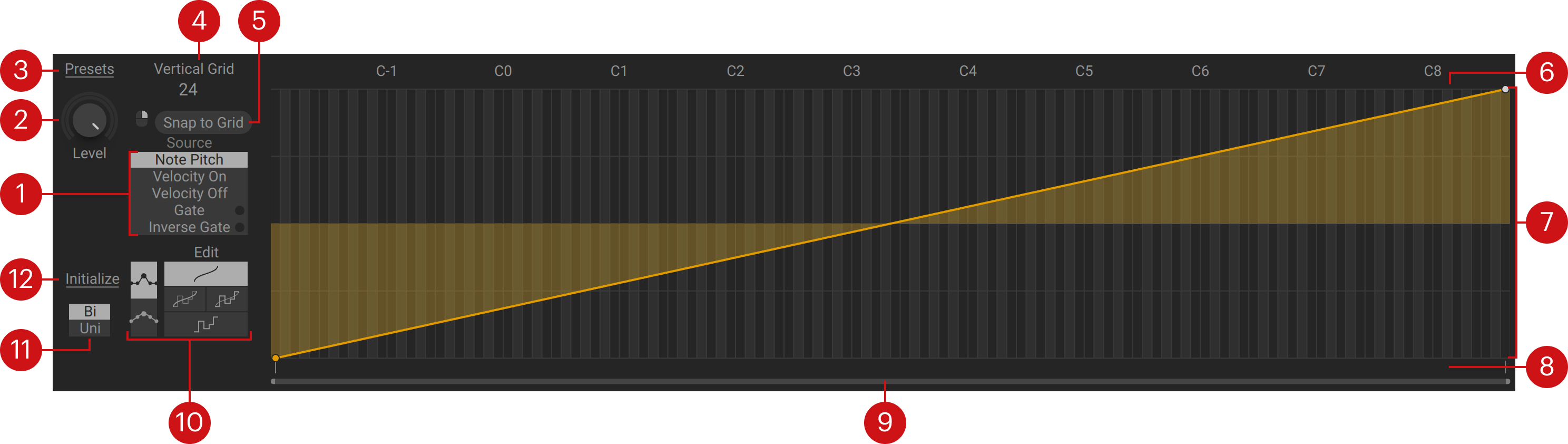
Source: Selects the type of MIDI control data processed by the Tracker, Note Pitch, Velocity On, Velocity Off, Gate, and Inverse Gate.
Note Pitch is the MIDI note value. This option holds the pitch value until another note is played, making it suitable for tracking the pitch of the notes.
Velocity On is standard, note-on velocity. This option holds the velocity value until another note is played, making it suitable for tracking the velocity of the notes.
Velocity Off is note-off velocity. This option holds the velocity value until another note is released, making it suitable for tracking the note-off velocity of the notes.
Gate is standard, note-on velocity. This option resets the velocity value to 0 when a note is released, making it suitable for tracking the velocity of the notes you are playing, but only for as long as a note is held.
Inverse Gate is note-off velocity. This option resets the velocity value to 0 when another note is played, making it suitable for tracking the note-off velocity of the notes you are playing, but only for as long as no other note is played. You can use Inverse Gate for changing envelope controls when a note is released without affecting the notes that follow.
Level: Adjusts the overall level of the modulation produced by the Tracker.
Shapes: Opens the Tracker menu that lets you load factory shapes, or save your own user shapes.
Vertical grid: Sets the vertical resolution of values in the editor. By default, the number of available values is set to 24 (bipolar -24 to +24, unipolar 0 to +24).
Snap to Grid: Forces edits to the grid value even when making fine adjustments by holding the right-mouse button and dragging.
Select zone: Lets you select multiple breakpoints by clicking and dragging. The segments between the selected breakpoints can be edited using the Segment Edit zone. Double-clicking resets the selection.
Editor: Lets you view draw the shape that defines the relationship between the MIDI input on the horizontal axis and the Tracker's modulation output on the vertical axis. The shapes of the other Trackers are shown in the background.
Segment Edit zone : Lets you edit segments between two breakpoints, or multiple breakpoints according to the selection made using the Select zone. Clicking and dragging moves segments to a new position. Right-clicking and dragging fine-adjusts the position. Double-clicking deletes segments.
Zoom bar: Zooms and navigates in the editor. Clicking and dragging the handles zooms in and out. Clicking and dragging the bar scrolls the contents. Double-clicking the bar fully zooms out.
Edit mode: Switches the shape in the editor between a curve, offsets, or a combination of the two. You can find more information in Edit modes.
Polarity: Switches the Tracker between Bi (bipolar) and Uni (unipolar) output. Bi has an output range of -100% to +100%. Uni has a range of 0 to 100%.
Initialize: Clears the shape and resets the Tracker's polarity to bipolar (Initialize Bi) or unipolar (Initialize Uni).
Edit modes
The shape in the editor can be made up of a curve, offsets, or a combination of the two. This determines not only how you interact with the Tracker, but also its modulation output.
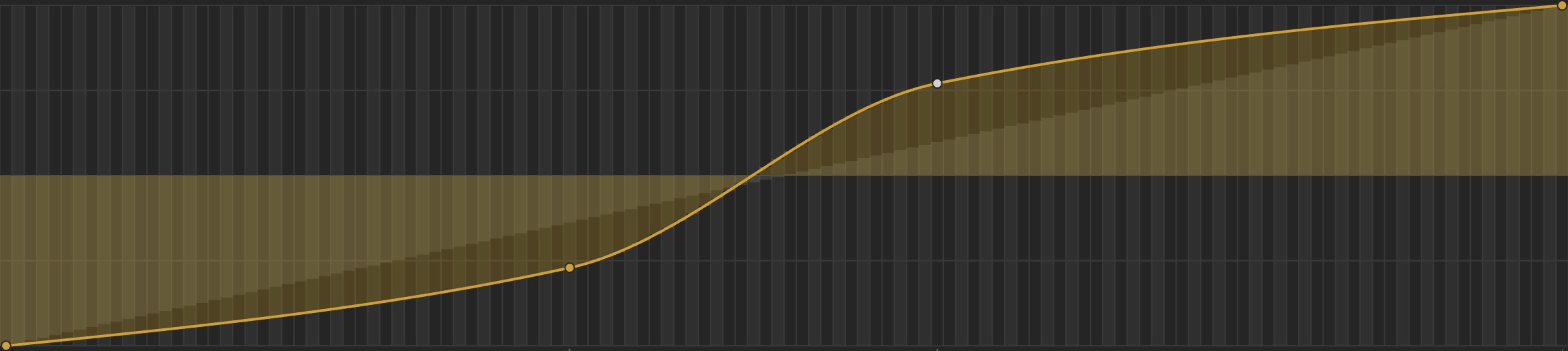
Curves establish the relationship between the MIDI input and the modulation output across the whole keyboard range, making the modulation respond to the MIDI input in a coherent way. Adjacent MIDI input values will produce incrementally changing modulation values. The curve can be drawn using any number of breakpoints, creating separate segments between them:
 |
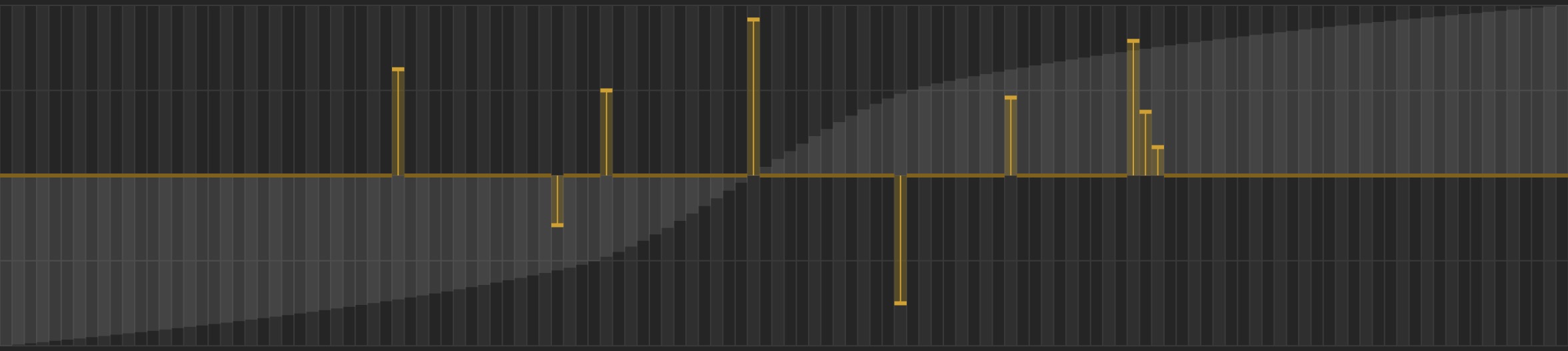
Offsets establish the relationship between specific values of the MIDI input and the modulation output. This is useful for generating modulation that responds to the MIDI input in very specific, or unexpected ways. Each MIDI input value can produce any modulation value, hence abrupt changes in modulation are possible from one MIDI input value to the next. The offsets can be set for each value individually:
 |
You can switch between curve and offsets using the different Edit modes:
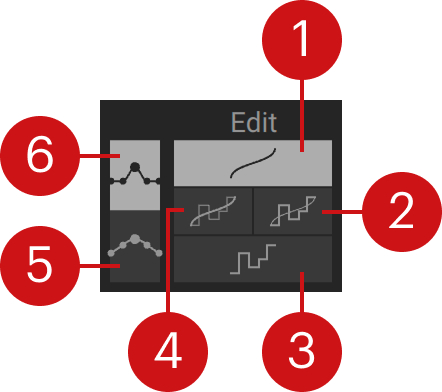 |
Curve mode: Only the curve is active and can be edited.
Clicking in the editor creates a new breakpoint.
Clicking and dragging an existing breakpoint moves it to a new position.
Right-clicking and dragging fine-adjusts in one direction without snapping to the grid.
Combined Offset mode: Both the curve and the offsets are active, however only the offsets can be edited.
Clicking and dragging adjusts the offset for multiple values.
Right-clicking and dragging sets multiple values to 0.
Clicking, holding, and then dragging up and down adjusts the offset for a single value.
Right-clicking, holding, and then dragging up and down fine-adjusts a single value without snapping to the grid.
Offset mode: Only the offsets are active and can be edited.
Clicking and dragging adjusts the offset for multiple values.
Right-clicking and dragging sets multiple values to 0.
Clicking, holding, and then dragging up and down adjusts the offset for a single value.
Right-clicking, holding, and then dragging up and down fine-adjusts a single value without snapping to the grid.
Combined Curve mode: Both the curve and the offsets are active, however only the curve can be edited.
Clicking in the editor creates a new breakpoint.
Clicking and dragging an existing breakpoint moves it to a new position.
Right-clicking and dragging fine-adjusts in one direction without snapping to the grid.
Absolute breakpoint: Sets the behavior when editing breakpoints to absolute. Moving a breakpoint only affects the breakpoint and its corresponding segments. This option is only available in Curve mode and in Combined Curve mode.
Relative breakpoint: Sets the behavior when editing breakpoints to relative. Moving a breakpoint also affects the other breakpoints by shifting their position relative to a virtual rubber band. This option is only available in Curve mode and in Combined Curve mode.